Accolent ERP is integrated with FreightPOP, a complete logistics management platform for businesses, that offers powerful, affordable, enterprise-grade features to simplify shipping and supply chain operations. FreightPOP has direct links to over 300 inbound and outbound shipping carriers covering small parcel shipments, and freight options for LTL, FTL, steamship lines and air carriers. Using the FreightPOP integration, Accolent ERP users can rate-shop, book freight, track and manage all their inbound and outbound shipping needs.
Setting up FreightPOP
- FreightPOP is a complete transportation management system that provides direct integrations with hundreds of carriers
- To use the FreightPOP TMS integration, contact ADS Solutions and we will connect you with FreightPOP
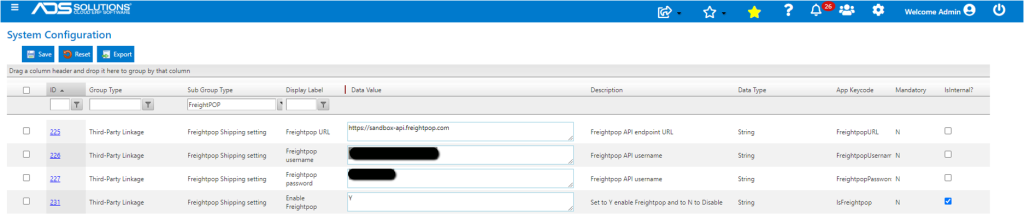
- Once you have a FreightPOP account, go to Settings > System > System Configuration and enter these configurations
Outbound Shipping
Create Order in Accolent ERP
- Go to Sales > Orders > Create Order
- Create an order, then click on the Move To Shipping button
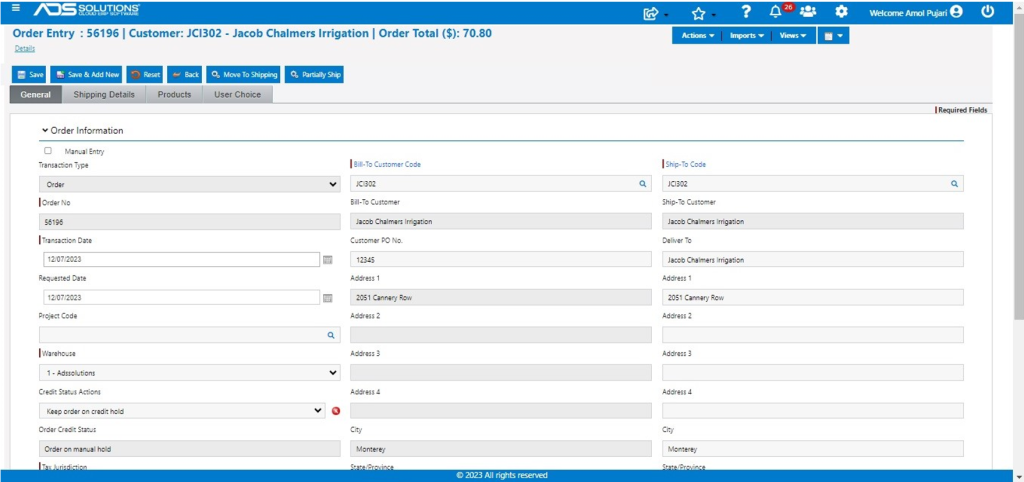
- Go to Sales > Ship Confirmation > List Shipments and search for, then open the order
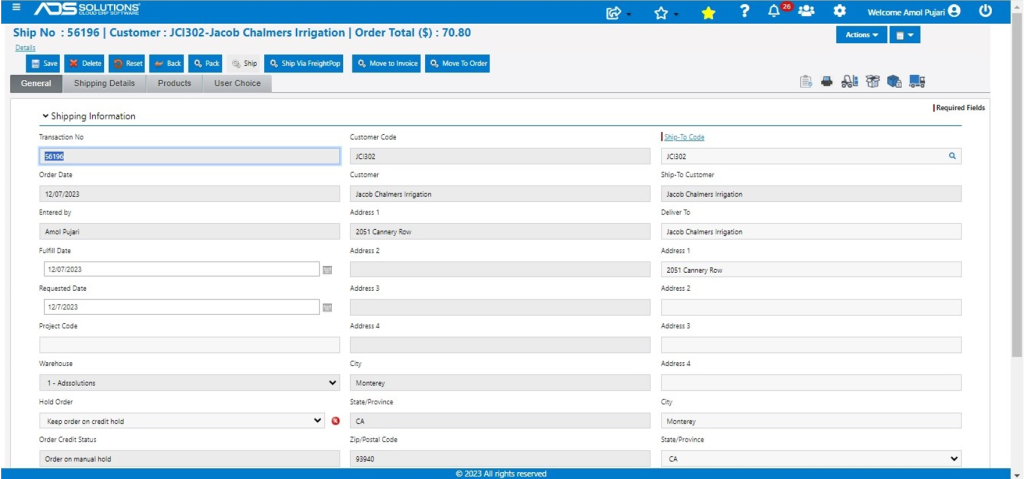
- Click on the Pack button to pack the products
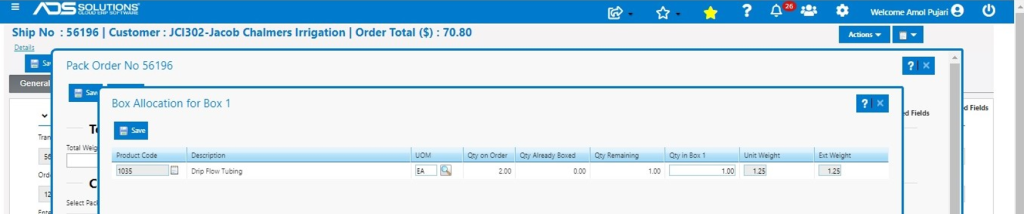
- After the order is packed, click on the Ship Via FreightPOP button to push the order to FreightPOP
- Once done the screen will display a success message
Ship the Order from FreightPOP
- Log in to FreightPOP and then click on the Quote/Ship menu
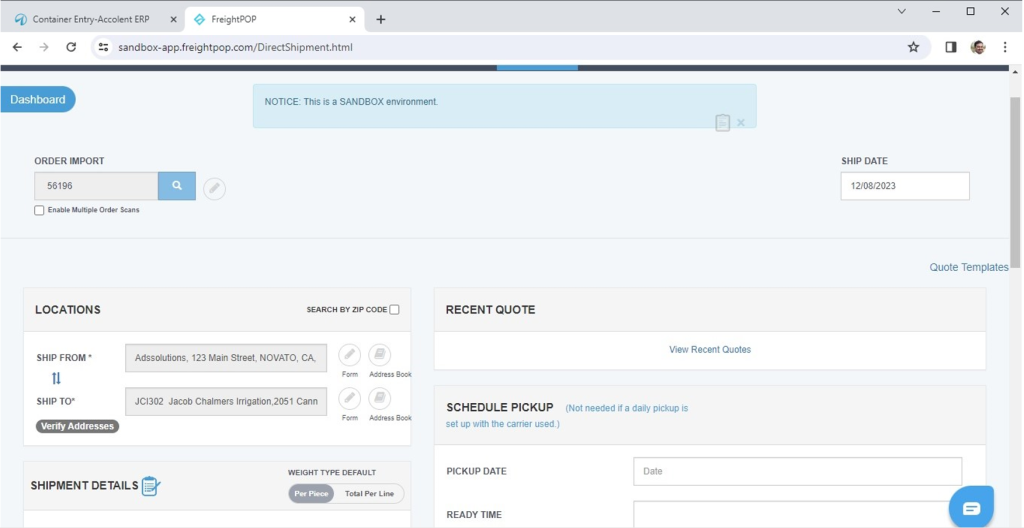
- Enter the order number, search and open order
- Select the Carrier and Service then click on the SHIP IT button
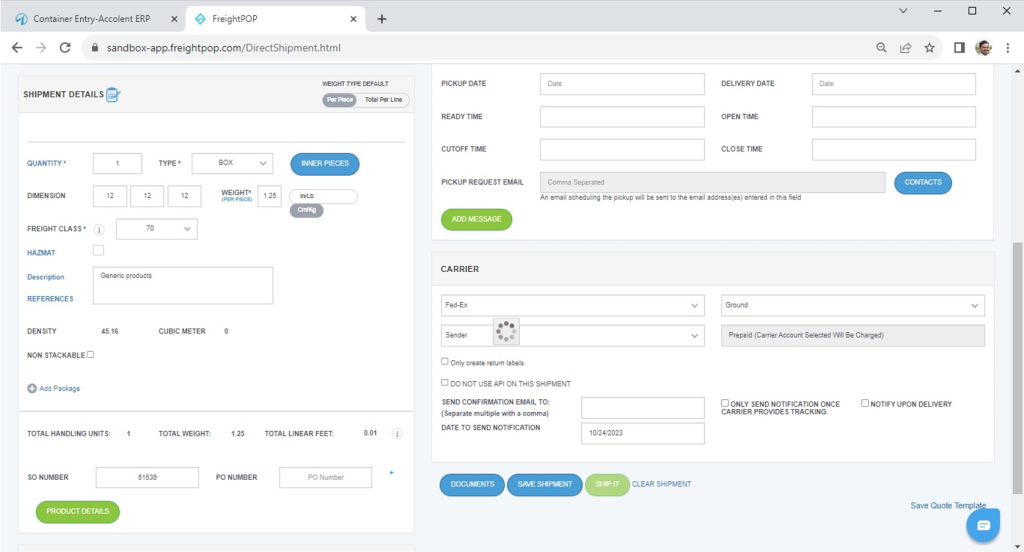
- This is the shipment confirmation details
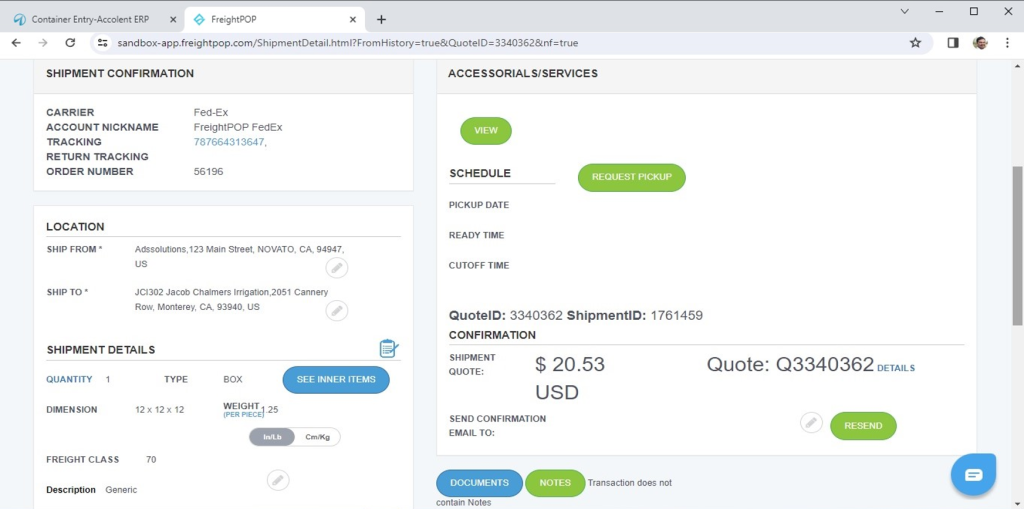
Shipping Details Updated in Accolent ERP
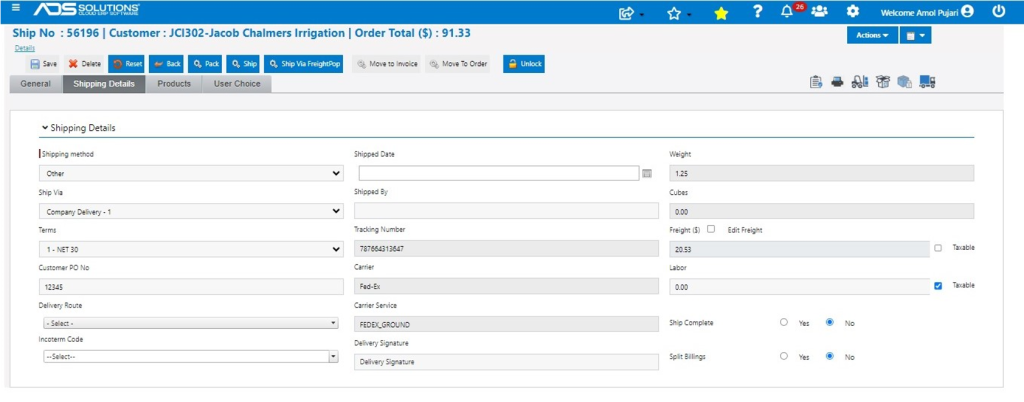
- Go to Accolent ERP Sales > Ship Confirmation > List Shipments, and open the order
- The tracking number, Carrier, Carrier Service, and Order totals have all been updated through a webhook
Invoicing in Accolent ERP
- Track the shipment through FreightPOP
- When the shipment is delivered, go to Accolent ERP and move to invoice to bill the customer and post the transaction to the GL
Inbound Shipping
Create Container in Accolent ERP
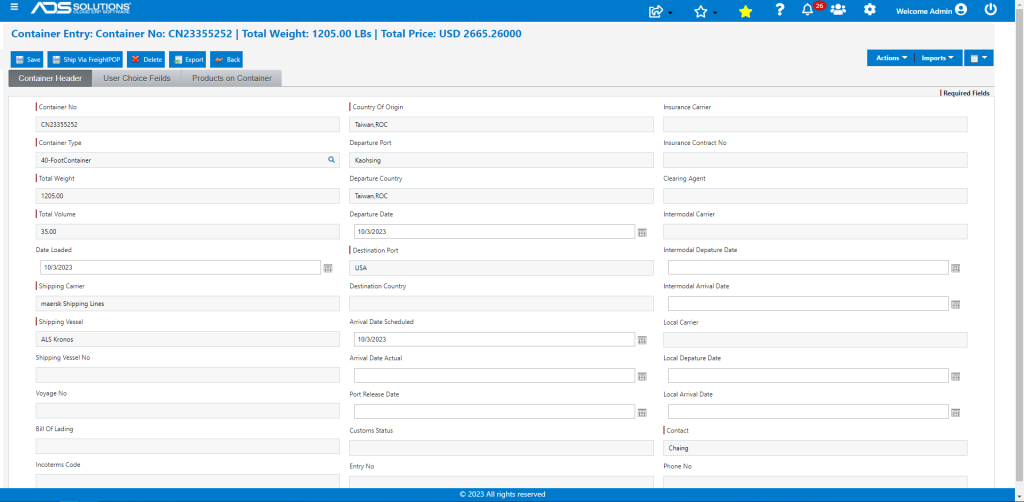
- Go to Purchasing/Vendors > List Container and create a Container record
- Use the Imports menus to import lines from one or more POs to build the Container
- When complete, click on the Ship Via FreightPOP button to push the Container to FreightPOP
- Once done the screen will display a success message
Arrange Inbound Shipping from FreightPOP
- Go to FreightPOP Dashboard > Orders > Purchase orders
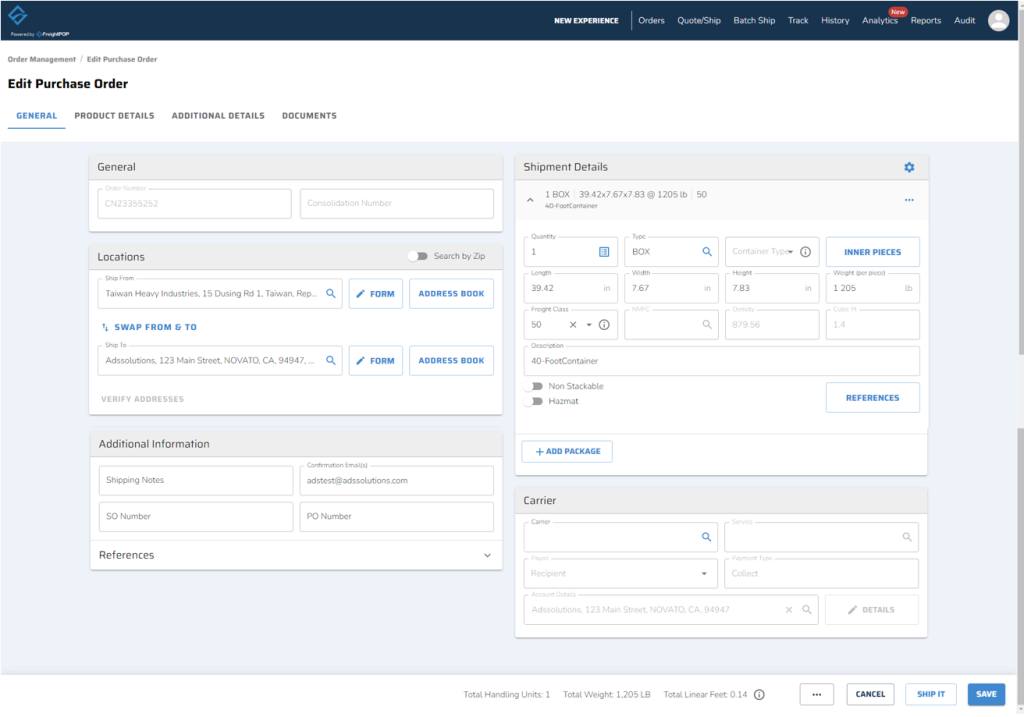
- Open Container CN23355252
- In FreightPOP verify and/or edit shippment details
- User can rate-shop freight options and select Carrier
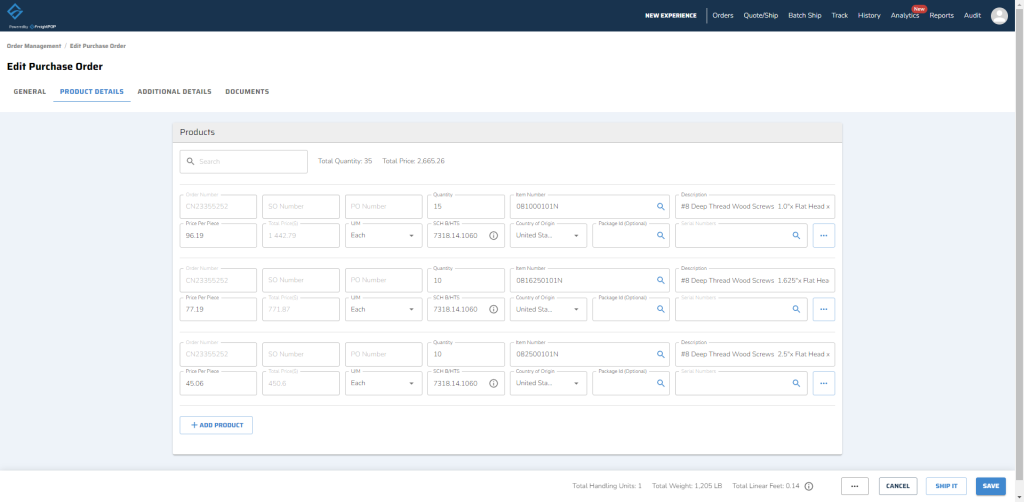
- These are the product details of the lines in the Container
- When the shipment is complete, click on the SHIP IT button
- The shipment is now confirmed
Receive PO in Accolent ERP
- Track inbound shipment in FreightPOP
- When shipment arrives and is cleared, go to Accolent ERP to Receive PO and record landed costs
Track Shipments
Track Inbound and Outbound Shipments in Real-Time
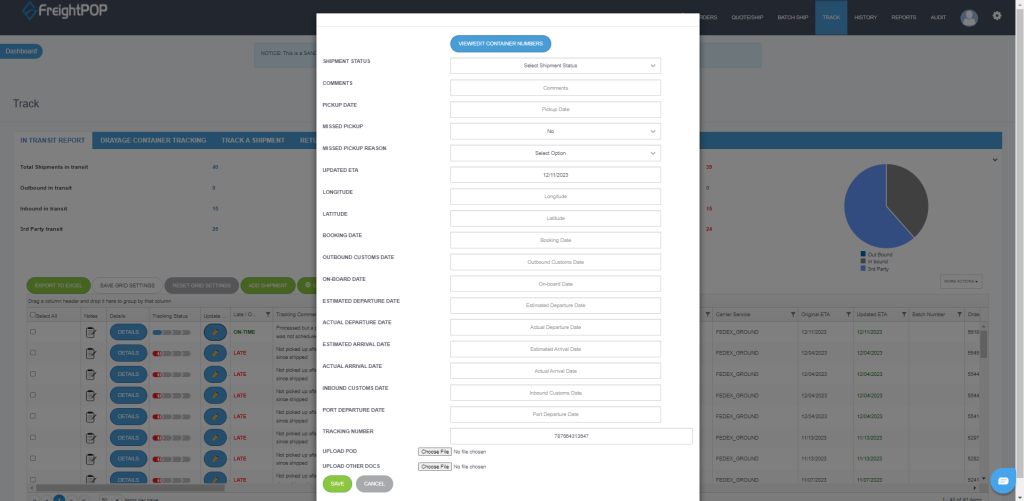
- In FreightPOP, go to the Track menu to view and track inbound and outbound shipments
- Shipment statuses are updated every few hours directly from the carriers by API, or click the button to update now
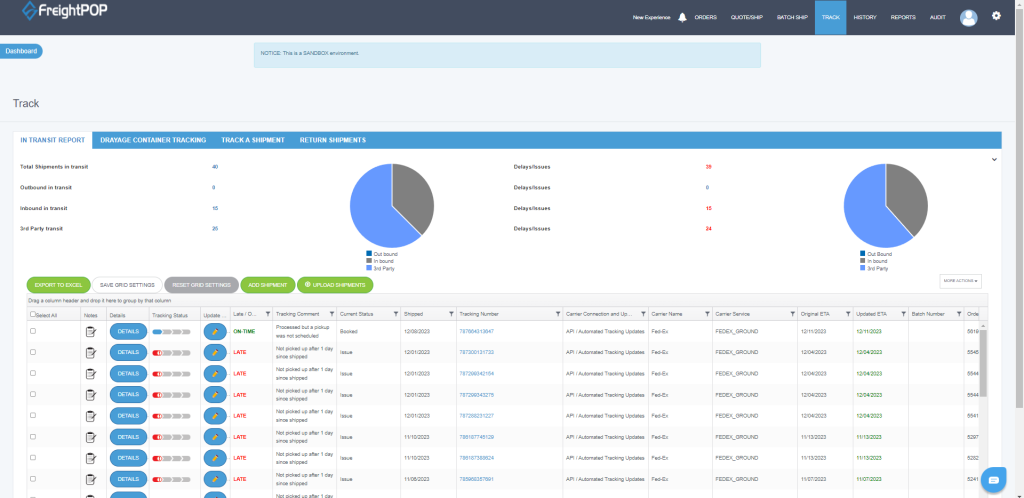
- For example, click on an inbound container to see where the shipment is by latitude and longitude and what its status is
- Also get real-time red flag alerts for shipments that are projected to be delayed allowing for proactive actions to be taken