
Accolent ERP supports Projects and percent of completion accounting typically used in construction and construction supply business models. A Project is linked to a customer and includes multiple orders. The Project can specify a start date, an end date, a current status, a fixed price agreed to with the customer for completion of the Project, and the original estimate that the price was based on. Orders that make up a Project can include products and services items and products can be supplied from inventory or special ordered as needed. Using the Projects features, orders can be managed by Required Date which is the date the goods are needed on site. Orders can also be organized based on Stage and Type and 3 other user defined fields.
Overview – Projects
- In Accolent ERP, a Project is an entity that stores information on the project as a whole – this is the Project Header
- The Project can be thought of as a grouping of quotes, orders, shipments, and invoices under a specific Project Code
- The Project Orders & Invoices tab lists all the orders linked to the Project and shows dates at which various sequential actions need to be taken for each of the orders linked to the Project
- These dates are used to ensure that all orders are picked from inventory, or received on special order POs, staged and released to the job site to ensure just-in-time delivery
- The dates are calculated from the Requested Dates which are interpreted as the deliver-to-site dates and serve as a project timeline of when specific actions need to be taken with respect to each order
- The dates are updated based on when actions are actually taken, and the following dates in the sequence are updated accordingly
- If the date for an action has passed without the action being taken, the screen will identify that this has been overlooked
Overview – Process Workflow
- The typical flow for a construction project will entail the following steps:
- Download the quote CSV template and use this to “take off” all the required goods and services from the architectural drawings
- Then upload the CSV template to create a quote in Accolent ERP
- Using the Bid Calculator and Order Line Profit options in Accolent ERP, refine and submit the quote as the contract bid
- Once the quote is accepted create the Project, link the quote to the Project and enter the Contract Price and Contract Cost on the Project
- Use the quote CSV template to update each of the lines with the Requested Date based on the construction schedule, add columns for Vendor and Vendor Lead Time (which will be zero for items supplied from inventory)
- Then sort the CSV by Vendor Lead Time then by Requested Date
- Using the CSV import the lines off the quote and create orders
- User can create as many orders as are needed to complete the Project and deliver goods to the job site when needed
- Each order should include only items with the same Requested Date and Vendor Lead Time
- Then link each order to the Project
- Once this is done the Project Orders & Invoices screen will keep track of the actions needed for each order
- The order actions in sequence are to (1) Move to Fulfillment to automatically create the POs for special order items or the pick tickets for inventory items, (2) Submit PO to send POs to Vendors for special order items, (3) Receive PO to record receipt of the special order items from the Vendor and (4) Move to Invoice to release items to the job site
- As orders are invoiced (i.e., released to the job site) the system will update the Cumulative Cost and calculate the Percent of Completion
- With Percent of Completion accounting, orders that are invoiced will post only the cost side of the transaction; the cumulative cost compared to the original Contract Cost will calculate the percent of completion
- When the contract billing milestones are met, create Manual Invoices to create the billing based on percent completion
Configuration to Enable Projects
- Set config ID 233 for Application Settings | Projects | Enable Projects to Y

Create Quote
- Download the CSV template used to import quote/order/immediate invoice lines into transactions – See this wiki: https://help.accolent.net/importing-quote-order-invoice-line-items/
- Then “take-off” all materials to be supplied from the architectural drawings and enter into the CSV template
- The CSV template has fields for Product Code, Product Description (not required), UOM, Qty, Stage, Type, UCF 3, UCF 4, UCF5 (these 5 user choice fields are not required)
- The completed CSV template can be imported into a quote, modified as required and then submitted as the contract bid
Create Project
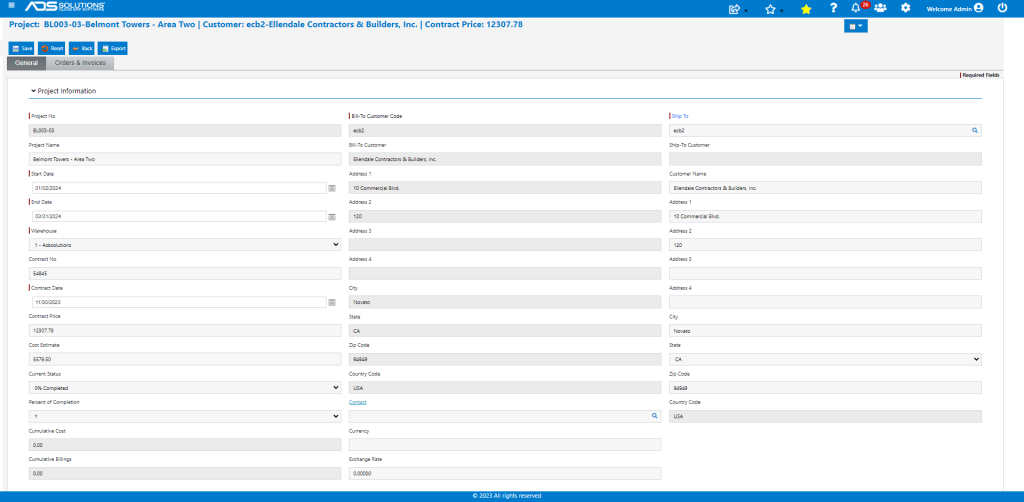
- Once the bid is accepted, go to Projects > Create Projects to create a new project
- Complete the Project header table with Start Date, End Date, Contract Cost and Contract Price
- Specify whether the project uses Percent of Completion accounting or not
- Link the accepted quote to the Project as the record of what was included and how the quote was priced
List Projects
- Once created Projects are displayed on the List Projects screen together with the Start Date, End Date, Current Status, Contract Cost, Cumulative Cost, Contract Price and Cumulative Billings
- The Current Status can be updated from time to time to visually show progress
- Multi-line, project level comments can be added on this screen

Create Orders Linked to the Project
- Use the CSV template for the quote to organize the lines by Requested Date and Vendor Lead Time; this is the basis for creating the project orders
- Multiple orders can be created to break the Project down into construction phases
- All lines on an order will have the same Required Date
- All SPO lines on an Order should be for vendors that have the same or similar Vendor Lead Time (Note items supplied from inventory will have a zero value for Vendor Lead Time)
- Import lines from the quote to create the orders and link to the Project
- Each order linked to the Project will be displayed on its own header row and will have a child table that can be expanded to show further details
- In the order header row in addition to the Requested Date there are 4 Dates: Move to Fulfillment PO Submitted, PO Receipt and Move to Invoice Date, corresponding to the sequential steps that are taken to process the order
- The 4 dates indicate when actions should be taken to process the order to the next stage
- Initially, these 4 order header dates are calculated as follows:
- Move to Fulfillment = Requested Date – Vendor Lead Time – Staging Days
- PO Submitted = Move to Fulfillment
- PO Receipt = PO Submitted + Vendor Lead Time
- Move to Invoice = PO Receipt + Staging Days
- When the order is Moved to Fulfillment, (a) both the order header and the child table record the date, (b) the following 3 dates in the order header are recalculated based on this and (c) if it is a Special Order, the child table records the POs created
- When the PO is Submitted, (a) both the order header and the child table record the date, and (b) the following 2 dates in the order header are recalculated based on this
- When the PO is Received, (a) both the order header and the child table record the date, and (b) the following date in the order header is recalculated based on this
- When the Order is Invoiced, (a) both the order header and the child table record this as the actual release date and (b) the cumulative cost on the project is updated
- If on any order, the target date for one of the above four actions has passed and the action has not been taken, the dates will be displayed in red as an alert
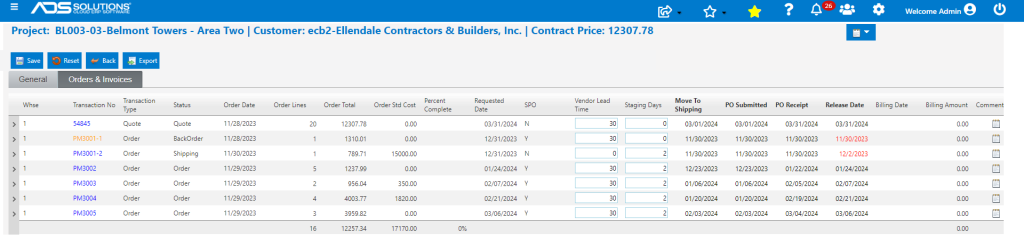
- For example, PM3001 has a Requested Date of 12/31/2023, so:
- the Move to Fulfillment Date was originally 12/1/2023
- the expected PO Date was 12/1/2023 and
- expected PO Receipt Date and expected Release Date were 12/31/2023
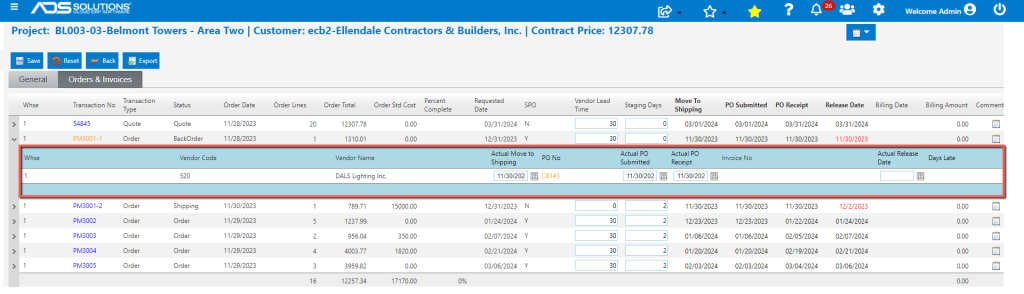
- Expanding PM3001 shows that it was:
- actually Moved to Fulfillment on 11/30/2023
- which created PO C8143 that was sent to the Vendor on 11/30/2023
- and somewhat improbably, the PO was actually received on 11/30/2023
- and so, the Release Date was expected to be 11/30/2023
- Since 11/30/2023 has passed without the order released to the site, this date is shown in red
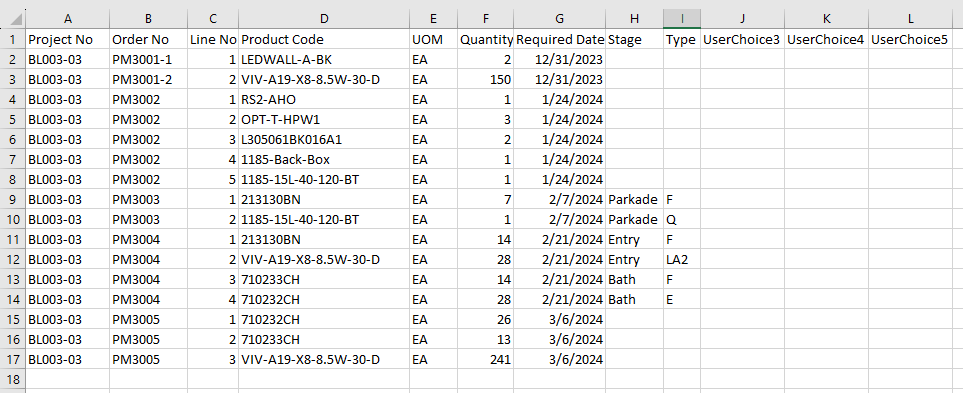
Export of all Project Order Lines
- Once all the project orders have been entered, the Export button will allow export of all project line items together with the 5 user choice fields to a CSV file
- This flat file can be compared to the take-off CSV to ensure all items are accounted for
- The flat file can also be used to keep track of the stages of the construction project
- This is the exported CSV file
Sales-Side GL Posting for Projects
- If Project uses percent of completion accounting, then any order inside the Project when invoiced, will create only the cost-side GL Posting (Debits Cost of Sales and Credits Inventory)
- The sales-side will be posted when a contract billing is made
- To bill for a contract milestone having been met, create a Manual Invoice and link to the Project
- The Manual Invoice will create the sales-side GL Posting (Debits Accounts Receivable and Credits Revenue)
Change Orders
- Change orders are additional orders that can be added to the Project
- First create a quote for the requested changes and submit
- Once the quote for the requested changes is accepted, the Project Price can be adjusted based on the accepted quote
- Then, create one or more change orders to reflect the changes included in the accepted quote
- Both the accepted quote and the change order(s) can then be added to the Project
- We have a comprehensive internal notes capability attached to the Project that will date/time stamp all comments which can be organized by subject