The Accolent Payment Portal is a separate application linked to Accolent ERP. The Accolent Payment Portal allows Accolent ERP users to give their customers access to an online portal that shows each customer only its own open invoices aged from the date of the invoice. Once registered to use the Accolent Payment Portal, customers can then select one or more invoices and pay them with a credit card or ACH. The Accolent ERP user will need to use the Accolent ERP/Fiserv integrated payments. Fiserv is one of the largest payment processors globally. By automatically processing Level 2 and Level 3 data, Fiserv optimizes interchange charges ensuring the lowest possible rate on every transaction.
Access to the Payment Portal
- To enable the Payment Portal, contact ADS Solutions.
- The Accolent Payment Portal can be accessed from a URL that will be provided to you once you sign up.
- The Accolent Payment Portal URL will have the form: https://companyname.accolenterp.solutions/AccolentMVC/PaymentPortal/login.
- The companyname will be the name of the Accolent ERP user (e.g., ABCSupply).
- Accolent ERP users can purchase the Payment Portal which is offered based on the number of simultaneous end-users allowed (just as with the Self-Service Portal).
- The base tier for the Payment Portal (as with the Self-Service Portal) allows 30 simultaneous end-users.
- The 31st end-user trying to login will get a message that the system is busy and be asked to try again later; the end-user will also be asked to contact the Accolent ERP user.
- Additional tiers can be provided to allow additional 30 simultaneous end-users per tier.
Customer Registration
- Once the Payment Portal is live, Customers’ end-users can go to the Payment Portal and SIGN UP.
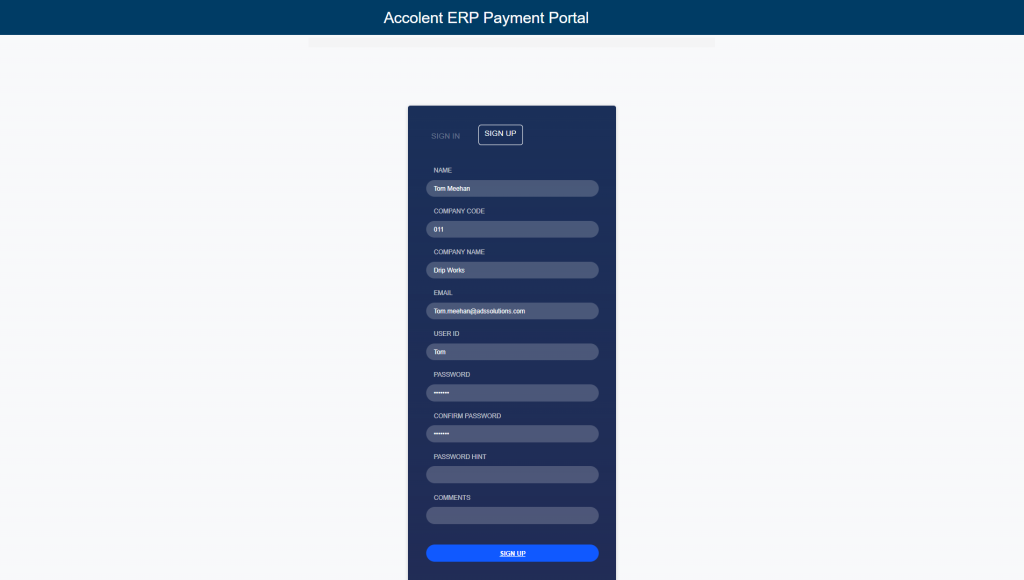
Approve the Registration
- Go to Settings > eCommerce Admin > Payment Portal > New Portal Users to approve the end-user’s registration.
- Link the end-user to a Customer in Accolent ERP.
- Enter an Internal Confirmation Email for the individual at the Accolent ERP user that will receive a confirmation email when a payment is made from the Payment Portal.

- Once this end-user is approved, the end-user will have access to the Payment Portal.
- The approved end-user can be seen on Settings > eCommerce Admin > Payment Portal > Portal Users.
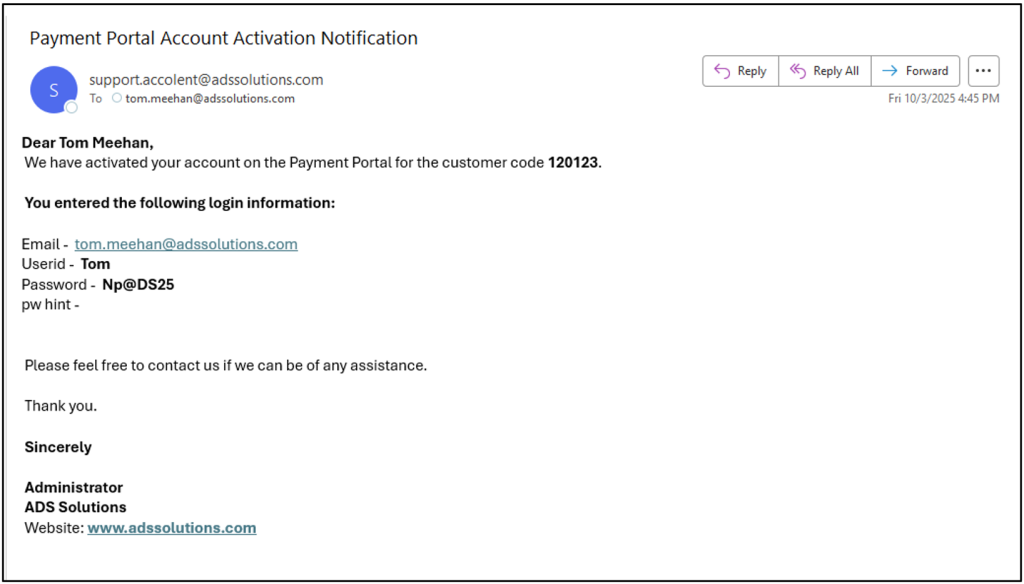
- Both the administrator and the approved end-user will receive an email notification.
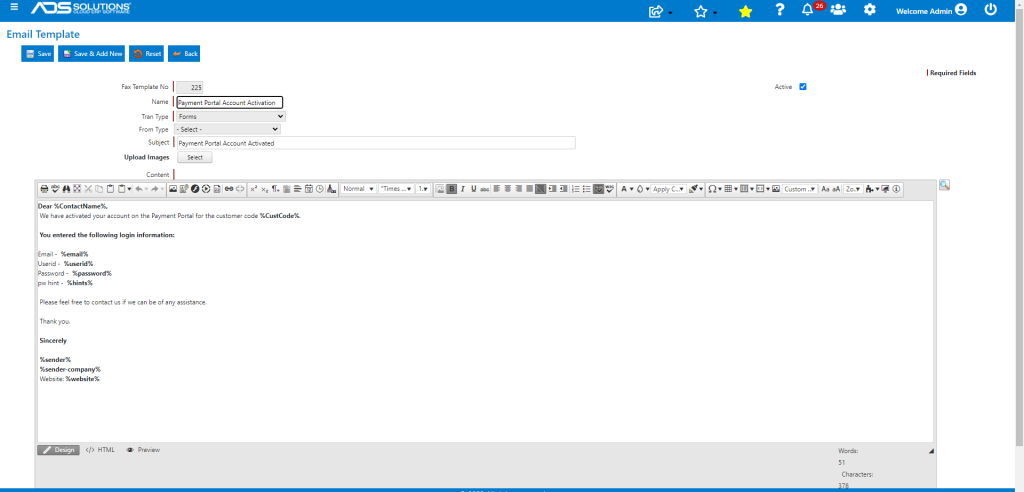
- All Payment Portal email notifications can be configured from Settings > Printing & Sending > Email Templates.
- This is the > Payment Portal Account Activation email.
AR Aging in Accolent ERP
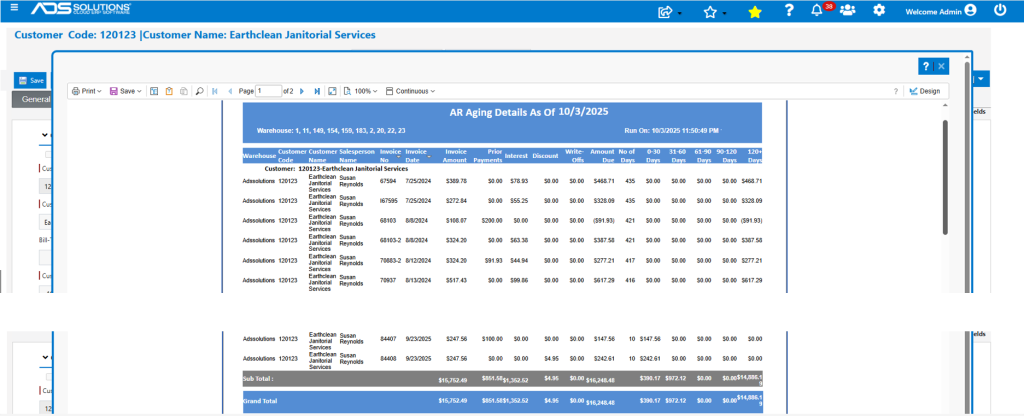
- This end-user is linked to Customer 120123-Earthclean Janitorial in Accolent ERP.
- As of 10/3/25, the AR Aging for 120123-Earthclean Janitorial shows an Amount Due of $16,248.48.
Payment Portal
- When an end-user clicks on the Payment Portal link it opens the login screen.
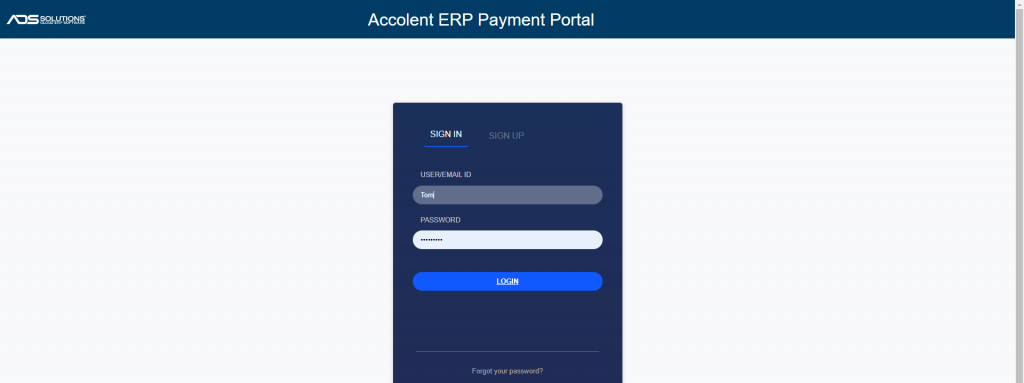
- From here the end-user can login, sign up (i.e., request a registration if end-user doesn’t have one already) or reset the password.
- Once logged in user will get the Payment Portal home screen.
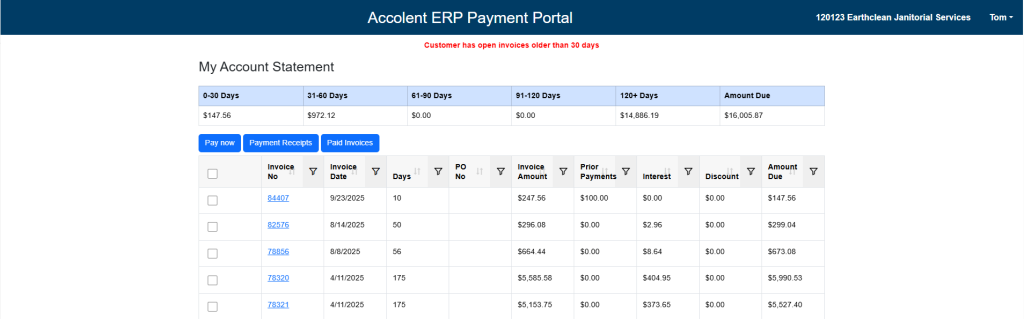
- Whenever an end-user opens the Payment Portal the customer’s credit hold message will be shown in red at the top of the screen, together with the Customer’s current statement and aging and a grid showing all open invoices.
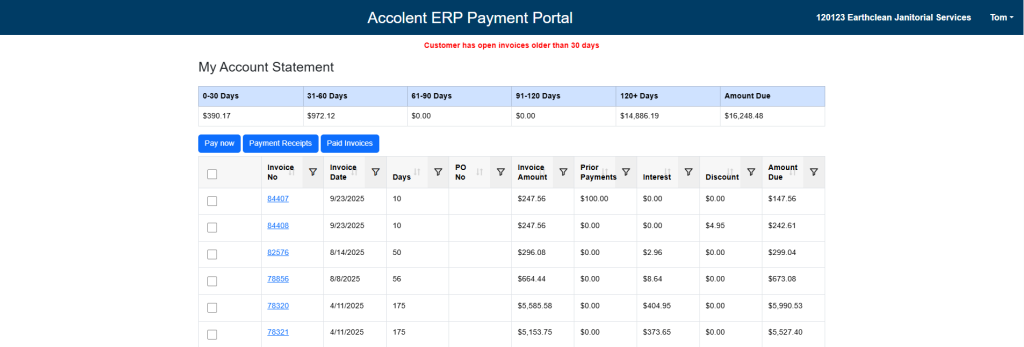
- The Payment Portal balances will always match the Customer’s open AR Aging in Accolent ERP.
- Each invoice hyperlink shown on the Payment Portal will open a PDF of the invoice.
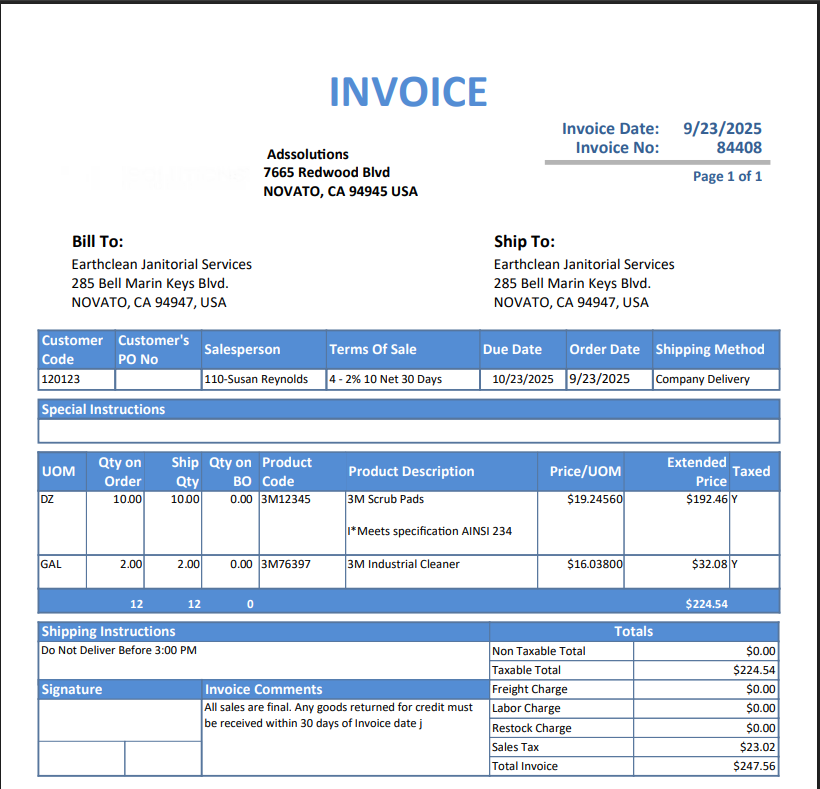
- The end-user can select invoices to pay and click the Pay now button.
- This will open the Fiserv virtual terminal allowing the end-user to pay using a saved credit card, entering a credit card or ACH credentials.
- Note that saved credit card credentials are tokenized and are securely saved behind Fiserv’s firewall (see this wiki: Accolent ERP/Fiserv Integrated Payments).
- Select invoice 84408 for total of $247.56 and click Pay.
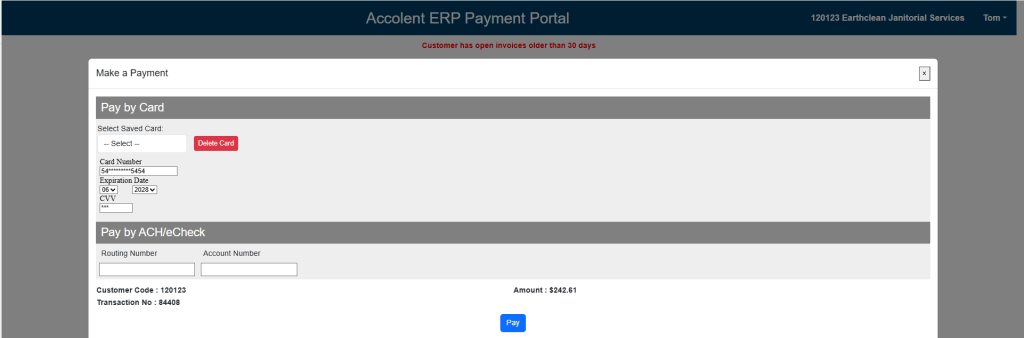
- The end-user can enter a credit card or select a saved credit card or pay by ACH.
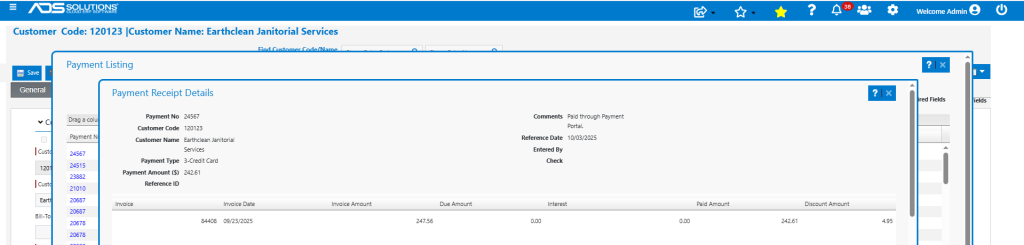
- Successfully took payment of $242.61 net of payment terms discount.
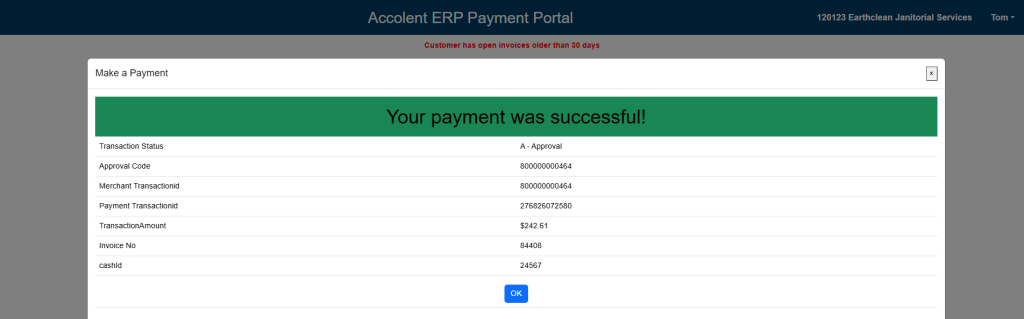
- Both the Payer and the Internal Confirmation Email address will receive a Payment Confirmation Notification by email.
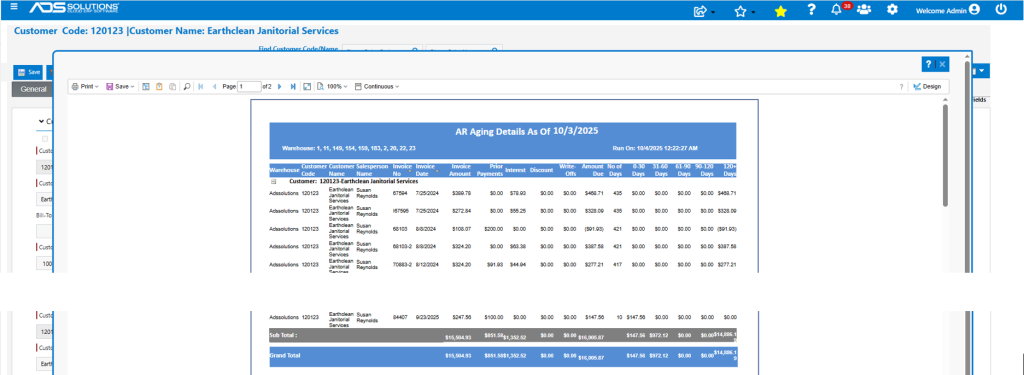
- Click OK. The Payment Portal grid no longer shows 84408 and the Amount Due is now $16,005.87 reflecting the payment of $242.61.
- The Payment Portal shows all payments made by the Customer, including this payment.
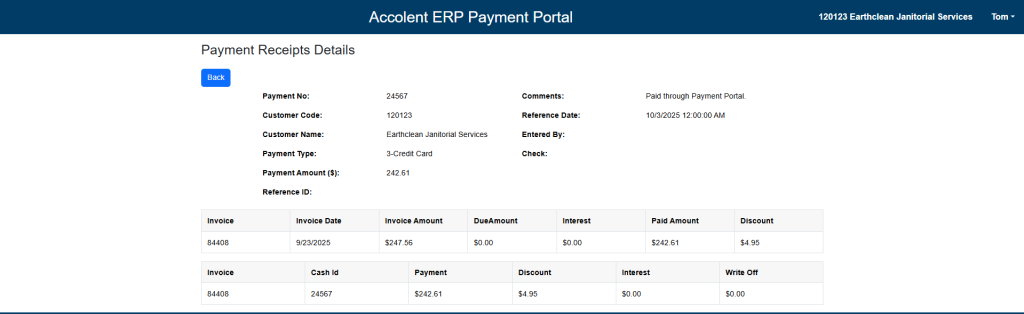
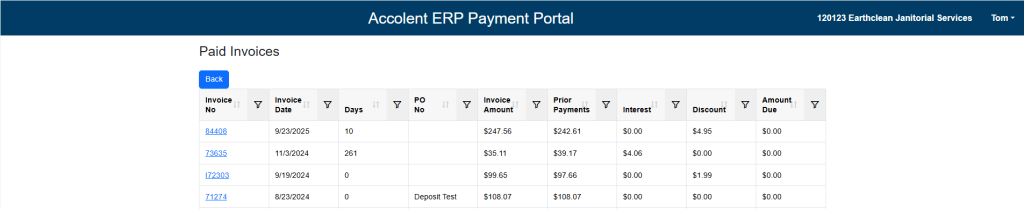
- The Payment Portal also shows Paid Invoices.
Accolent ERP Updated Immediately
- The Customer’s AR Aging in Accolent ERP immediately reflects the payment made.
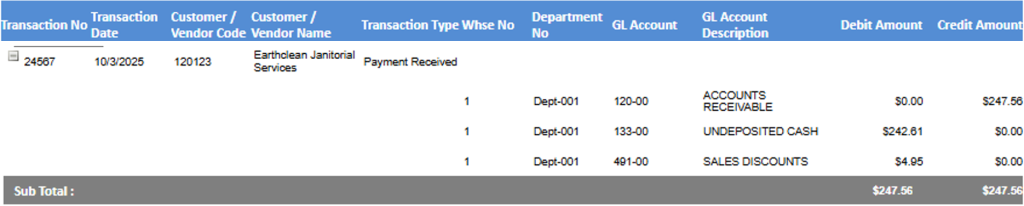
- The payment made is recorded in Accolent ERP.
- The Paid Invoices in Accolent ERP also reflects the payment made.

- This is the GL Posting in Accolent ERP.