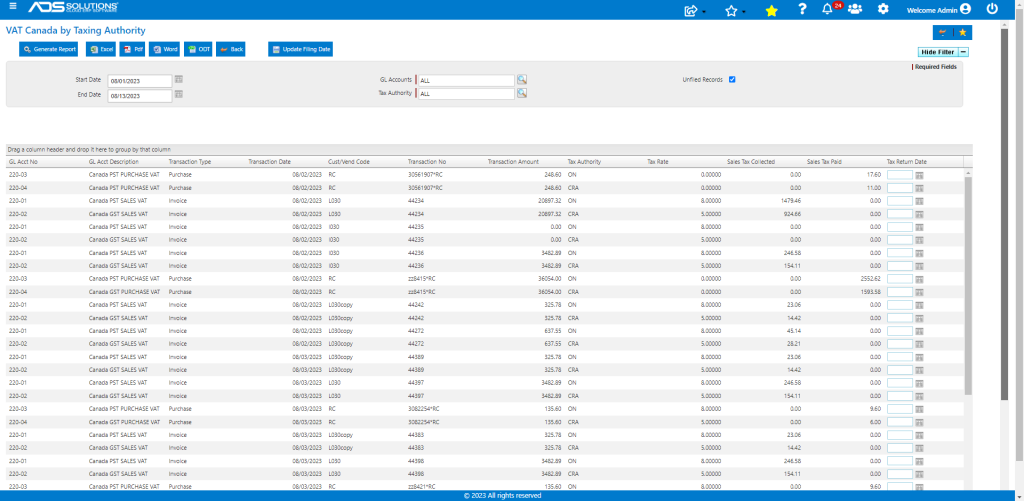
Accolent ERP supports VAT for Canada (and other non-US jurisdictions). To use first go to the Configuration screen and enable VAT Canada, then setup the Canadian tax jurisdictions. Then set the voucher allocations on vendors to include the Provincial Sales Tax (PST) and the Canadian Goods & Services Tax (GST). Once done, all sales transactions will automatically record PST and GST based on the ship-to Province and all purchases will record Input Tax Credits (ITCs) based on the Province in which the ITCs are paid.
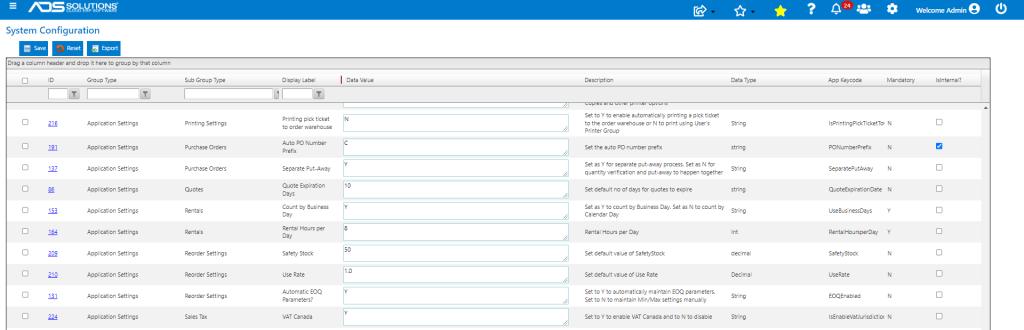
System Configuration
- Set the functional currency and the currency symbol

- By default, the system is set up for US Sales Tax
- To enable VAT Canada, set Config ID 224 to Y
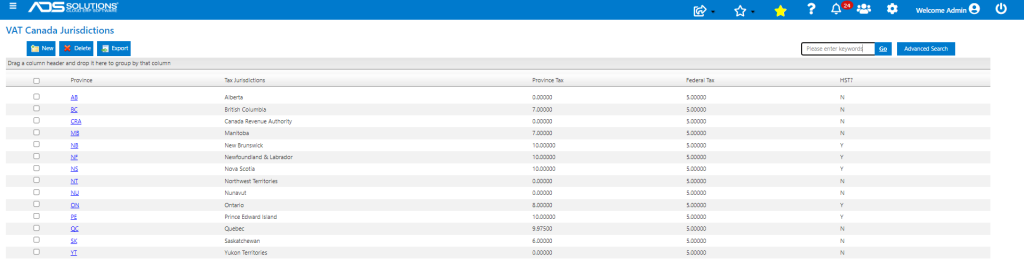
VAT Canada Jurisdictions
- Go to Settings > Value Lists > Other Value Lists (M to Z) > VAT Jurisdictions to review the VAT Canada settings
- All 13 Provinces/Territories plus the Canadian Revenue Authority (CRA) have already been set up
- Each of 13 Provinces/Territories has a PST rate: 4 Provinces have a zero PST rate, 4 collect PST directly, and for the other 5 HST (Harmonized Sales Tax) Provinces, PST is collected through CRA
- All GST has a GST rate of 5% and is collected by CRA
- Click on any the hyperlink for any Province to edit the VAT details
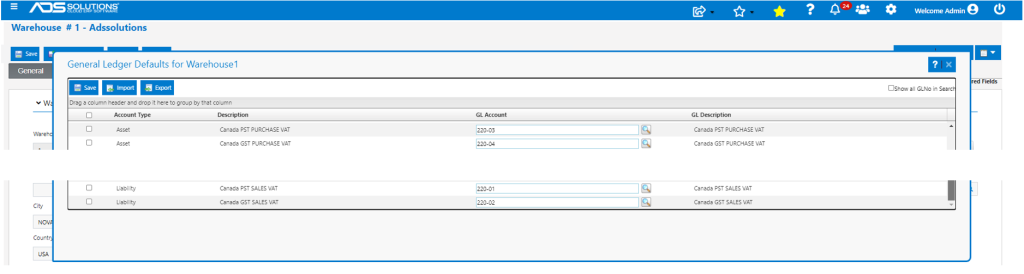
Warehouse GL Defaults
- Warehouse default GL Accounts must be set for PST (Sales), GST (Sales), PST (Purchases), GST (Purchases)
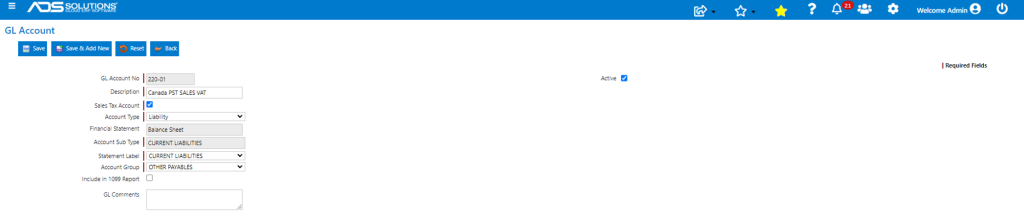
- PST has 2 GL Accounts: one for sales 220-01 and one for purchases 220-03
- GST has 2 GL Accounts: one for sales 220-02 and one for purchases 220-04
- If VAT Canada=N, these GL Defaults will be hidden
GL Accounts
- Create GL Accounts for PST and GST
- Make sure to select checkbox for Sales Tax Account=Y for all 4 GL Accounts
Create Canadian Customer
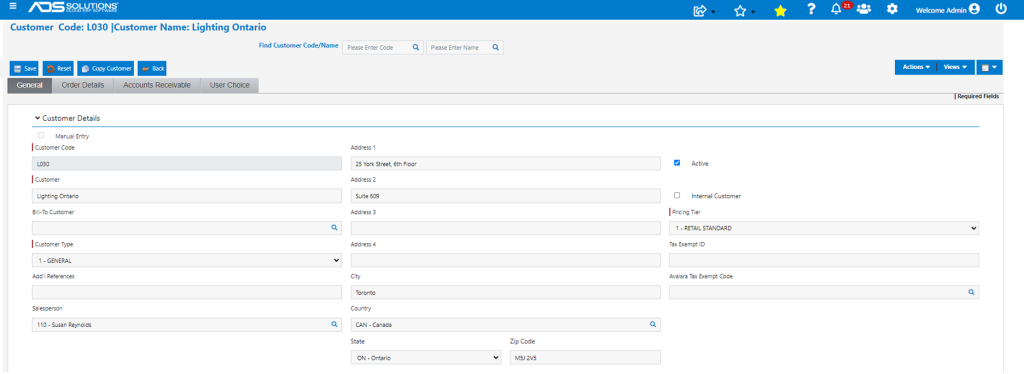
- Since VAT Canada=Y the Tax Jurisdiction (US) field is hidden
- Create customer L030 with address in Toronto, ON
Recording VAT on Sales
- Go to Settings > Printing & Sending > Forms Setup, and for 102-Invoice.Form, select the Invoice_Template(VAT).mrt variation
- Create Order 45313 for Customer L030
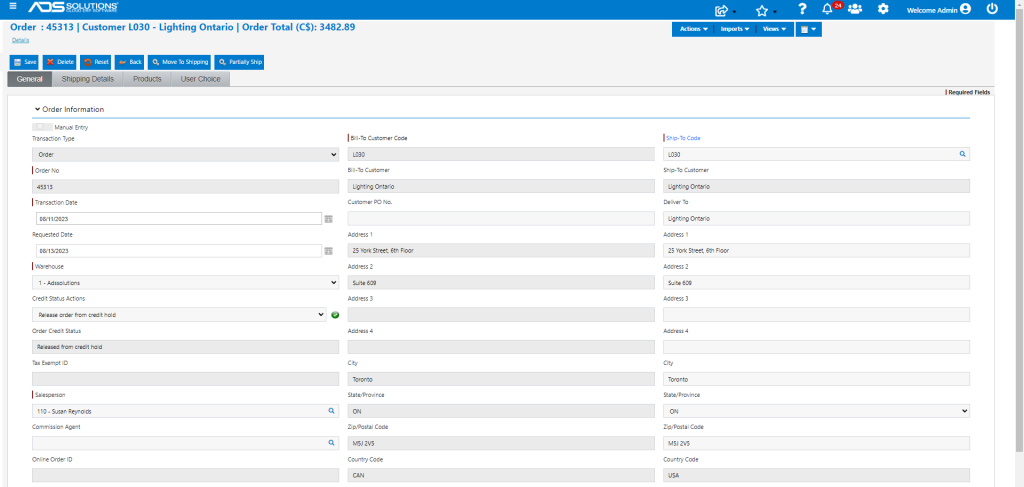
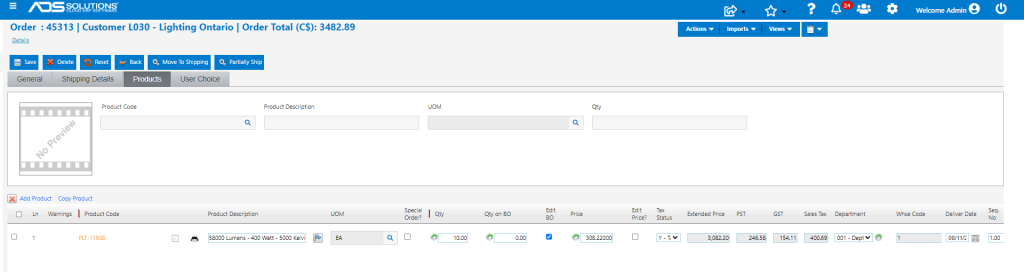
- PST and GST are automatically calculated for an Ontario transaction
- Move order to shipping then to invoice
- Invoice form shows VAT PST (ON) and VAT GST
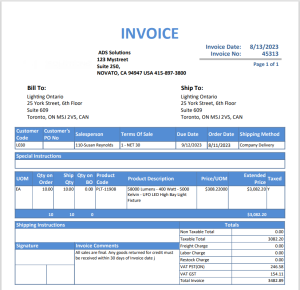
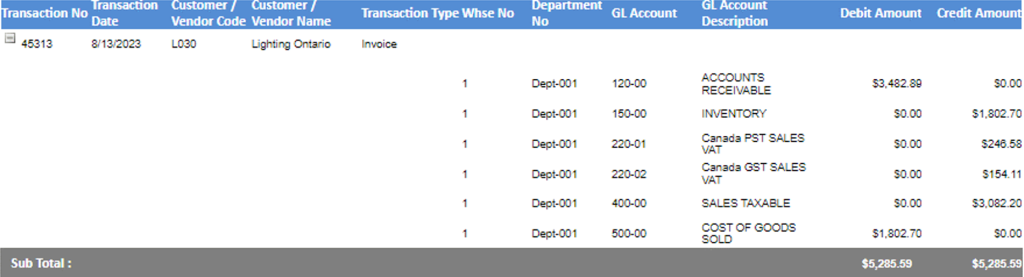
- The Sales Tax collected for PST (ON) is posted to GL Account 220-01 and the GST collected posted to GL Account 220-02
Create Canadian Vendor
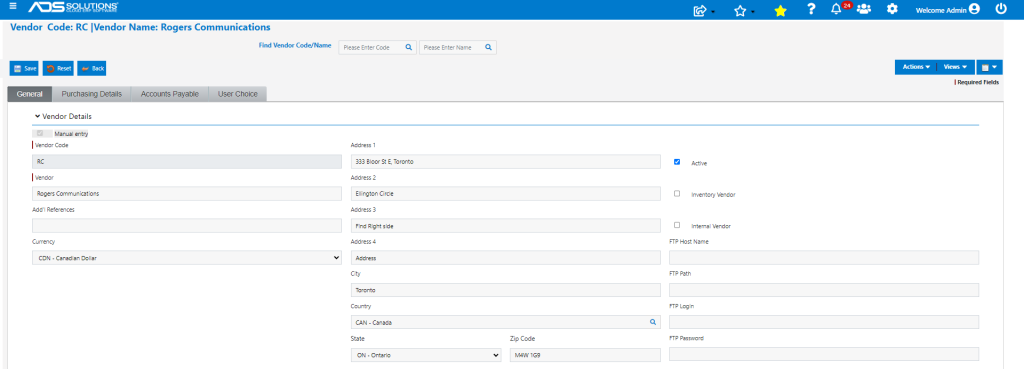
- Create Canadian Vendor based in Toronto, Ontario
- Vendor RC is created as a non-inventory vendor
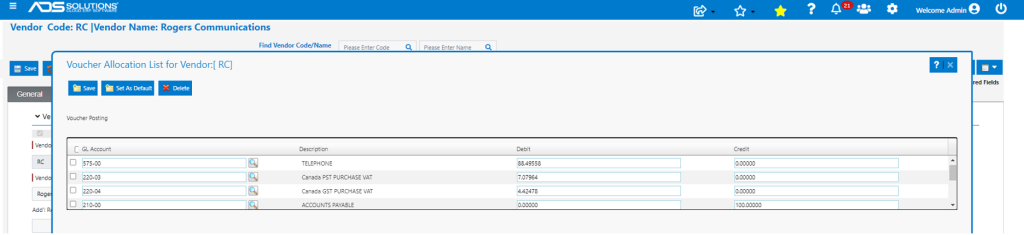
- Go to Actions > Voucher Allocations
- Set up the PST and GST voucher GL defaults for Ontario these are respectively 8% and 5% of the goods/services purchased so split of total will be respectively 7.07964% and 4.42478%
Recording VAT on Purchases
- For purchases, VAT will be charged by the Vendor and paid by the Distributor
- For example, assume purchase of Business cell phone service from Roger’s Communications Cantel
- Bill is for C$120.00 plus C$9.60 for PST (ON) and C$6.00 for GST (CRA)
- Create Voucher to pay Rogers Cantel invoice 3082254
- From Vendor’s invoice, enter Receipt Amount Paid=C$135.60 for total paid
- Enter sum of PST and GST of $15.60 as a Non-Discount Amount
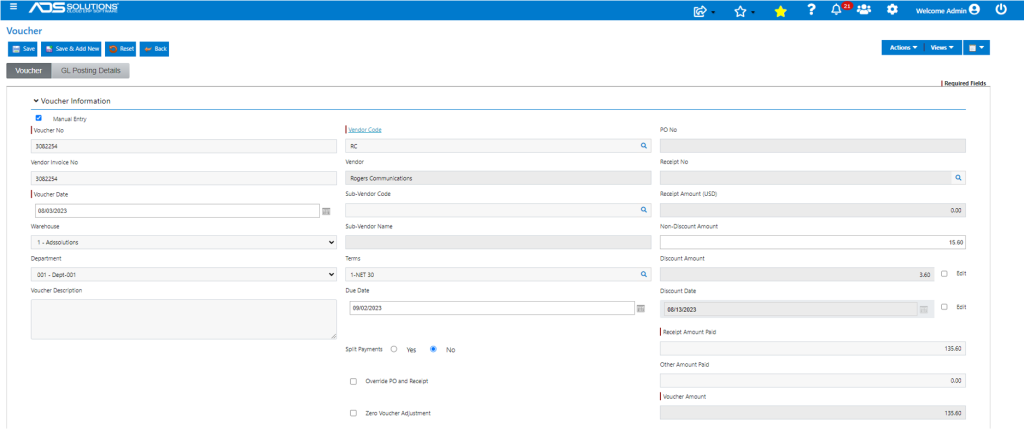
- With saved Voucher allocations, total will automatically be split correctly
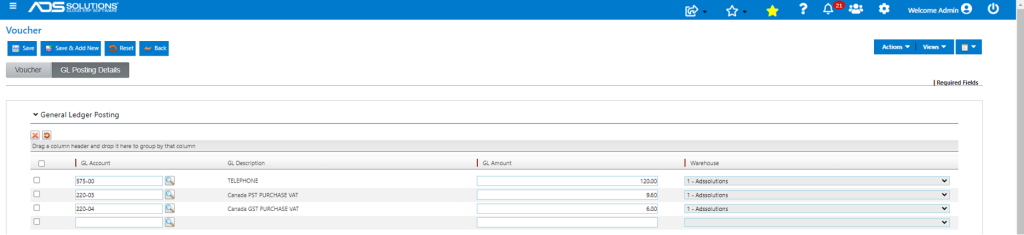
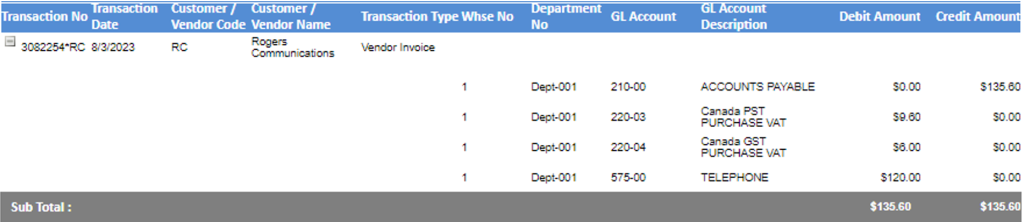
- The PST (ON) paid will be booked to GL Account 220-03 and the GST paid to GL Account 220-04
VAT Filings
- If GL Account has Sales Tax Account=Y, then all Sales Tax GL Postings also write to a Sales Tax Filings Table that includes the information necessary to report the transaction on a VAT filing
- Open VAT Report: VAT Canada by Taxing Authority

- Report can be filtered by Date Range, GL Accounts (one or more) and Tax Authority (one or more)
- By default, the report will display Unfiled Records only but, by unchecking Unfiled Records, can show all records within the selected date range
- By filtering the table by Taxing Authority, returns for each Province as well as the filing for CRA (including HST Provinces) can be created
- Once the table is correctly filtered, the results can be exported to Excel for submission
- Then enter the return date and click Update Filing Date to mark the records as filed