
Accolent ERP allows for barcodes to be set up as product synonyms in several ways. Users can either (1) scan a manufacturer’s barcode into a product’s synonym field, (2) generate a custom barcode for a product using the selected barcode format and scan this into the product’s synonym field, (3) manually key in the multi-digit alphanumeric string represented by the barcode or (4) import a list of manufacturer’s barcodes using one of the Accolent ERP bulk imports. Once barcodes are set up as product synonyms, scanning a barcode will be immediately recognized by Accolent ERP as the product code. Using barcoded labels for products and/or bins cuts down on the need to look up or manually enter product codes.
Default Barcode Type
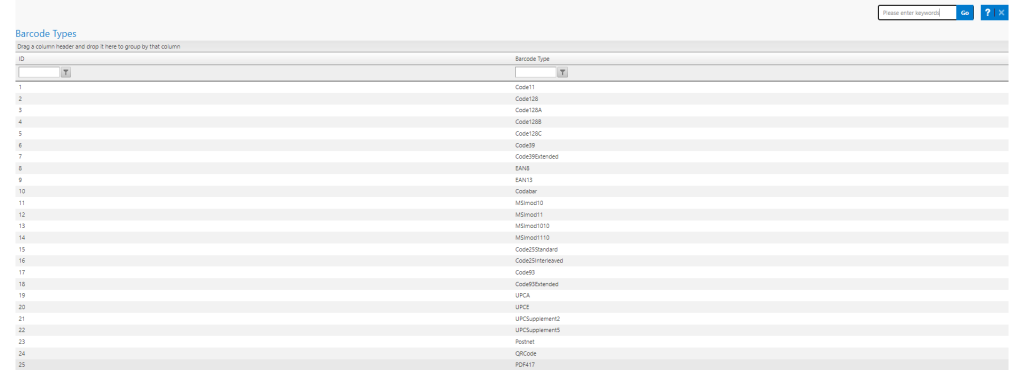
- First go to Settings > System > System Configuration and set the default barcode type to be used throughout the system.
- Click on the Select Barcode Type hyperlink, select the barcode type, then copy (Ctrl+C) and paste (Ctrl+V) the barcode name into the System Configuration Data Value field.

Setting up Synonyms on Product Master
- Barcodes of various types can be stored on the product master under Actions > Synonyms screen.
- Once saved on the product master, when scanned, the system will recognize the product and UOM from the scanned barcode.
- One barcode of each type can be designated as the primary barcode that will print on the Printing Barcode Labels screen.
Barcode Types
- Accolent ERP recognizes a wide range of barcode formats.
- Typically, however, users will set a default barcode format and this will be used throughout the system.
- In the US, the most widely used barcode type is UPC-A, which is a 12-digit numeric.
- GS1 barcodes obtained from manufacturers will be UPC-A and consist of a Company Prefix and an Item Reference.
Entering Synonyms
- There are 3 methods of entering a synonym on the product’s Synonyms screen.
Physically Scan Barcode
- Place cursor in Synonym No field and physically scan the barcode, which puts the string into the Synonym No field.
- Eg., for product 003130 that has GS1 barcode 807686003130.

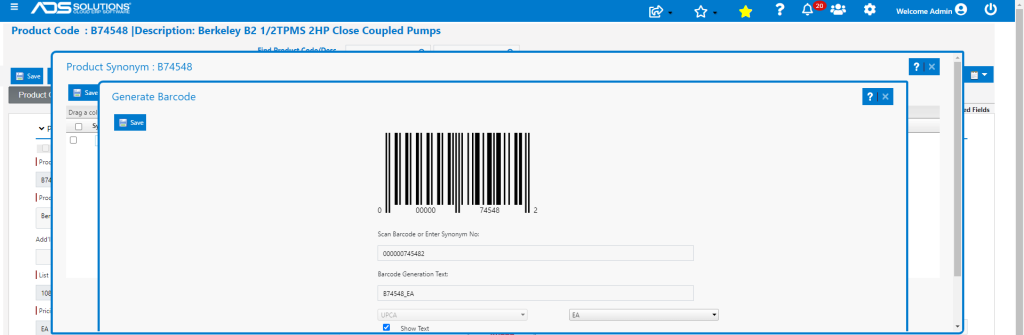
Generate Barcode
- Click on the Generate button, for default Barcode Type (e.g., UPCA), select a UOM (e.g., EA) – this will automatically create a barcode (concatenating the Product Code and the UOM selected).
- NOTE some symbologies such as UPCA do not recognize alpha characters – in this case the UOM concatenation will be ignored.
- This generates a barcode image; place the cursor in the Scan Barcode field and scan the image, which will record the barcode value in this field.
- Save and it will be written into the Synonym field.

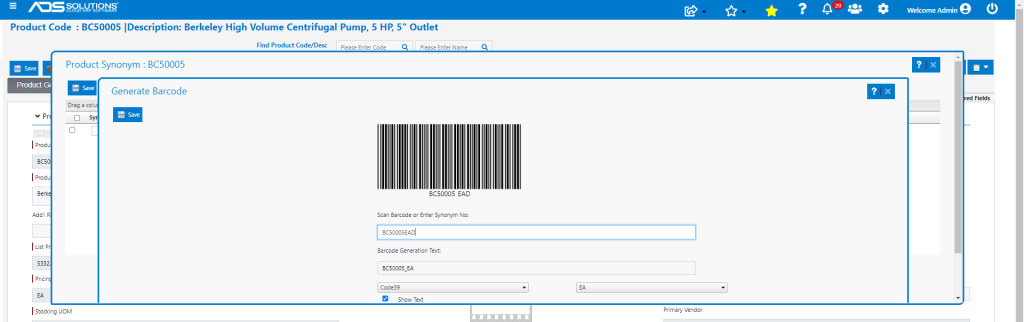
Manually Type in Barcode
- Manually type the numeric or alphanumeric string into the Synonym No field.

Create Order
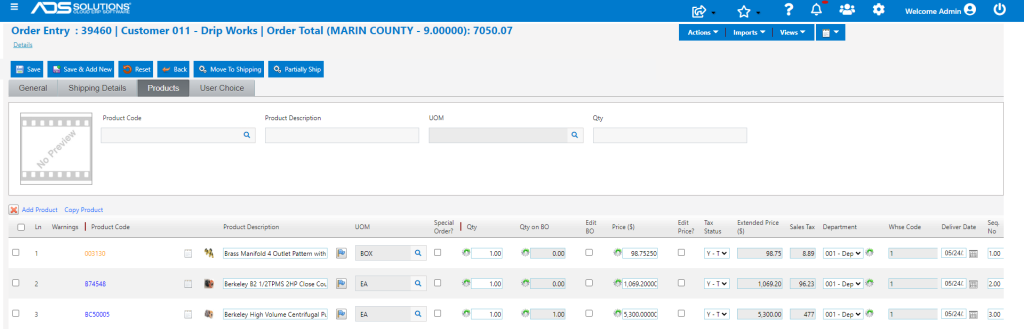
- Create order 39460 for Customer 011 – Drip Works.
- Scan in the 3 barcodes one at a time to create each line of the order.
Importing Synonyms
- Using the Synonyms import, barcodes may be imported from a CSV spreadsheet.
- Go to Utilities > Imports > Bulk Imports > Master Record > Synonym Import to import product barcodes as synonyms.

- Download Sample.
