Accolent ERP allows users to create a payment receipt by uploading a CSV file of payments made. This functionality is particularly useful for users that receive multiple payments from their customers in a single ACH or wire transfer. These payments are typically accompanied by a CSV remittance advice spreadsheet providing details of the invoices paid. To use the CSV import, user will first need to reformat the remittance advice to match the Accolent ERP import CSV file. Then the CSV can be imported and will automatically create the payment receipt in Accolent ERP.
Using a CSV Import to Record Payments
- This is typically how ACH payments remittance advice notices are delivered.
- Using a CSV import is much faster than manually entering multiple payments and eliminates one possible source of data transcribing error.
- User does not even have to Load the grid of open invoices.
Receive Payment
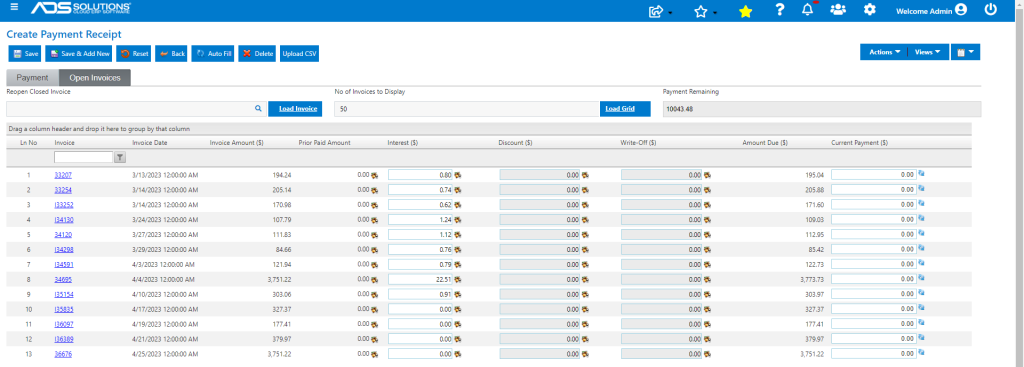
- Receive a single ACH payment from Customer Drip Works with details of the invoices paid.
- Create or re-format the CSV file to match the Accolent ERP payments import.
- The Accolent ERP payments import CSV has only 2 columns Invoice No and Amount Paid.
- Save as CSV file.

- Save the CSV file as a Zip file.

Create Payment Receipt Header
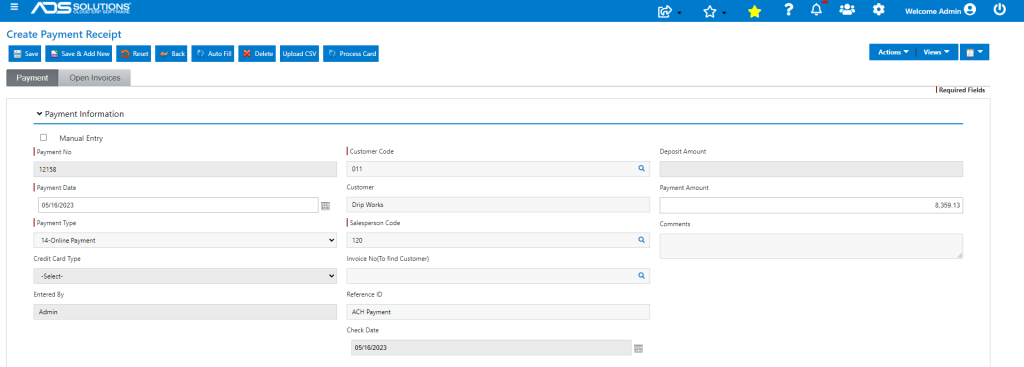
- Go to Receivables > Payment Receipts > List Payment Receipts > Add Payment.
- Enter the payment receipt header information for payment 12158.
Upload CSV File
- Click on Upload CSV.
- Select Zip file to import.

- Then click Import File.
- Message that File imported successfully.

- Close pop-up.
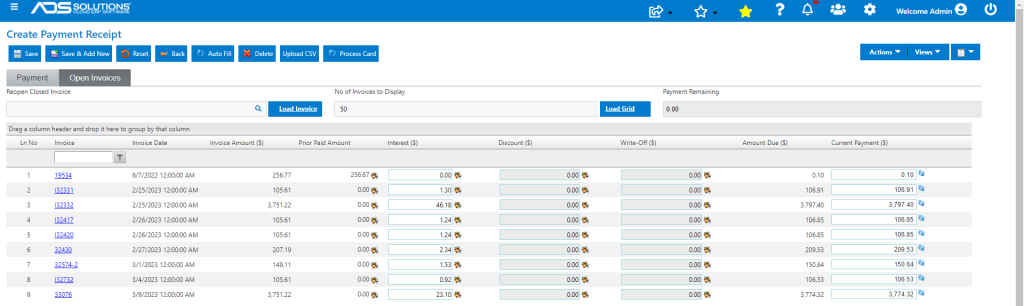
- Go to Open Invoices.
- Shows the payments applied correctly.
Complete Payment Receipt
- Verify the payments were correctly applied and add any write-offs or other desired adjustments.
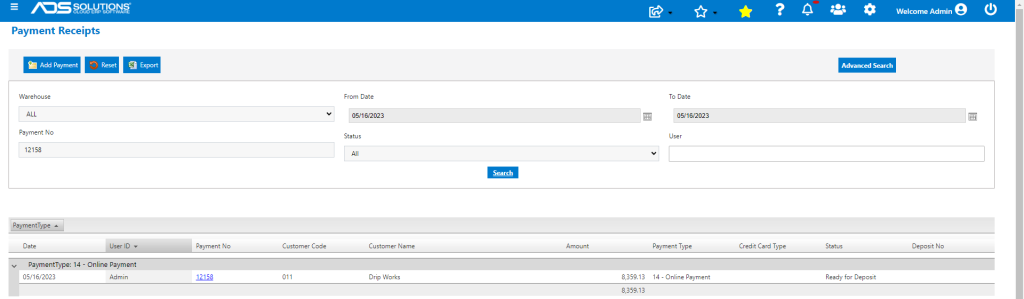
- Then, save the payment receipt, which shows on the List Payment Receipts screen as Ready for Deposit.
- The payment receipt automatically updates the Customer account.
- Reload Customer grid which shows that the 9 invoices were paid and no longer show as open.