
Accolent ERP allows for specific products to be subject to special Promotional Pricing, that can have a limited time duration. This Promotional Pricing is specified by Pricing Tier and applies only within the specified validity period. Customers that qualify will get the Promotional Price assigned to their Pricing Tiers. Note that there is a Configuration setting which determines whether Promotional Pricing does or does not override Contract Pricing.
Configuration Setting
- There is a Config ID 211 which if set to Y allows Promotional Pricing to override Contract Pricing, if set to N, Contract Pricing is unaffected by Promotional Pricing.
- Set to N to maintain Contract Pricing.

Set up Promotional Pricing
- Go to Product 18JP1000V.
- Then go to Actions > Promotional Pricing.
- Set up a 12% discount Promotional pricing on 18JP1000V.
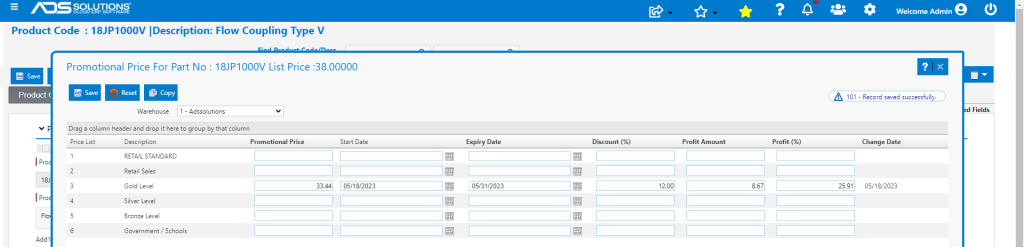
- Set up the same 12% Promotional Pricing on 38GP.
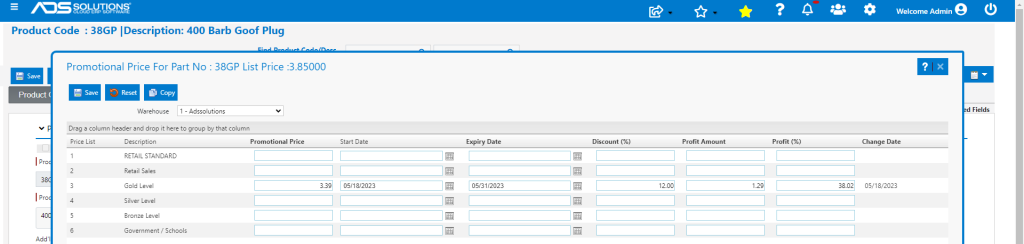
Review Customer Pricing
- Verify Customer’s Eligibility for Promotional Pricing.
- Customer 011 is in the Gold Level Pricing Tier and should therefore, qualify for Promotional Pricing on both of these products.
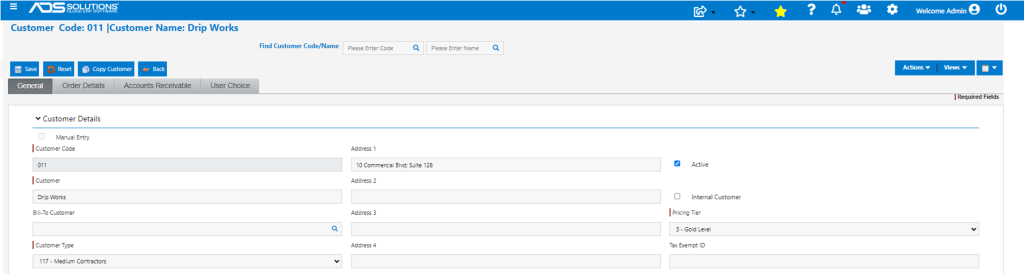
- Product 18JP1000V is priced under Contract: Valves at a 10% discount to List Price.
- Go to Views > Price Quote for Customer 011.
- Enter product 18JP1000V which shows the Contract Price (10% discount) because Config ID 211 is set to N.
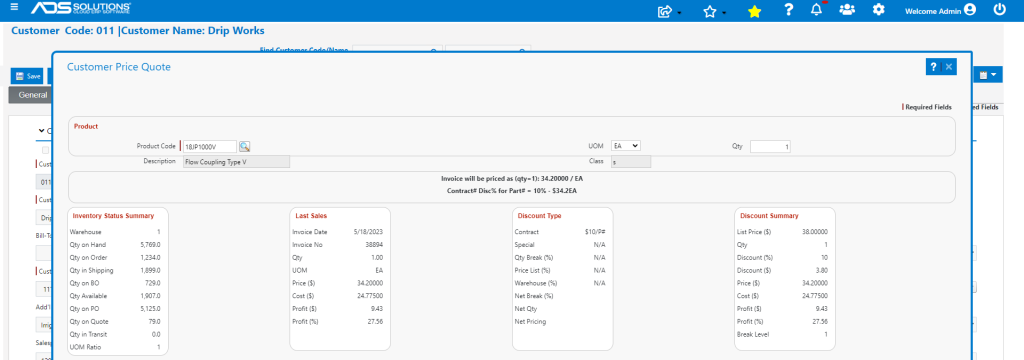
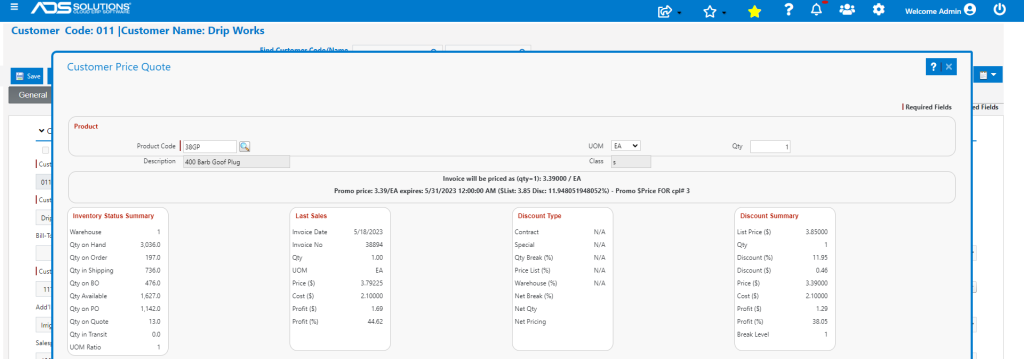
- Product 38GP is priced under the Price List: Fittings which provides a 10% discount to List for Gold Tier customers.
- Get quote on 38GP which shows the Promotional Price (12% discount).
Change Configuration Setting
- Set Config ID to Y to allow Promotional Pricing to override Contract Pricing.

Revised Customer Pricing
- Now go to Customer 011 and get price quote for product 18JP1000V.
- Now the Promotional Pricing (12 % discount) overrides the Contract Price.
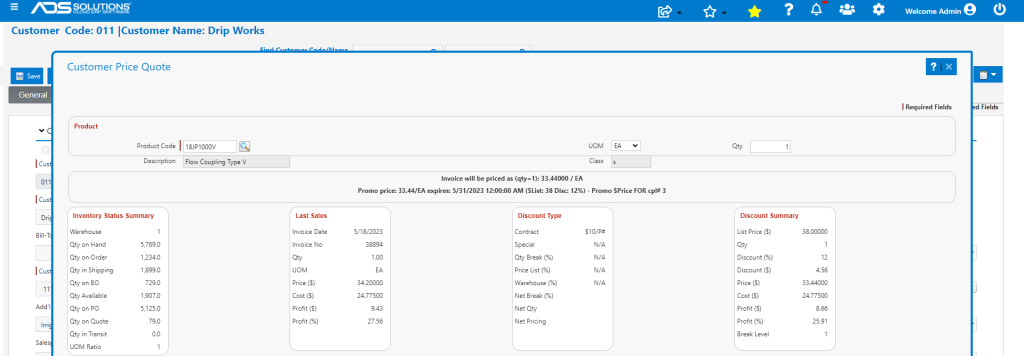
- Pricing for product 38GP is unchanged.