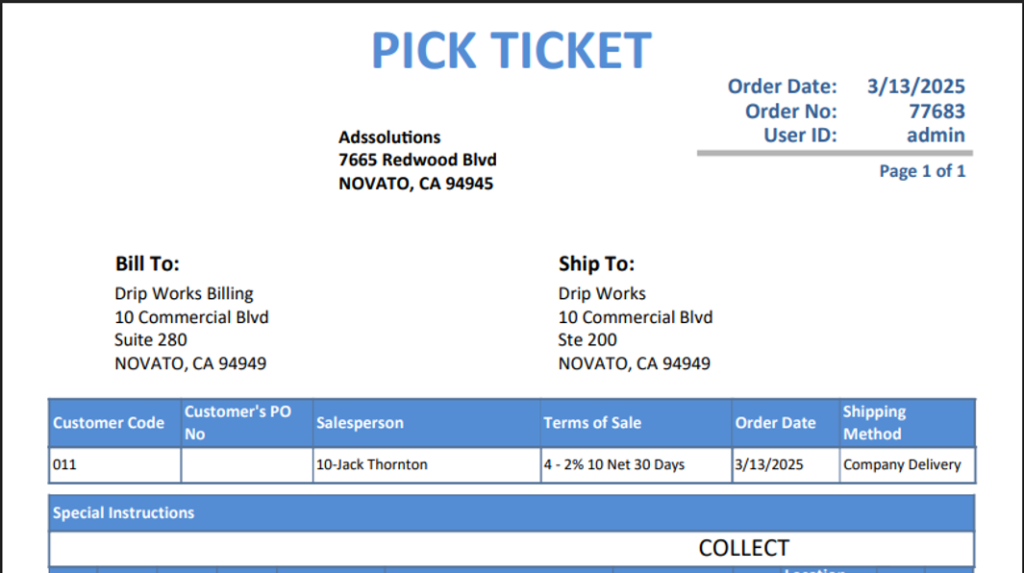
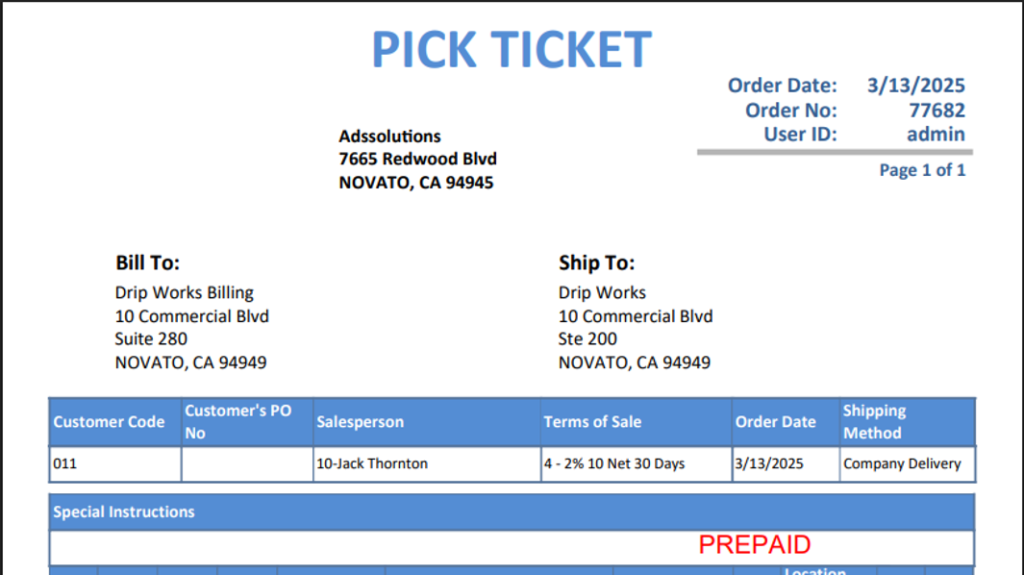
Accolent ERP allows users to set several thresholds for free shipping based on total order value. A particular customer can be assigned a specific threshold, which may be different from thresholds assigned to other customers or groups of customers. When an order for this customer exceeds the assigned threshold value, the pick ticket for the order will show the message “PREPAID” or if the order is less than the threshold value the message will read “COLLECT”.
Set Threshold Values
- Go to Settings > Value Lists > A to L.
- Select Dynamic Lookup.
- Select Type of Free Shipping.
- Set up threshold values.

Assign a Threshold Value to a Customer
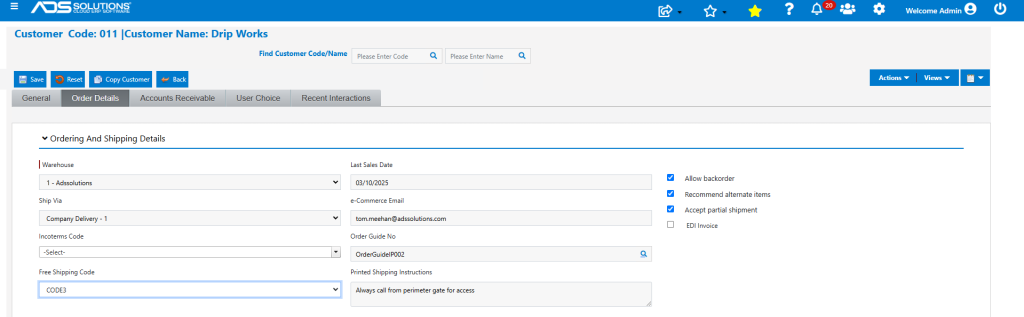
- Select a customer (e.g., 011 – Drip Works).
- Scroll down to and open the Ordering and Shipping Details section.
- On the Free Shipping row, select the threshold value code from the dropdown.
- Then Save the Customer record.
- Go to Settings > Printing & Sending > Forms Setup.
- Select Pick Ticket Variation 113-Customized_PickTicket(single)_Template(New) that has been set up to print the customized PREPAID/COLLECT message in the Special Instructions section.
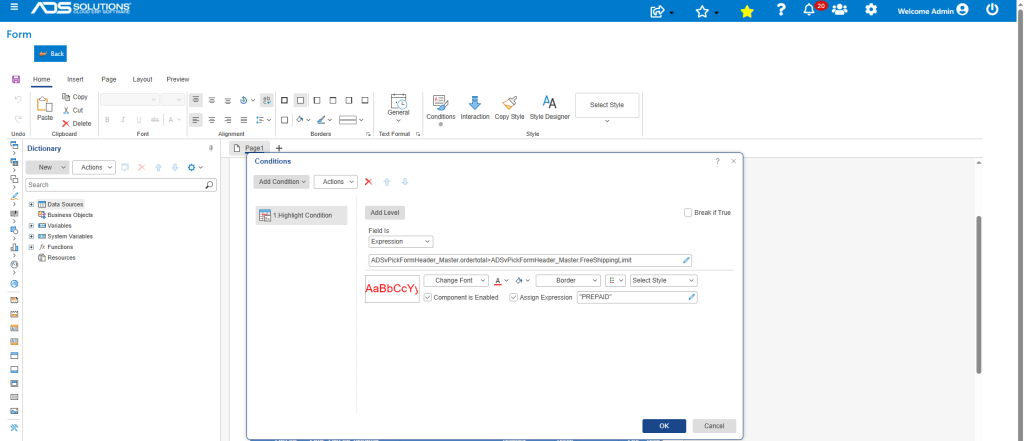
- Then click SAVE to apply this Variation.
Create an Order for this Customer
- Create order 77682 with order value of $1,171.80, this is above the Free Shipping threshhold.
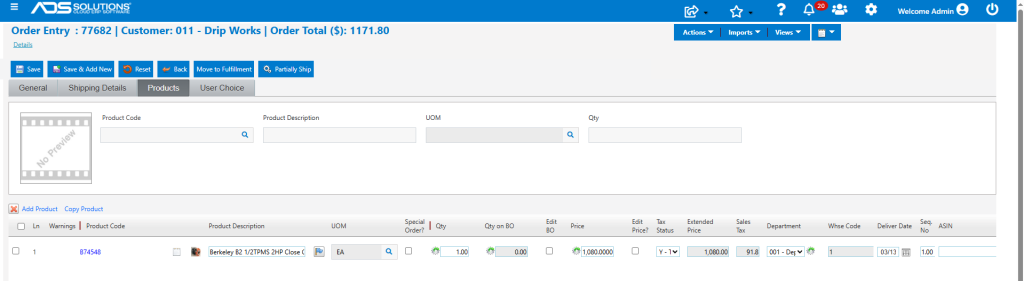
Move to Fulfillment and View Pick Ticket
- Move order to fulfillment.
- Print the Pick Ticket.
- Similarly, create another order 77683 for Customer 011-Drip Works for $74.21 and move to fulfillment.
- This order does not meet the threshold value for free shipping.
- This is the Pick Ticket.