
Accolent ERP is integrated with Fiserv, one of the largest payment processors globally. By automatically processing Level 2 and Level 3 data, Fiserv optimizes interchange charges ensuring the lowest possible rate on every transaction. The payment acceptance will automatically be recorded in Accolent ERP. The Integration allows payment acceptance by credit card or ACH/eCheck. Payments may also be taken remotely by including a Pay Now button in Invoice transmittal emails.
Request a Hosted Payment Page
- Start by requesting a Hosted Payment Page (“HPP”) from Fiserv – see this wiki: Integrated Payments: ACH/eCheck, HPP
- When your HPP request is processed you will receive an email like this:
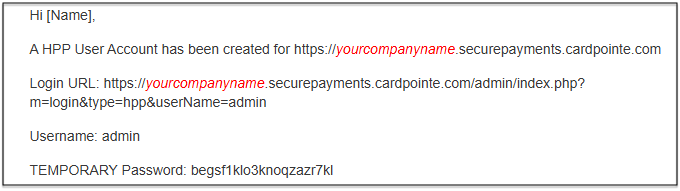
- The red italicized text yourcompanyname will be the same as your tenant name in the Accolent ERP URL.
Configure the HPP
- Sign into the Login URL.
- Click the Connect tab at the top.
- Scroll down to the bottom to the WebHook URL.
- Enter this: https://yourcompanynameaccolenterp.solutions/accolentmvc/PaymentGW/ProcessFiserv.
- The red italicized text in the URL should be the same as in the URL for your Accolent ERP site.
- Click the Test button to verify that it works.
- If this is correct, you’ll see a green success dialogue box.
- Record this HPP URL in the System Configuration screen.
Set Up the Pay Now Button
- Now, in Accolent ERP create the Invoice email template and change the Pay Now button to point to your HPP User Account URL
- Since the Invoice email template is blank on a new site, we can copy the invoice template from the QA site to save some work.
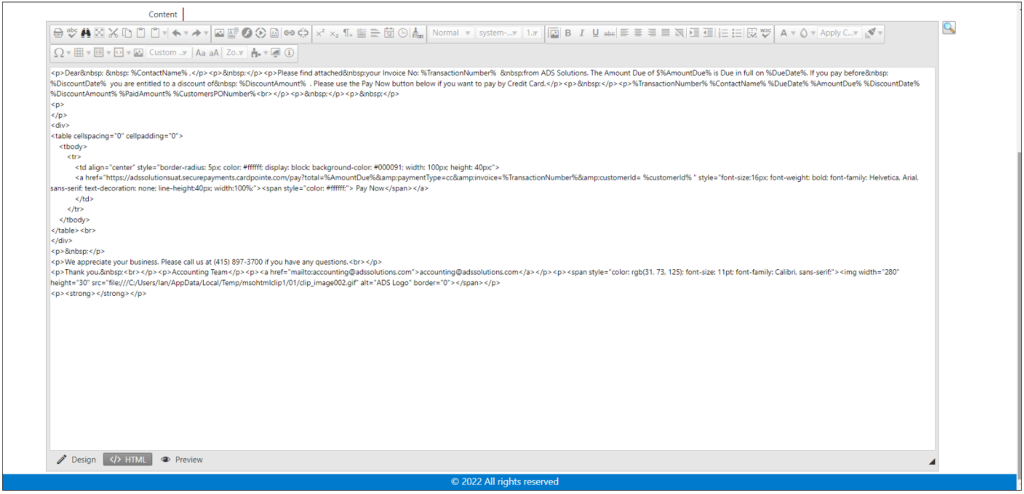
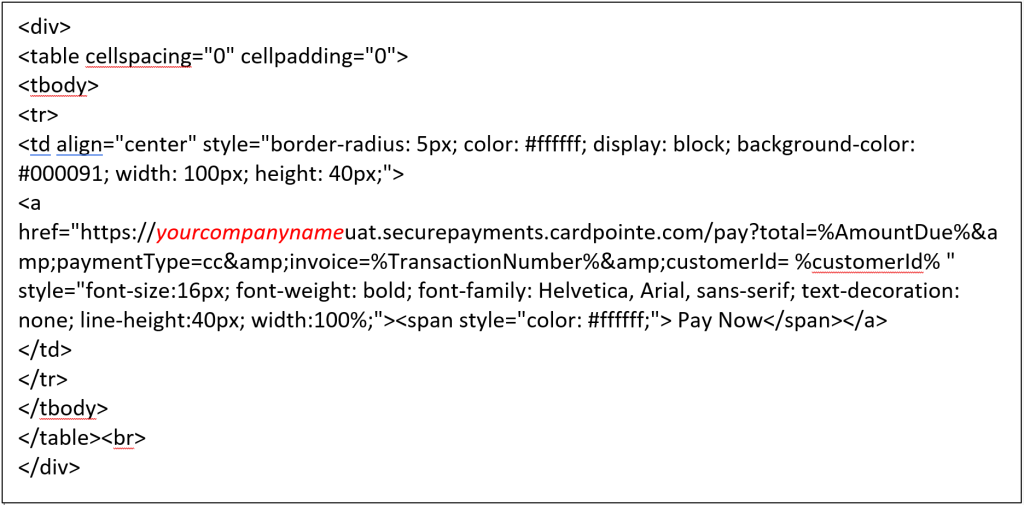
- Below is the HTML code snippet to create the Pay Now button:
- Now, go to your site’s Email Templates and open the 102 Invoice Email.
- Then, click on the HTML tab and copy and paste the above HTML into your invoice email template.
- Change the red italicized text to your site’s HPP User Account.
- Click back on the Design tab and correct any errors you may see, including the company info and email.
- Save your Email Template when done.
HPP in Test Mode
- Test Mode is usually indicated by the “uat” that follows the yourcompanyname in the URL.
- However, it makes sense to contact Fiserv and ask them to confirm your HPP page is in Test Mode so you can test it during pre-live testing.
HPP in Live Mode
- When you’re close to going live, contact Fiserv and ask them to put your HPP in Live Mode.
- Record the HPP URL in the Accolent ERP System Configurations screen.