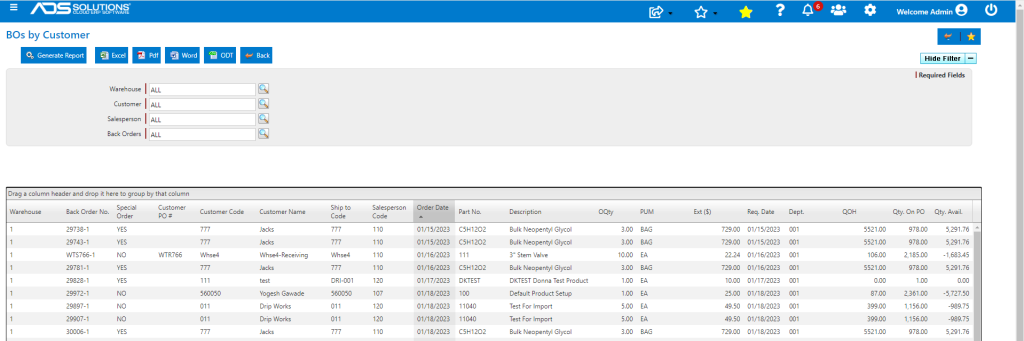
Accolent ERP shows all back orders on the List Back Orders screen broken out by back order. Each back order can be expanded to show the products on the back order. Any population of back orders can be evaluated at any time to show which can be filled and which cannot. This screen can also be filtered by specific products if desired. In addition, there is a report that can be run by various filters to show all back orders by warehouse by customer by salesperson or by order.
Manage Back Orders screen
- Go to Sales > Manage Back Orders > List Back Orders and Process.
- Expand one or more back orders to see the products on each back order.
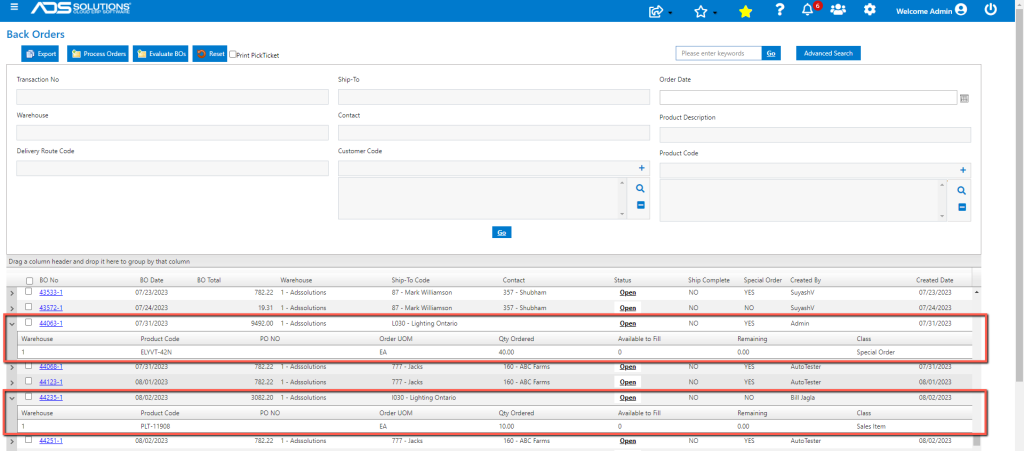
- By selecting all or specific back orders using the checkbox on the left hand side of the screen and clicking the Evaluate BOs button, the screen will show which of the selected back orders can be filled.
- After evaluating, back orders may be selected then processed using the Process BOs button on this screen.
Back Orders by Customer Report
- Another way to see all the products on back orders is to run Report 1000 Back Orders by Customer.
- The report is available from Reports > Reports Center > Sales & Customers > Back Orders.