
Accolent ERP allows for the use of multi-factor authentication that will first verify the user’s login and password. If these credentials are recognized, the system will also check the IP address of the user against the IP address the user last logged on from. If the user’s login and password are accepted and the IP address is recognized, then the user will be logged in. If the user’s login and password are accepted but the IP address is not recognized, the system will send a Verification Code to the user’s email address. Entry of this Verification Code is required for the user to complete the login.
Multi-Factor Setting
- Multi-factor authentication is enabled through an Internal Setting.
- ADS Solutions will enable this setting for you.

User Login
- Create new User: ACCTGMGR, Accounting Manager.
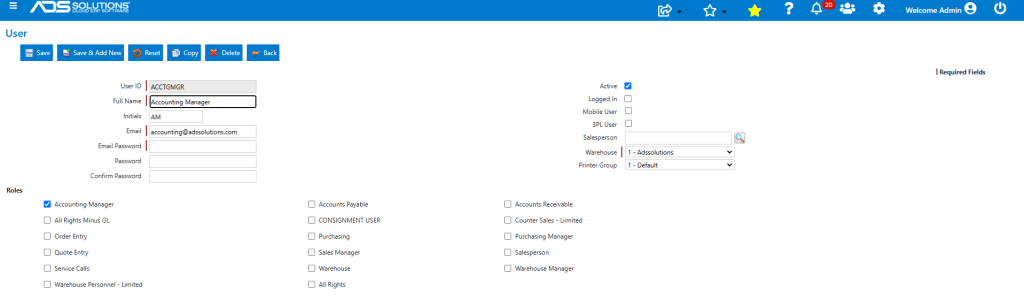
- Login as the new user.

Verification Code
- Since this is the first login for this user, the system asks for the Verification Code which was sent automatically to the email associated with this user.

- This is the email with verification code sent to the user’s email address.

- Enter the verification code to complete login.

Login From the Same IP Address
- Now log out, then log back in from same IP address.
- The system checks the login IP Address against the last IP Address this user logged in from.

- Since the IP Address matches, the system immediately logs user in without requiring a Verification Code.
Login from a Different IP Address
- Now login the same user from a different IP address.
- As before, since the IP Address doesn’t match, the system requests a Verification Code.

- The user will need to enter the verification code sent to the user’s email address to complete the login.
Record of Logins
- The record of user logins and their IP Addresses is maintained in Accolent ERP.
