In Accolent ERP, all transactions affecting the inventory of serialized products require the scanning or entry of valid serial numbers for those products to complete the transaction. The serial master retains a full ledger card for each serial number. The serial record for each serial number is a full record of all of the transactions affecting that serial number from receipt of the product through sale to return to resale. The serial numbers appear on all printed transaction documents. At each step the system requires the serial number to be in the correct status and warehouse. For example, to be able to be selected on a sales transaction the serial numbers available must have status of “On Hand” in that Warehouse.
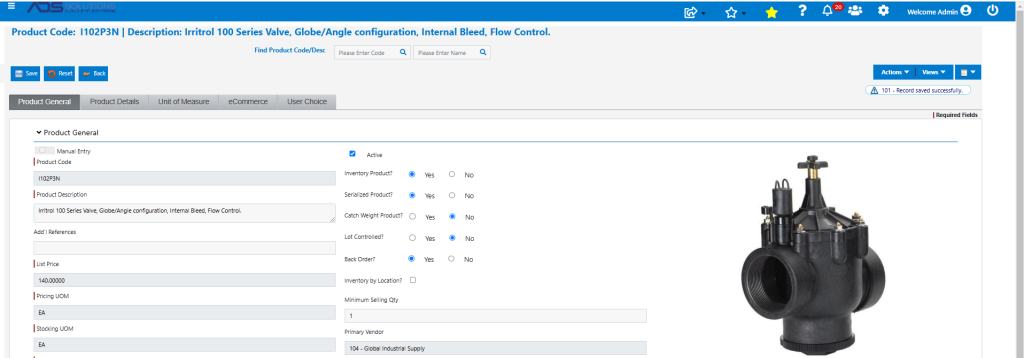
Set Up a Serialized Product
- Product I102P3N, Irritrol Globe/Angle configuration valve, is a marked as a serialized product.
Receive a PO for Serialized Products
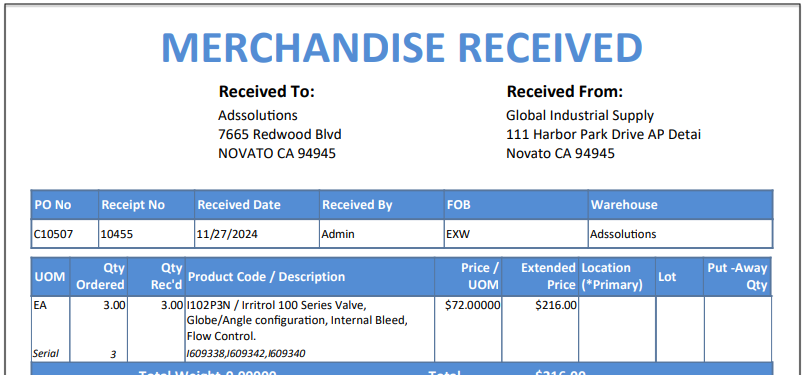
- Receive PO C10507 for 3 EA of product I102P3N.
- Because the product is serialized, entry of the serial numbers for 3 items is required to receive the PO.
- Either scan or enter the manufacturer’s serial numbers. Optionally enter serial comments, that will be saved to the serial record, if desired.

- Then receive the PO.
- The Serial Nos are shown on the Merchandise Received document.
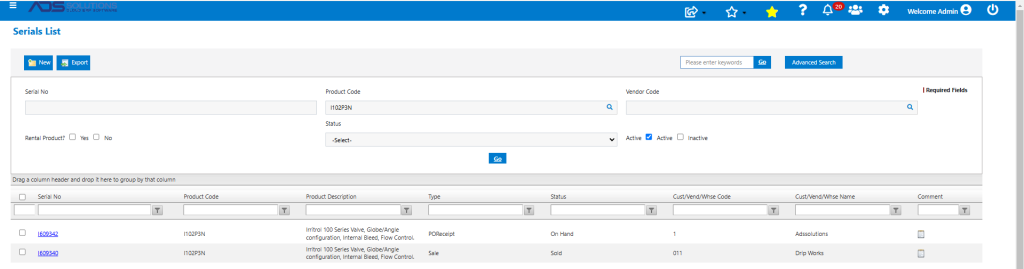
- Go to Inventory/Products > Products > Serialized Products > List Serialized Products to see these items.
- All items have Type-PO Receipt and Status-On Hand.

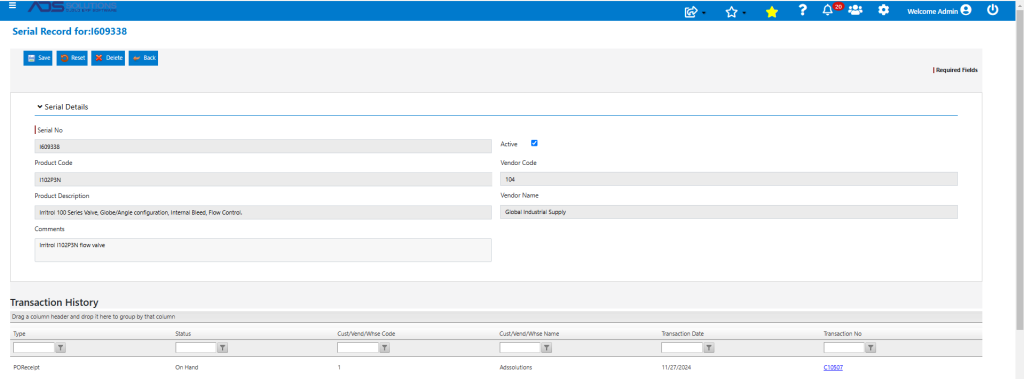
- Click on one of the hyperlinks to open any Serial Record to see details of the PO Receipt transaction.
Sell a Serialized Product
- Create order 74837 in Warehouse 1 to sell 2 EA of product I102P3N to Customer 011.
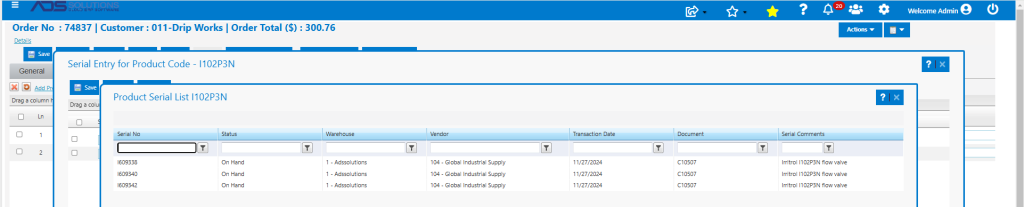
- When moved to fulfillment, selection of 2 existing, Serial Nos with Status of On Hand is required to Invoice the transaction.
- Select from the available Serial Nos for this product that must be “On Hand” in Warehouse 1.
- Any comments on the serial record will be available to help determine which serial number to select.
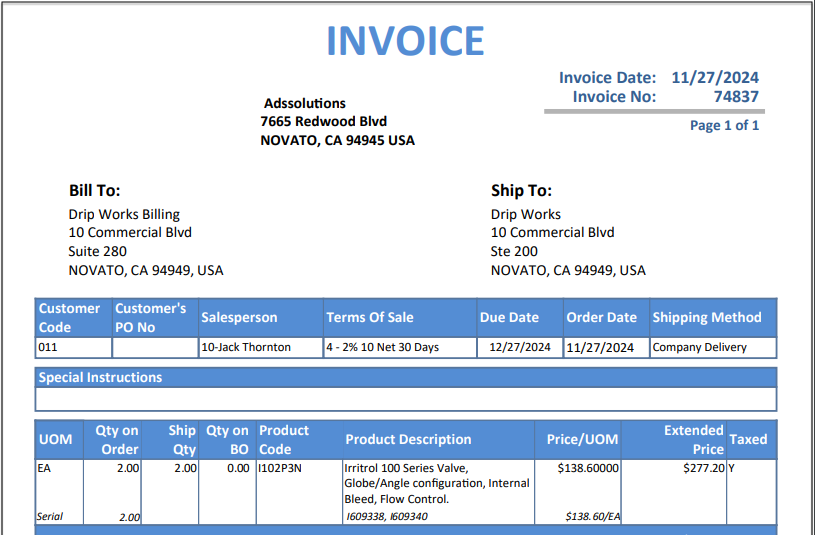
- When invoiced the printed Invoice form shows the Serial Nos of the items sold.
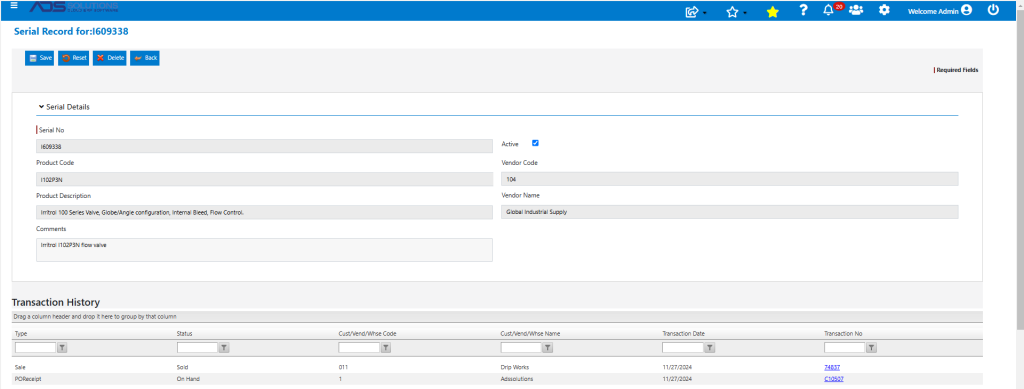
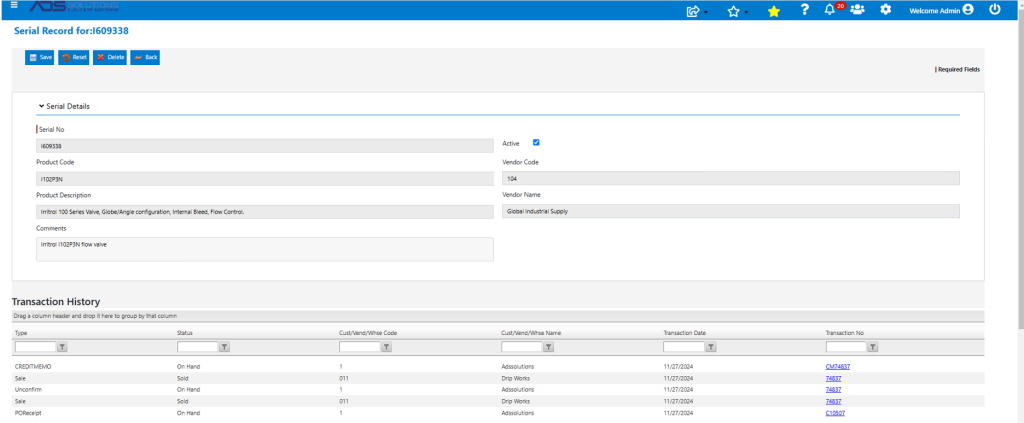
- The Serial Record for I609338, for example, shows the invoice transaction as well as the prior PO.
Unconfirm an Invoice
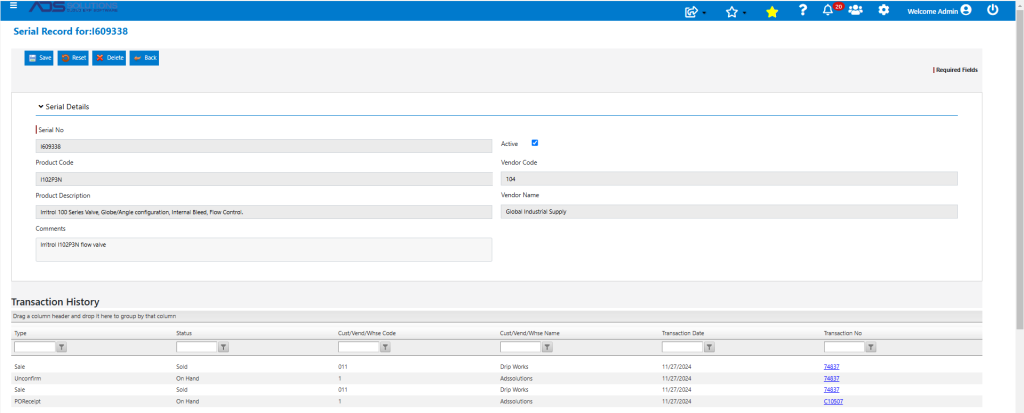
- Unconfirming an invoice back to order releases the serial numbers that were selected.
- When moved to fulfillment the serial numbers need to be re-selected; use the same serial numbers as previously, then re-invoice the transaction.
- The Serial Record records both the unconfirming and re-invoicing.
Confirm a Credit Memo
- Create Credit Memo CM74837 for the return of 1 EA x I102P3N serialized items on invoice 74837.
- Confirming the Credit Memo requires selection of the Serial No.
- The Serial No lookup shows all serial numberss for this product code with status “Sold” and to this customer 011.

- Select I609338 returned, then move the Credit Memo to invoice.
- The Serial Record records the Credit Memo.
Create a Warehouse Transfer
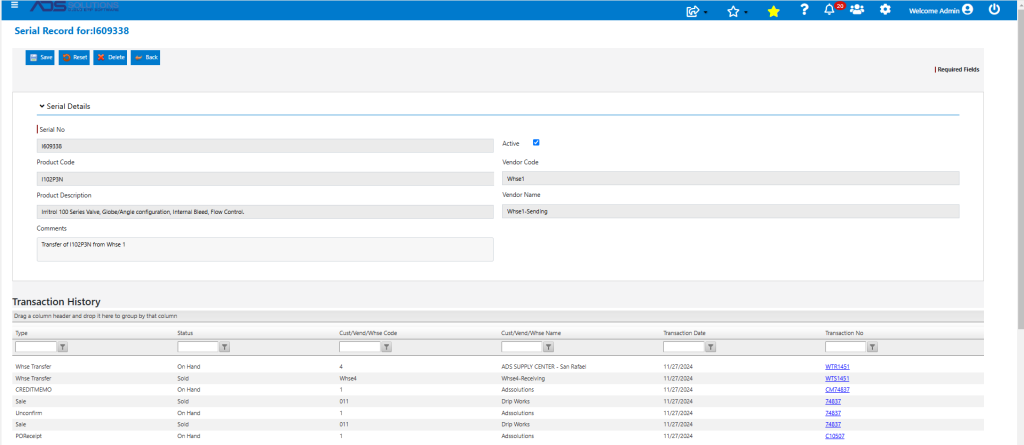
- Create WTR1451 for transfer to Warehouse 4 from Warehouse 1 for 1 EA x I102P3N, and then Submit.
- Automatically creates WTS1451 on Whse1-sending.
- When moved to fulfillment, a Serial No is required in order to complete the transfer.
- The Serial No lookup shows all I102P3N products “On Hand” in Warehouse 1.

- Select I609338 and invoice the transaction.
- Receive WTR1451 into Whse4, and confirm the serial number received.
- The Serial Record captures both the outgoing transfer from Warehouse 1 as well as the receipt into Warehouse 4 with Status of “On Hand”.
Missing/Damaged/Retired Serialized Product
- Assume the product I102P3N with S/N I609338 transferred to Warehouse 4, is subsequently lost or damaged or retired.
- To record this, first reduce the inventory quantity using the Manual Inventory Adjustment screen.
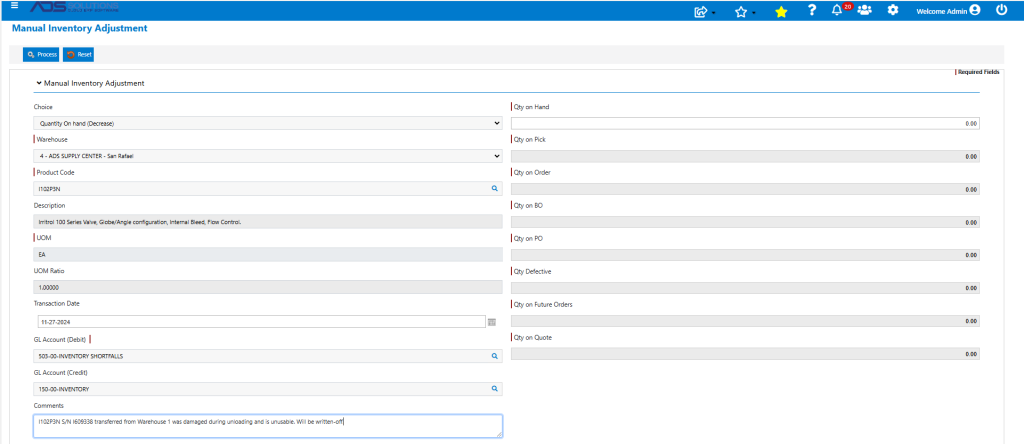
- The Adjustment was recorded on Receipt 10457.
- Then enter a comment and then use the Delete button on the Serial Record to delete the serial number.
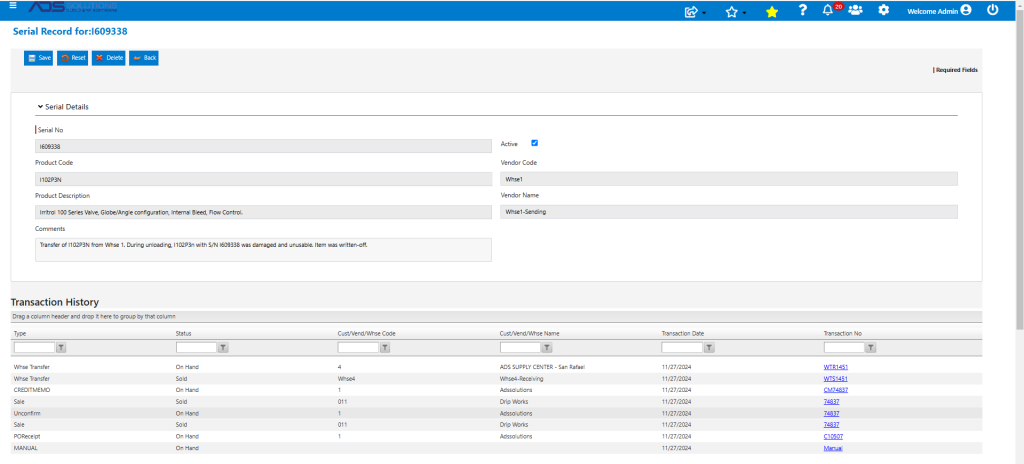
- The deleted serial number will no longer appear in the List Serialized Products screen.