
The Accolent ERP Self-Service Portal allows Customers’ employees (“End-Users”) to place orders, review the status of their orders, look up their prior transactions, review their Statements and pay invoices. This allows the Accolent user to deliver better service to its Customers with fewer sales and service personnel, increasing efficiency and reducing cost. The Self-Service Portal is a separate website that is linked to Accolent ERP and allows access to only those Customers and their End-Users that have been approved for Self-Service Portal access. Customers will get the same pricing, terms, shipping methods, etc., on the Self-Service Portal as they would get in Accolent ERP. Once a Customer is provided with access to the Self-Service Portal, the End-Users associated with that Customer can register to set up usernames and passwords to get access to the Self-Service Portal.
End-User Registration
- Once a Customer is set up for Self-Service Portal access, End-Users at that Customer can register to get usernames and passwords.
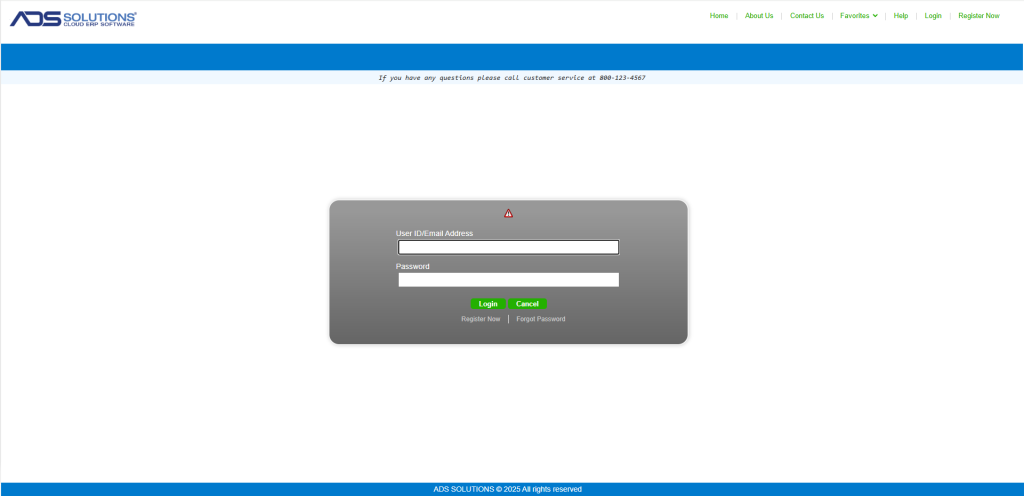
- From the Self-Service Portal login screen, End-Users associated with the Customer can register for access.
- Select the Register Now link at the top right-hand side of the Login screen to begin the registration process.
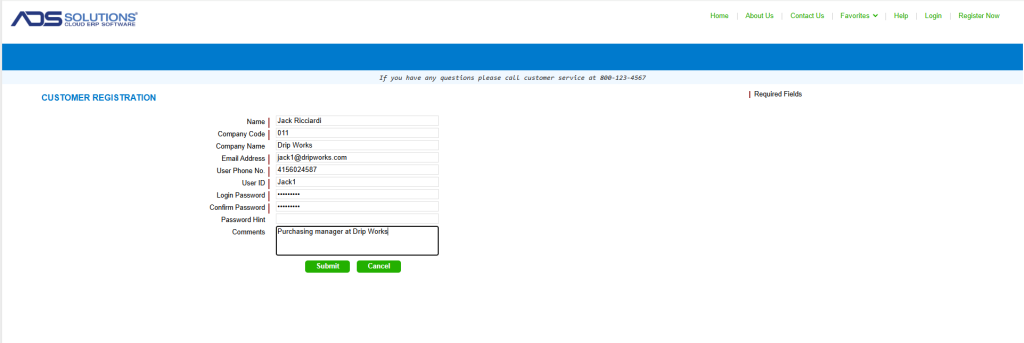
- End-Users will fill out the Customer Registration screen details then click Submit to deliver the Customer Registration form.
- Note: Passwords are required to be at least 8 characters, and have at least 1 upper case letter, 1 lower case letter and 1 number.
- Once approved, the End-User will be notified by email when the requested account has been activated and is ready for use.
Approving Submitted End-User Registrations
- All submitted End-User registrations will be visible in Accolent ERP.
- Go to Settings > eCommerce Admin > New eCommerce Users to see pending registration requests.
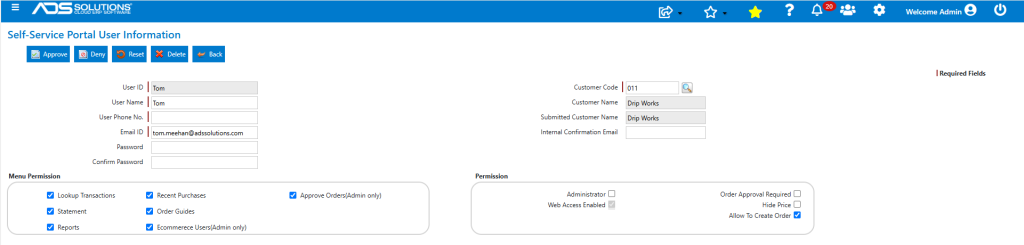
- To register the End-User, click on the hyperlink to bring up the Approval screen.
- Assign the appropriate permission settings – which may vary between End-Users associated with a particular Customer.
Field Descriptions
- User ID – Entered by End-User when registering.
- Username – Entered by End-User when registering.
- Email ID – Entered by End-User when registering.
- Password – Enter the password assigned to the End-User. The End-User will be able to change this.
- Customer Code – Enter the Customer Code for the customer this End-User is associated with. A customer record must already exist in the Accolent ERP system.
- Customer Name – Customer Name for the customer this End-User is associated with.
Menu Permissions
- Lookup Transactions – Provides access to all existing transactions in the system for this Customer. Transactions may also be reprinted from this screen.
- Statement – Provides access to the current open AR statement for this Customer and allows the End-User to make payments on open invoices.
- Reports – Provides access to various Self-Service Portal reports for this Customer.
- Recent Purchases – Allows the End-User to see the list of products that have been purchased in the past. The list may be filtered by date range to account for seasonality. The End-User may also order directly from this list.
- Order Guides – An Order Guide is a list of specific products that the End-User may use to create orders from instead of searching for products from the Catalog.
- eCommerce Users (Admin only) – This permission allows the customer’s administrator to set up new Self-Service Portal End-Users.
- Approve Orders (Admin only) – This permission allows the customer’s administrator(s) to release orders from the Self-Service Portal site to Accolent ERP for fulfillment. This works in conjunction with the Permission setting for Order Approval Required. If an End-User has the Order Approval Required checkbox marked, then orders placed by that End-User will not be released for processing but will be placed on hold until a supervisor with Approve Orders permission verifies (and possibly edits) the order. At that time the order will be released to Accolent ERP for fulfillment.
Permissions
- Administrator – Check this if the End-User is an Administrator. A company may have multiple Administrators.
- Web Access Enabled – This box will default to on. It may be unchecked for logons that need to be temporarily blocked.
- Order Approval Required – This setting will cause any order entered by the End-User to be put on Hold pending approval by someone with Approve Orders permissions.
- Hide Price – Check this box if the End-User is not allowed to see the price charged for the product.
- Allow to Create Order – Check this box if End-User is allowed to create orders. If this box is unchecked the End-User will still have access to the screens for lookup and inquiry functions.
Approve
- Click the Approve button when complete.
- The End-User will receive an email indicating that the account has been approved and access granted.