
The Accolent ERP Self-Service Portal allows Customers’ employees (“End-Users”) to place orders, review the status of their orders, look up their prior transactions, review their Statements and pay invoices. This allows the Accolent user to deliver better service to its Customers with fewer sales and service personnel, increasing efficiency and reducing cost. The Self-Service Portal is a separate website that is linked to Accolent ERP and allows access to only those Customers and their End-Users that have been approved for Self-Service Portal access. Customers will get the same pricing, terms, shipping methods, etc., on the Self-Service Portal as they would get in Accolent ERP. Once signed onto the Self-Service Portal, the Customer’s End-Users can search for products in the Catalog or the Order Guide, or from the Recent Purchases, then specify the quantity of products to buy and click the Add to Cart button to put these onto an order.
New Products, Special Products, Featured Products
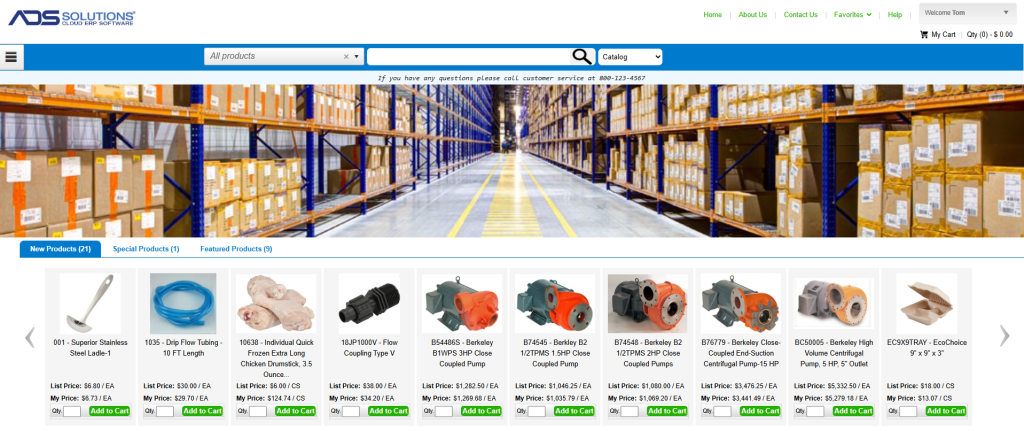
- Once an End-User logs in, the Self-Service Portal Home page displays products marked as “New”, “Special” and “Featured.”
- These product designations are managed in Accolent ERP and are used to highlight and/or promote certain products or deals.
- End-Users can add New, Special and Featured products to the shopping cart directly from the Home screen.
Search Bar
- The search bar at the top of the page can search either the whole product list or just the products on an Order Guide. This choice is controlled by the button to the right of the search bar.
- Select Catalog to search the whole product list or Order Guide to search only the Order Guide.
- To search for a particular product, select All Products in the dropdown to the left of the search bar and enter any portion of the product code or description in the search bar and click on the magnifying glass icon to search.
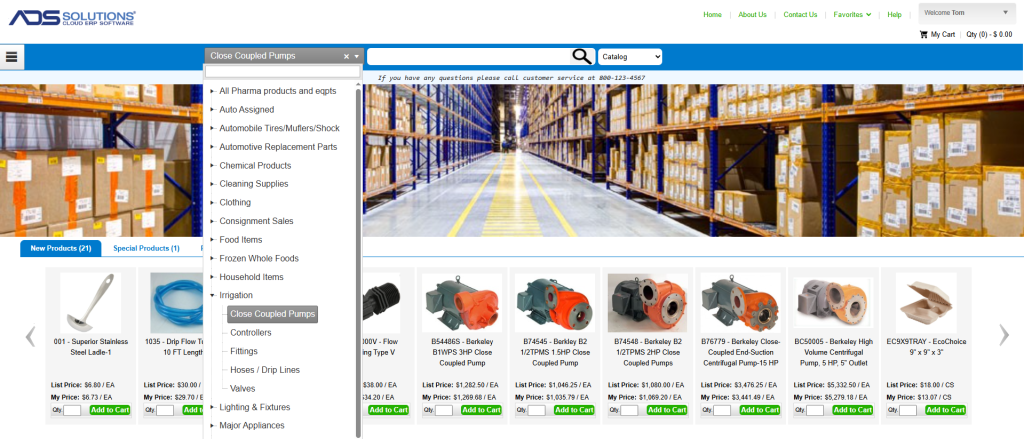
- To display a Group or Category (e.g., Irrigation > Close Coupled Pumps) use the dropdown on the left of the search bar to display the Group/Category structure, then click on the magnifying glass icon.
- For example, select Irrigation > Close Coupled Pumps and click the search icon.
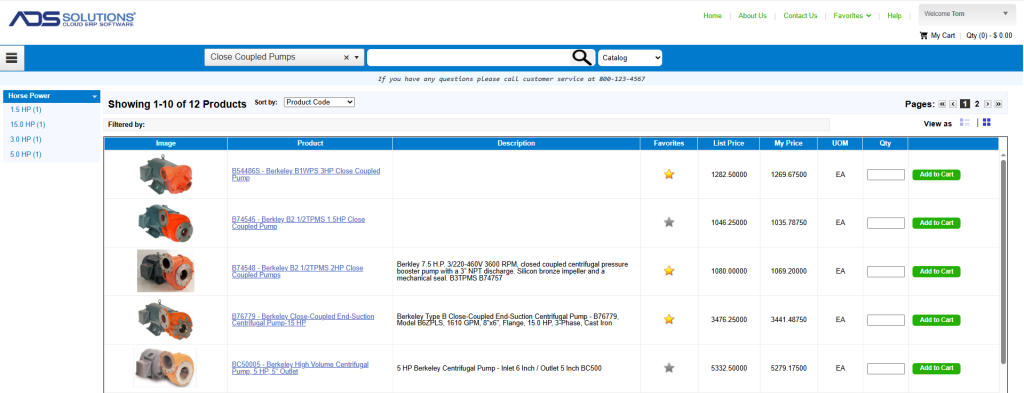
- The search results will be displayed in a grid by default.
- To display as tiles, click on the icon on the top right-hand side of the screen.
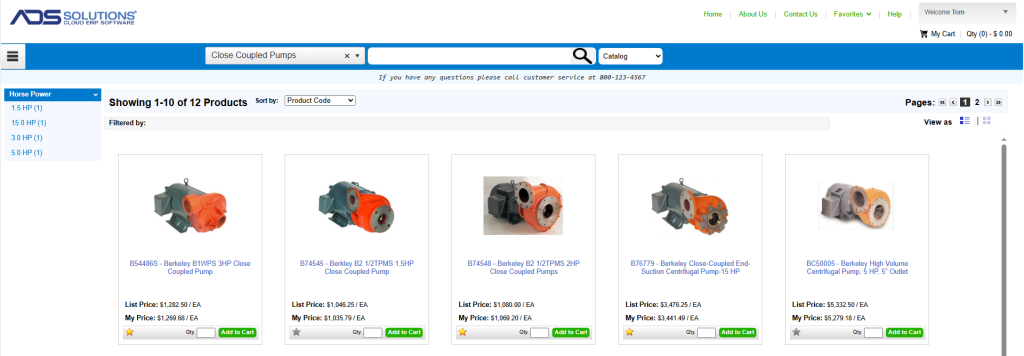
- If there are product filters defined for the products selected, the filters will show on the left-hand side. In this case, filtered by pump Horse Power.
- To add a product from a search to the Cart, enter the quantity in the Qty field and click Add to Cart to put the product in the Cart.
Order Guides
- Order Guides are pre-selected lists of products that the Customer’s End-User can select from to purchase online.
- If Order Guides have been set up, the search bar at the top of the screen can be used to locate items on the Order Guide by selecting Order Guide from the dropdown selection.
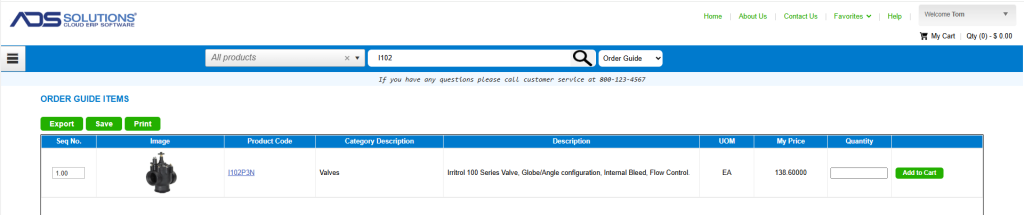
- More typically, End-Users can click on the Order Guides menu to see the Order Guide.
- Order Guides work similarly to the Recent Purchases screen and offer a quick efficient way to put commonly purchased products onto an order.
Recent Purchases
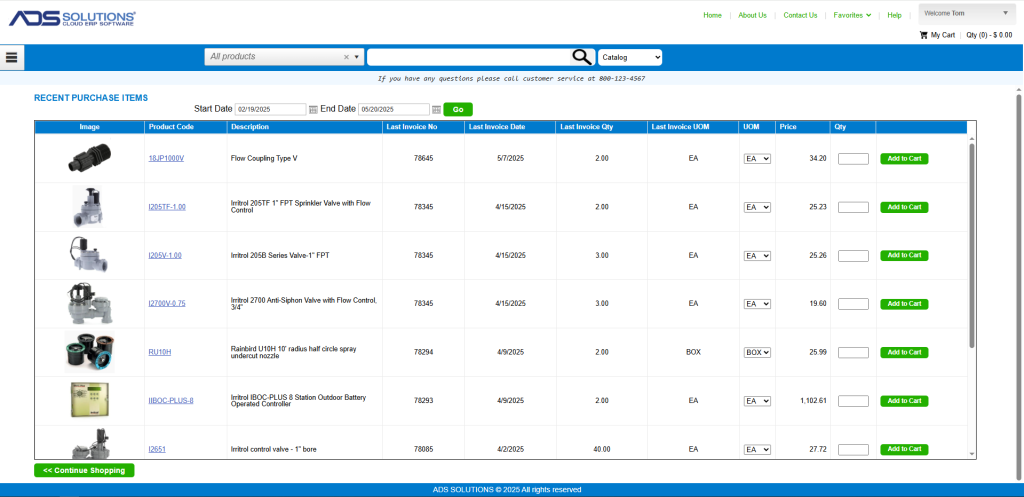
- The Recent Purchases menu shows a list of products that the user has ordered in the past over a selected date range.
- Just as with the Order Guide, the Recent Purchases screen can be used as a starting point for reordering products.
- To add products to an order, enter the quantities to be ordered in the Qty field and click Add to Cart.
Favorites
- End-Users can designate products as Favorites.
- To designate a product as a Favorite, click the Add to Favorites button.
- An End-User’s Favorites will show those products previously added to this list.