Accolent ERP includes the ability to import and automatically create manual invoices from a CSV template. Manual invoices are invoices that have no line items and so do not affect inventory. Manual Invoices have a variety of uses. They can be used to adjust prior invoices, for example, to add installation charges, or to correct errors in pricing, sales tax, freight or labor, or to correct Accounts Receivable balances. They can also be used to import commissions payments from suppliers. Manual invoices are associated with Accounts Receivable records and must be imported for a customer (or dummy customer if the manual invoices are used to record commission payments from a supplier). When imported from a CSV, manual invoices will automatically be dated as of the date of the import and cannot be backdated. Imported manual invoices can be prepaid, or unpaid, (or a voucher credit in the case of commission payments from suppiers). The manual invoice import function will accommodate each of these payment methods. Note that All the manual invoices on a single CSV
Downloading the CSV Template
- Go to Utilities > Imports > Bulk Imports; select Import Group: Update, Import Category: Transaction and Import Type: Manual Invoices Import.
- Then download the Manual Invoices CSV template.
- The Manual Invoices Import will make one manual invoice for every row in the CSV file.
- Copy and paste data into the CSV spreadsheet. Be careful about leading zeros.

- When done save As a Zipped file.
Populating the CSV Template
- Column A is a required field containing a unique Invoice No. This ensures that the CSV template cannot be inadvertently imported twice. To fill in the Invoice No column, enter a unique numeric Invoice No on the first row, then increment this by 1 in next row and copy formula down to all rows in the spreadsheet, then copy as data. The system will automatically add the “M” prefix to the numeric.
- Column B is a required field containing the Customer Code.
- Column C can be used to record the Unapplied Cash entry created for the payment that applies to all the manual invoices.
- Column D is used to record the Voucher No, if payment for all the manual invoices is made in the form of a vendor credit rather than cash. Note: If this column is filled, the Unapplied Cash column C MUST BE EMPTY, and vice versa.
- Columns E, G, I, J and K are the standard manual invoice fields for, respectively, Taxable Sales, Non-taxable Sales, Tax Amount, Freight, Labor. At least one of these amount fields must have a no-zero amount entered. By default, the amount fields will be posted to the GL using the standard manual invoice GL Posting (see below).
- Columns F and H are optional fields that allow the user to override the standard manual invoice posting and select specific Income-Type, GL Accounts for the Taxable Sales and Non-Taxable Sales fields to post to.
- Columns L through T are all optional fields.
- Columns L and M can be used to enter the PO No and Description, if desired.
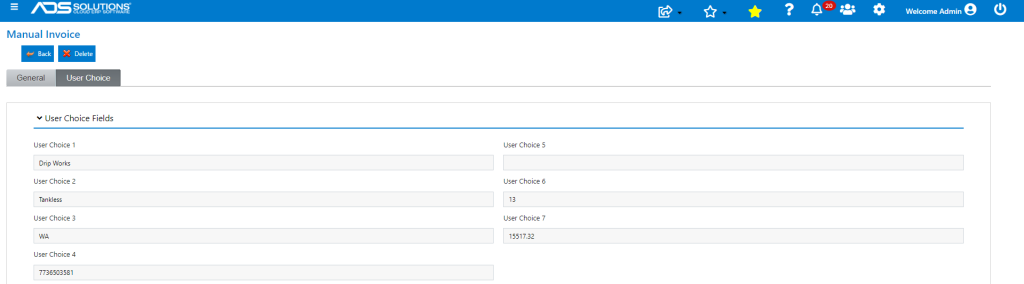
- Columns N through T are the 7 user choice fields that can be used to capture data related to each manual invoice.
- Once populated the CSV template should be saved as a zipped file.
Pre-Paid Manual Invoices
- If the manual invoices have already been paid, then first make an Unapplied Cash entry for the payment.
- Record this Unapplied Cash entry number in column C.
- NOTE: on one CSV import only one Unapplied Cash entry can be made, so either all items are paid on the Unapplied Cash entry or none.
- If Column C is populated, all manual invoices will be marked as paid in Accounts Receivable and the payment record will be created and linked to the manual invoices.
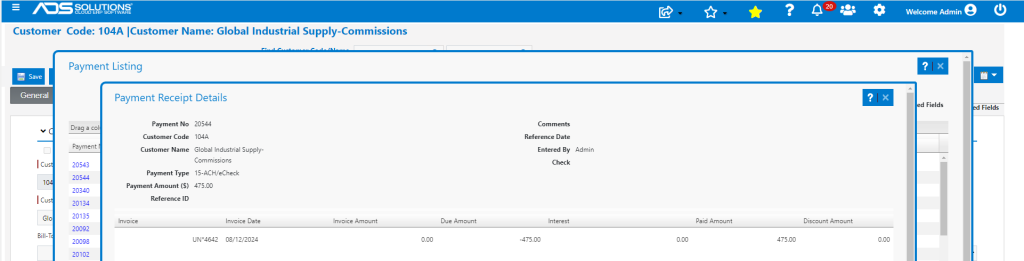
- For example, create UN*4642 for Payment No 20544 for $475.00 to pay invoices M2034, M2035 and M2036.
Unpaid Manual Invoices
- If the manual invoices are unpaid, leave column C blank.
- Unpaid manual invoices will first be created by the Import/Stored Procedure; then subsequent payments can be taken from the Payment Receipts screen.
Payment in the Form of a Vendor’s Credit
- If the manual invoices are commission payments from a vendor and the vendor provides a credit against future purchases instead of a cash payment, first make the negative Voucher on the vendor.
- For example, for 2 manual invoice commissions of (say) $600 and (say) $400 totaling $1,000, create a Voucher (e.g., ZZ12345) to Debit -$1,000 to Unconfirmed AP and Credit -$1,000 to AP.
- The negative Voucher for -$1,000 will show up on the vendor’s AP Aging and be available to offset other AP due to the vendor.
- NOTE: on one CSV import only one negative Voucher entry can be made, so either all items are credited on the negative Voucher entry or none.
- NOTE: there can only be EITHER one Unapplied Cash entry OR one negative Voucher entry (but NOT both) on the CSV.
- When Column D is populated with negative Voucher No ZZ12345, all manual invoices will be marked as paid in Accounts Receivable. The Payment record for each manual invoice will consist of a $0 cash payment and a Write-off to Unconfirmed AP equal to the amount of the invoice and the payment record will be created and linked to the manual invoice.
- The total sales journal posting of both invoices on the CSV will Debit AR and Credit Commissions for $1,000.
- The total payment receipts journal posting of both invoices on the CSV will be to Debit Cash for $0, Debit Unconfirmed AP for $1,000 and Credit AR for $1,000.
- When combined with the previously made negative voucher, effect will be to “pay” for the commissions in the form of an account credit against other AP due to the Vendor.
Import/Stored Procedure
- From Utilities > Imports > Bulk Imports. Select Import Group: Update, Import Category: Transaction and Import Type: Manual Invoices Import.
- Select the zipped file and click Import.
- The zipped file will be imported and will call a Stored Procedure (“SP”) to create a separate manual invoice for each row in the CSV template.
- When done, the Bulk Import grid will report on the success and/or errors.
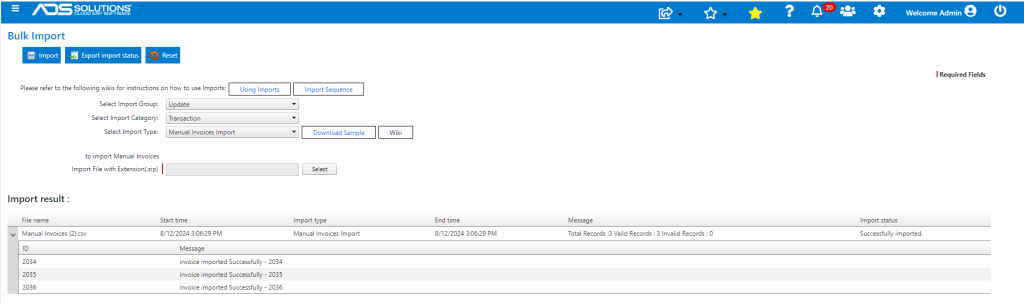
- Manual invoices M2034, M2035 and M2036 were successfully imported.
Manual Invoices
- Go to Receivables > Payment Receipts > Manual Invoices.
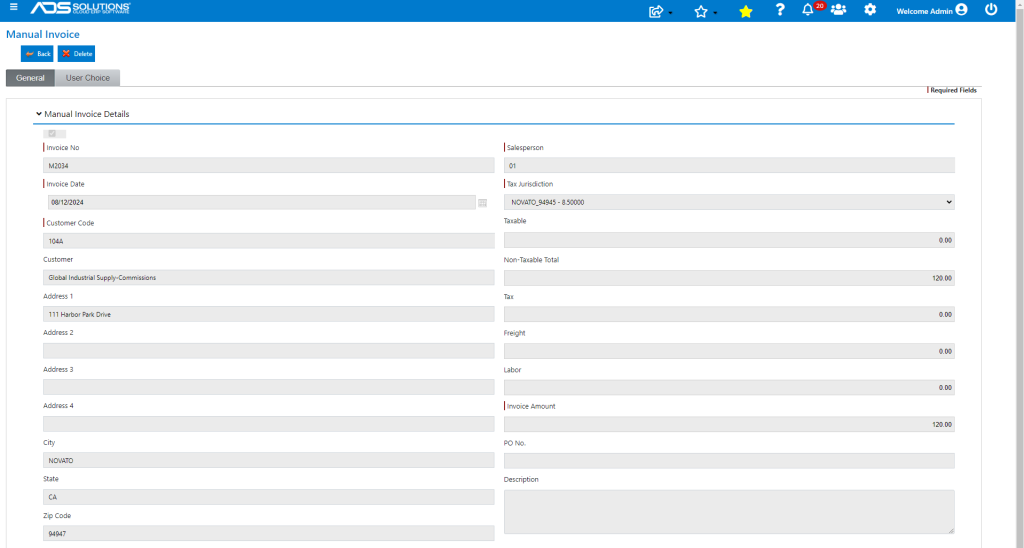
- Manual Invoices were made for the Customer and the additional data will be saved in the user choice fields whose labels can be modified.
- NOTE that the system automatically prefixed the numeric invoice numbers in the CSV template with “M” to denote manual invoices.
- NOTE also, all 3 manual invoices are recorded as Paid.

- Open M2034.
GL Posting of Creation of Unapplied Cash
- The original Payment No 20544 created the Unapplied Cash Entry UN*4642.

GL Posting of Manual Invoice Creation
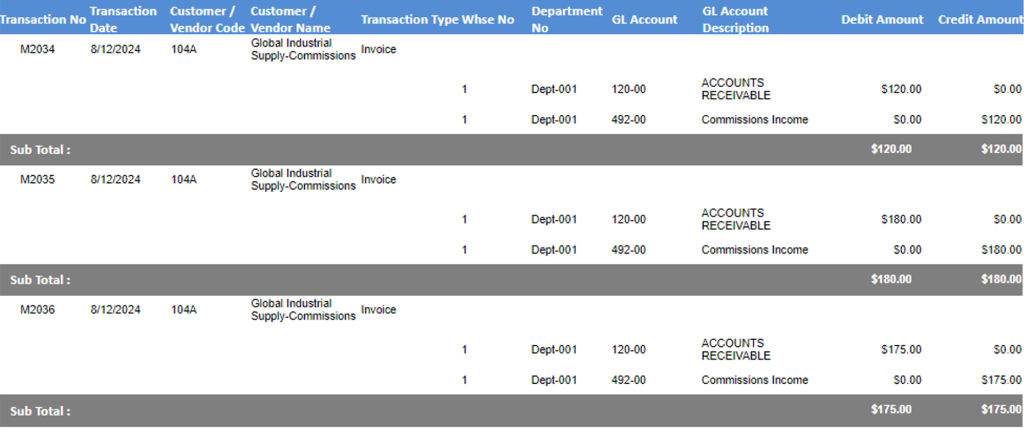
- There is a standard GL Posting for Manual Invoices – see this wiki: Using Manual Invoices.
- If the GL Account-Taxable Sales and/or the GL Account-Non-Taxable Sales fields are specified in the CSV template, the SP will use these accounts instead of the default GL Accounts for the GL Posting.
- In this case, the CSV template only specified Non-Taxable Sales to be posted to the GL Account 492-00 Commission Income. Amounts for Taxable Sales, Freight and Labor were not specified.
- This is the posting of M2034, M2035 and M2036.
Application of Payment to Invoices
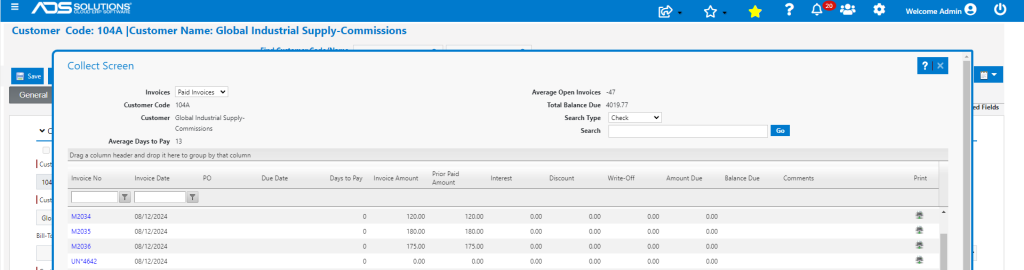
- Go to Customer 104A then select Views > Collections > Paid Invoices.
- Amounts Due on UN*4642 and invoices M2034, M2035 and M2036 are all $0.00.
- Look up Payment No 20545 to see how UN*4642 was applied.
Subsequent Payments
- If invoices M2034, M2035, M2036 were not prepaid, the UN No in column C would have been left blank.
- In this case the Import/Stored Procedure would only create the Manual Invoices, which would show up in AR Aging as open invoices.
- Subsequent receipts of payments from Customer 104A could then be applied from the Payment Receipts screen to open invoices.
Reports
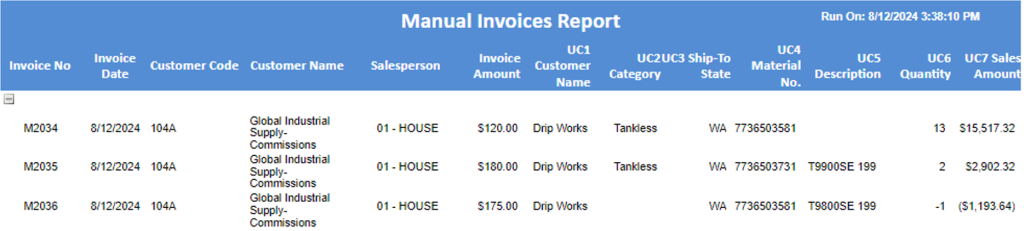
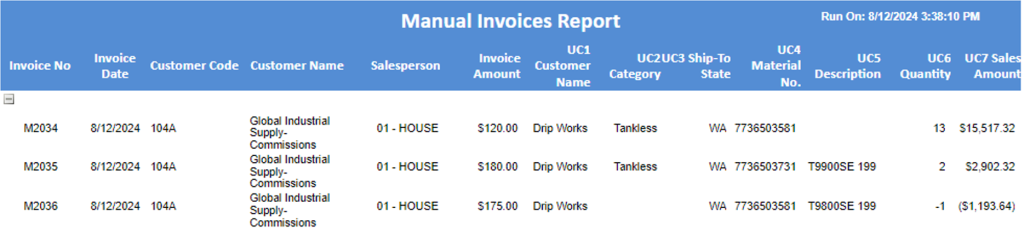
- Go to Reports Center to run the report for Manual Invoices.
- Run Report 11421.
- The report shows all 7 user choice fields.