
Accolent ERP data Import Template Instructions provide field-by-field information on the data needed to fill out the CSV templates. Always review these instructions before populating a CSV import template.
Purpose of the Products Update Import Template
- The Products Import template is designed to update records for products that already exist in the Accolent ERP database.
- Using the Products Update Import template, existing products records can be changed to update various fields such as Group, Category or Sub-Category.
- Note that the Vendor Price Updates template is specifically designed to update List Prices and Costs for existing products.
- The Products Update Import template should not be used to create new products.
Download the Products Update Import Template
- Go to Utilities > Imports > Bulk Imports, select Import Category=Master Records, select Import Type=Products Update.
- Download the latest template as a CSV file.
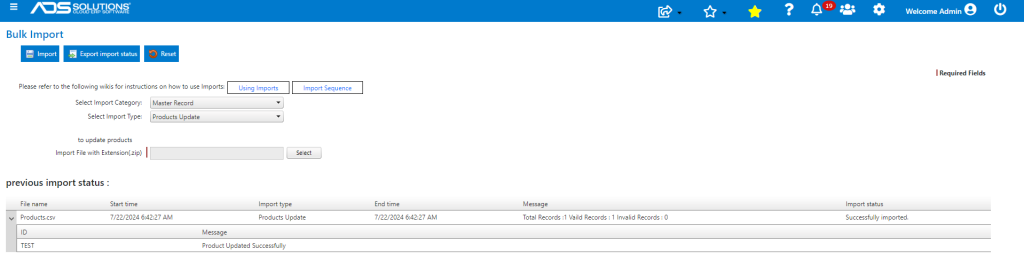
- The Products Update Import CSV template once downloaded can be edited and saved to create your import file.
- Delete the contents of the second row and insert your data.
| Field Name | Required Field? | Field Data Instructions | Sample Data |
| PRODUCT CODE | Required | 40 character maximum. No spaces. Use only standard ASCII characters (no *,/, etc.) | JA-2010-345 |
| PRODUCT DESCRIPTION | Description of product. 50 character max | Safety Wire Harness-Medium | |
| ADDITIONAL REFERENCES | Enter keywords to assist in search. Leave a space between each keyword. Note: search is not case sensitive | Keyword | |
| PRIMARY VENDOR CODE | Maximum 20 characters | VE-103-2345 | |
| VENDOR’S PRODUCT CODE | Manufacturer’s product code or the product code used by the primary vendor | TEST100 | |
| PRODUCT CLASS | Cannot be changed using the Products Update Import Template | ||
| CATEGORY CODE | 10 characters, alphanumeric. Will default to first category code entered or if none entered, “100” will default | 100 | |
| SUB CATEGORY CODE | 10 characters, alphanumeric. Will default to first category code entered or if none entered, “100” will default | 200 | |
| INVENTORY PRODUCT? | Cannot be changed using the Products Update Import template | ||
| SERIALIZED PRODUCT? | Cannot be changed using the Products Update Import template | ||
| CATCH WEIGHT PRODUCT? | Cannot be changed using the Products Update Import template | ||
| FREIGHT CHARGE | Freight charge for the default selling unit; can be handled through the standard cost file. Dollar value with two decimal places | 25.00 | |
| WEIGHT | Enter weight. Unless selected otherwise default unit is Pounds | 1.00 | |
| WEIGHT UNITS | Enter weight units: P-Pounds; O-Ounces; K-Kilograms. Default unit is Pounds | P | |
| CUBES | Enter cubes (in cu ft) | 1.00 | |
| ACTIVE? | Enter Y or N. Default is Y | Y | |
| TRACK LOCATIONS? | Cannot be changed using the Products Update Import template | ||
| TAXABLE? | Cannot be changed using the Products Update Import template | ||
| COMMISSION TYPE | Specify commission type. 3 digit numeric | 123 | |
| MINIMUM SELLING QUANTITY | The minimum number of items, in the default selling unit, that can be sold. Defaults to a value of “1” | 1 | |
| BACK ORDER? | Can product be back ordered? Enter Y or N. Default value is Y | Y | |
| LOT CONTROLLED? | Cannot be changed using the Products Update Import template | ||
| USER CHOICE 1 | Any extra data element that aren’t otherwise stored | ||
| USER CHOICE 2 | Any extra data element that aren’t otherwise stored | ||
| USER CHOICE 3 | Any extra data element that aren’t otherwise stored | ||
| USER CHOICE 4 | Any extra data element that aren’t otherwise stored | ||
| USER CHOICE 5 | Any extra data element that aren’t otherwise stored | ||
| UOM 1 | Cannot be changed using the Products Update Import template | ||
| STOCKING UOM | Cannot be changed using the Products Update Import template | ||
| PO UOM | Is this UOM used for creating Purchase Orders? This entry MUST be Y | Y | |
| DEFAULT PO UOM | Is this the Default PO UOM? Only one UOM can be the Default PO UOM. This entry MUST be Y | Y | |
| UOM RATIO FOR UOM 1 | Cannot be changed using the Products Update Import template | ||
| PKG QUANTITY FOR UOM 1 | Cannot be changed using the Products Update Import template | ||
| SELLING UNIT FOR UOM 1 | Cannot be changed using the Products Update Import template | ||
| DEFAULT SELLING UOM | Cannot be changed using the Products Update Import template | ||
| PRICING UOM 1 | Cannot be changed using the Products Update Import template | ||
| PRICE FACTOR FOR UOM 1 | Cannot be changed using the Products Update Import template | ||
| PRICE/PrU FOR UOM 1 | Cannot be changed using the Products Update Import template | ||
| QTY BREAK PRICE CODE | Identifies the quantity break discounts to use. Up to 3 digit numeric | 100 | |
| DISCOUNT GROUP CODE | Identifies the discount group to use. Up to 10 digit alphanumeric | ||
| PRICE LIST CODE | Identifies the customer price list that applie.s Up to 10 digit alpha numeric | 100 | |
| WAREHOUSE DISCOUNT CODE | Identifies the warehouse discount list that applies. Up to 3 digit numeric | 203 | |
| WEB PRICE TEXT | Enter Web Price Text | Text | |
| SEO TITLE | Search Engine Optimization title | SEO Title | |
| SEO KEYWORD | Search Engine Optimization keyword | SEO Keyword | |
| SEO DESCRIPTION | Search Engine Optimization description | SEO Description | |
| ADD TO URL | Enter Add to URL | Text | |
| SELF SERVICE PORTAL NEW | Self-Service Portal designation. Enter Y or N | N | |
| SELF SERVICE PORTAL FEATURED | Self-Service Portal designation. Enter Y or N | N | |
| SELF SERVICE PORTAL SPECIAL | Self-Service Portal designation. Enter Y or N | N | |
| SELF SERVICE PORTAL WEB DISPLAY | Should product be displayed on Self-Service Portal? Enter Y or N | N | |
| ONLINE STORES NEW | Online Stores designation. Enter Y or N | N | |
| ONLINE STORES FEATURED | Online Stores designation. Enter Y or N | N | |
| ONLINE STORES SPECIAL | Online Stores designation. Enter Y or N | N | |
| ONLINE STORES WEB DISPLAY | Display on Online Stores? Enter Y or N | N | |
| PRODUCT COMMENTS | Product comments related to product | Comment | |
| ORDER LINE ITEM COMMENTS-PRODUCT | Enter Order Line-Item Comments that will print on all forms (work order, pick ticket, delivery invoice and invoice)” | Comment | |
| ORDER LINE ITEM COMMENTS-PRODUCT (INTERNAL) | Enter Order Line-Item Comments that are only for internal use and will NOT print on any forms” | Comment | |
| WEB COMMENTS | Comments to appear with the product on eCommerce | Comment | |
| PICKING INSTRUCTIONS | Enter Picking Instructions that will print on the Pick Ticket whenever the product is on an order | Comment |
Error Reporting
- The import screen will provide details of all the Exceptions encountered.
- This can be exported to a CSV file, the offending data records corrected and the file re-imported.
- See also the wiki: https://help.accolent.net/using-data-imports/