
Accolent ERP data Import Template Instructions provide field-by-field information on the data needed to fill out the CSV templates. Always review these instructions before populating a CSV import template.
Purpose of the Products Import Template
- The Products Import template is designed to upload new products into the Accolent ERP database.
- Using the Products Import template, products can be imported with a single UOM, which should be the Stocking UOM. Additional UOMs can be added using the Product UOMs Import.
- The Products Import template should not be used to update existing products.
Download the Products Import Template
- Go to Utilities > Imports > Bulk Imports, select Import Category=Master Records, select Import Type=Products Import.
- Download the latest template as a CSV file.
- The Products Import CSV template once downloaded can be edited and saved to create your import file.
- Delete the contents of the second row and insert your data.
| Field Name | Required Field? | Field Data Instructions | Sample Data | |
| PRODUCT CODE | Required | 40 character maximum. No spaces. Use only standard ASCII characters (no *,/, etc.) | JA-2010-345 | |
| PRODUCT DESCRIPTION | Description of product. 50 character max | Safety Wire Harness-Medium | ||
| ADDITIONAL REFERENCES | Enter keywords to assist in search. Leave a space between each keyword. Note: search is not case sensitive | Keyword | ||
| PRIMARY VENDOR CODE | Maximum 20 characters | VE-103-2345 | ||
| VENDOR’S PRODUCT CODE | Manufacturer’s product code or the product code used by the primary vendor | TEST100 | ||
| PRODUCT CLASS | Required |
|
S | |
| GROUP CODE | Required | 10 characters, alphanumeric. Will default to first group code entered or if none entered, “100” will default | 100 | |
| CATEGORY CODE | Required | 10 characters, alphanumeric. Will default to first category code entered or if none entered, “100” will default | 100 | |
| SUB CATEGORY CODE | Required | 10 characters, alphanumeric. Will default to first category code entered or if none entered, “100” will default | 200 | |
| INVENTORY PRODUCT? | Is inventory tracked for this product? Enter Y or N | Y | ||
| SERIALIZED PRODUCT? | Is the product serialized? Enter Y or N | N | ||
| CATCH WEIGHT PRODUCT? | Enter Y or N | N | ||
| FREIGHT CHARGE | Freight charge for the default selling unit; can be handled through the standard cost file. Dollar value with two decimal places | 25.00 | ||
| WEIGHT | Enter weight. Unless selected otherwise default unit is Pounds | 1.00 | ||
| WEIGHT UNITS | Enter weight units: P-Pounds; O-Ounces; K-Kilograms. Default unit is Pounds | P | ||
| CUBES | Enter cubes (in cu ft) | 1.00 | ||
| ACTIVE? | Required | Enter Y or N. Default is Y | Y | |
| TRACK LOCATIONS? | Does the product Track Locations? Enter Y or N. Default is N | N | ||
| TAXABLE? | Required | Is product taxable? Enter Y or N. Defaults to Y | Y | |
| COMMISSION TYPE | Required | Specify commission type. 3 digit numeric | 123 | |
| MINIMUM SELLING QUANTITY | The minimum number of items, in the default selling unit, that can be sold. Defaults to a value of “1” | 1 | ||
| BACK ORDER? | Can product be back ordered? Enter Y or N. Default value is Y | Y | ||
| LOT CONTROLLED? | Is the product Lot controlled? Enter Y or N. Default is N | N | ||
| USER CHOICE 1 | Any extra data element that aren’t otherwise stored | |||
| USER CHOICE 2 | Any extra data element that aren’t otherwise stored | |||
| USER CHOICE 3 | Any extra data element that aren’t otherwise stored | |||
| USER CHOICE 4 | Any extra data element that aren’t otherwise stored | |||
| USER CHOICE 5 | Any extra data element that aren’t otherwise stored | |||
| UOM 1 | Required | Label for stocking unit of measure (e.g., “EA”, “CS”, “DZ”, “PKG”) only. Note: additional UOMs should use the Product UOM Import template | EA | |
| STOCKING UOM | Required | The Products Import should always be done with the Stocking UOM. Only one UOM can be the Stocking UOM. This entry MUST be Y | Y | |
| PO UOM | Required | Is this UOM used for creating Purchase Orders? This entry MUST be Y | Y | |
| DEFAULT PO UOM | Required | Is this the Default PO UOM? Only one UOM can be the Default PO UOM. This entry MUST be Y | Y | |
| UOM RATIO FOR UOM 1 | Required | This entry specifies how many of the Default Stocking UOM are in this UOM. Since this is the Default Stocking UOM then the UOM Ratio MUST be 1.00 | 1.00 | |
| PKG QUANTITY FOR UOM 1 | This is a short description of this UOM’s packaging (e.g., BOX of 10 EA) | BOX of 10 | ||
| SELLING UNIT FOR UOM 1 | Required | Is this UOM an available Selling UOM? This entry MUST be Y | Y | |
| DEFAULT SELLING UOM | Required | Is this the Default Selling UOM? Only one UOM can be the Default Selling UOM. This entry MUST be Y | Y | |
| PRICING UOM 1 | Required | Is this the Pricing UOM? Only one UOM can be the Pricing UOM. A base price is entered only for the Pricing UOM and all other UOMs have prices calculated off this base price. This entry MUST be Y | Y | |
| PRICE FACTOR FOR UOM 1 | Required | This is the factor applied to the base price entered on the Pricing UOM to get the price for this UOM. If this is the Pricing UOM, the Price Factor will be 1.00 | 0.12 | |
| PRICE/PrU FOR UOM 1 | Required | Price per pricing unit (Price/PrU) for this UOM. This will be shown as the List Price for the product. Can display up to 5 decimal places | 60.00000 | |
| QTY BREAK PRICE CODE | Identifies the quantity break discounts to use. Up to 3 digit numeric | 100 | ||
| PRICE LIST CODE | Identifies the customer price list that applie.s Up to 10 digit alpha numeric | 100 | ||
| WAREHOUSE DISCOUNT CODE | Identifies the warehouse discount list that applies. Up to 3 digit numeric | 203 | ||
| WEB PRICE TEXT | Enter Web Price Text | Text | ||
| SEO TITLE | Search Engine Optimization title | SEO Title | ||
| SEO KEYWORD | Search Engine Optimization keyword | SEO Keyword | ||
| SEO DESCRIPTION | Search Engine Optimization description | SEO Description | ||
| ADD TO URL | Enter Add to URL | Text | ||
| SELF SERVICE PORTAL NEW | Self-Service Portal designation. Enter Y or N | N | ||
| SELF SERVICE PORTAL FEATURED | Self-Service Portal designation. Enter Y or N | N | ||
| SELF SERVICE PORTAL SPECIAL | Self-Service Portal designation. Enter Y or N | N | ||
| SELF SERVICE PORTAL WEB DISPLAY | Should product be displayed on Self-Service Portal? Enter Y or N | N | ||
| ONLINE STORES NEW | Online Stores designation. Enter Y or N | N | ||
| ONLINE STORES FEATURED | Online Stores designation. Enter Y or N | N | ||
| ONLINE STORES SPECIAL | Online Stores designation. Enter Y or N | N | ||
| ONLINE STORES WEB DISPLAY | Display on Online Stores? Enter Y or N | N | ||
| PRODUCT COMMENTS | Product comments related to product | Comment | ||
| ORDER LINE ITEM COMMENTS-PRODUCT | Enter Order Line-Item Comments that will print on all forms (work order, pick ticket, delivery invoice and invoice)” | Comment | ||
| ORDER LINE ITEM COMMENTS-PRODUCT (INTERNAL) | Enter Order Line-Item Comments that are only for internal use and will NOT print on any forms” | Comment | ||
| WEB COMMENTS | Comments to appear with the product on eCommerce | Comment | ||
| PICKING INSTRUCTIONS | Enter Picking Instructions that will print on the Pick Ticket whenever the product is on an order | Comment |
Error Reporting
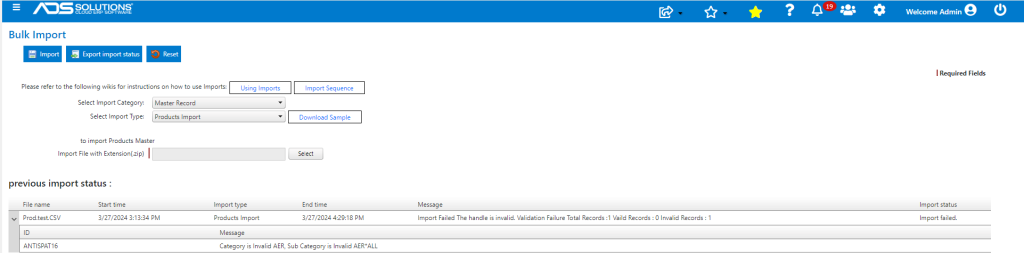
- The import screen will provide details of all the Exceptions encountered.
- This can be exported to a CSV file, the offending data records corrected and the file re-imported.
- See also the wiki: https://help.accolent.net/using-data-imports/