
Accolent ERP requires that checks created need to be reviewed, printed and confirmed. If a check is deleted prior to being confirmed, the vouchers the original check was intended to pay again become available to be paid on a new check. So the process can be repeated to create a new check. If the check was confirmed, it will have to be voided.
Create Computer Check
- Go to Payables > Create Checks > Create Proposed Checks > List Proposed Checks.
- Select Voucher ZZ10165 for $100 for Vendor 00189 to pay.
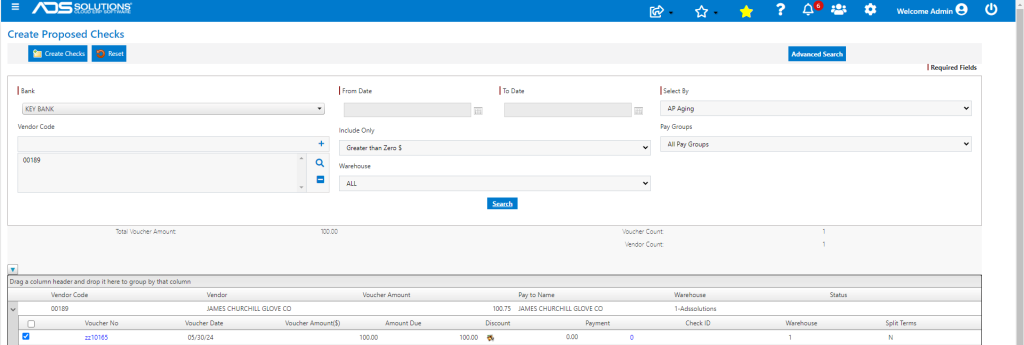
- Create a check for $100.00 to pay Voucher ZZ10165.
Delete Computer Check
- Go to Create Checks > List Proposed Checks > Modify Proposed Checks to edit the check just created.
- Because the check has not yet been confirmed, it can be deleted.
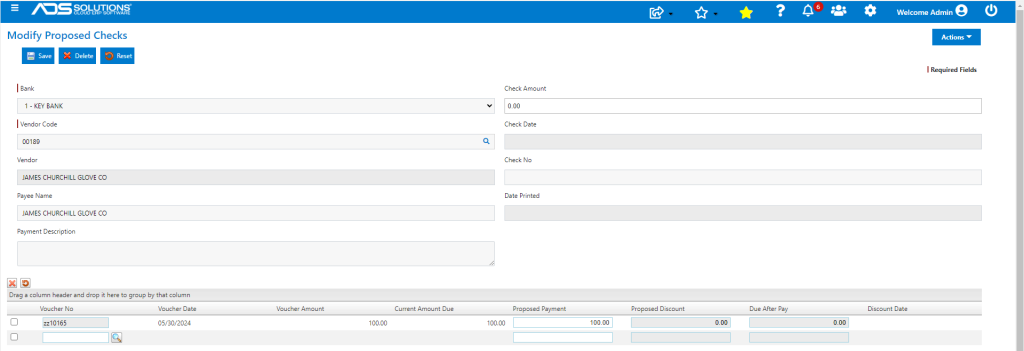
- Select check just created in the grid and use the Delete button at the top of the screen to delete it.
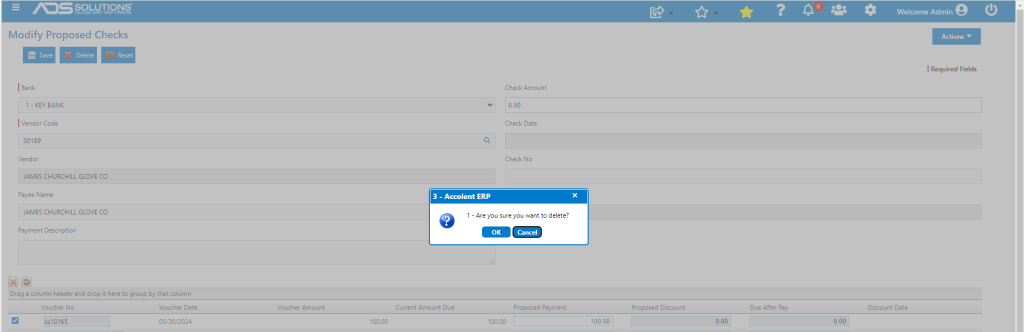
- Click OK to confirm deletion, and check is deleted.
Create New Computer Check
- Go back to Create Checks > Create Proposed Checks > List Proposed Checks.
- Search for Vendor and Voucher ZZ10165; the Voucher is available to create another check.
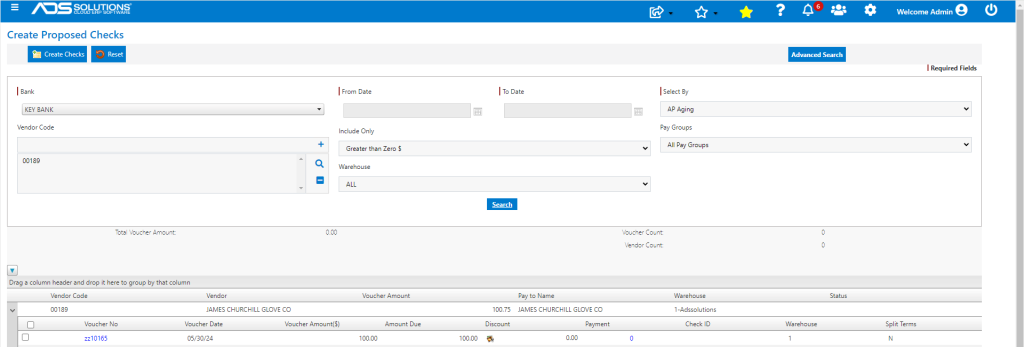
Voiding Computer Check
- To void a check that has already been confirmed, go to GL > Manage Bank Account > List Checks.
- Select Check Type, then select check and click on Void button.
- The Void button will create a new check that will offset the original check.