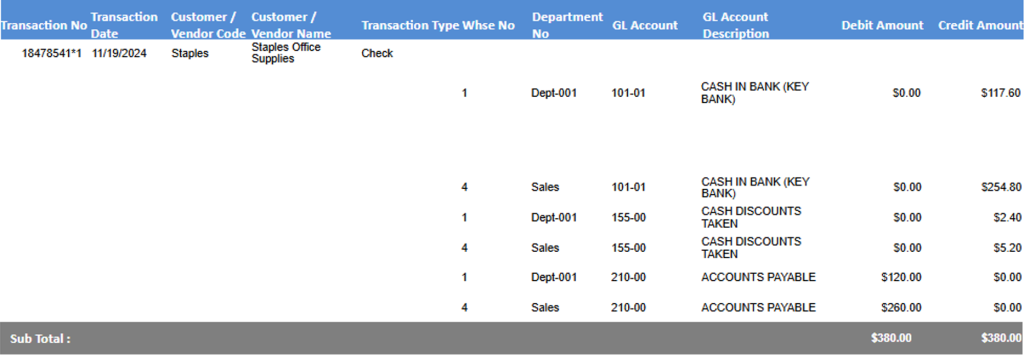
Accolent ERP allows vouchers for multiple warehouses to be paid with a single check. If there are multiple warehouses on a check, the amount of the check will be split between the warehouses.
Create Vouchers
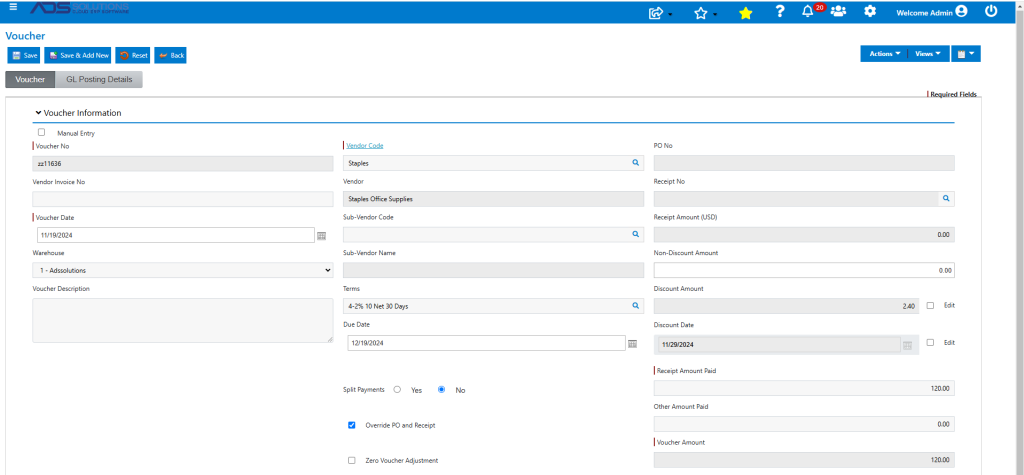
- Create voucher ZZ11636 for $120 for Vendor Staples for Warehouse 1.
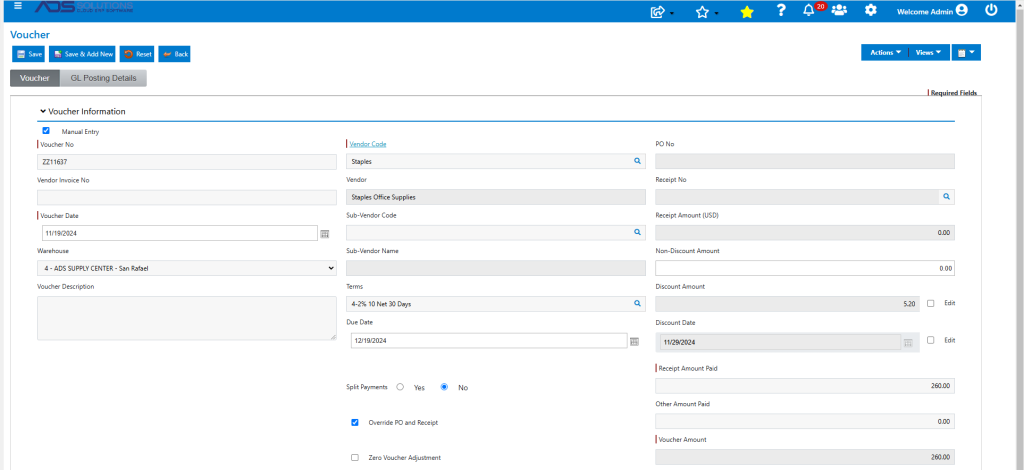
- Create ZZ11637 for $260 for the same vendor for Warehouse 4.
Create Check
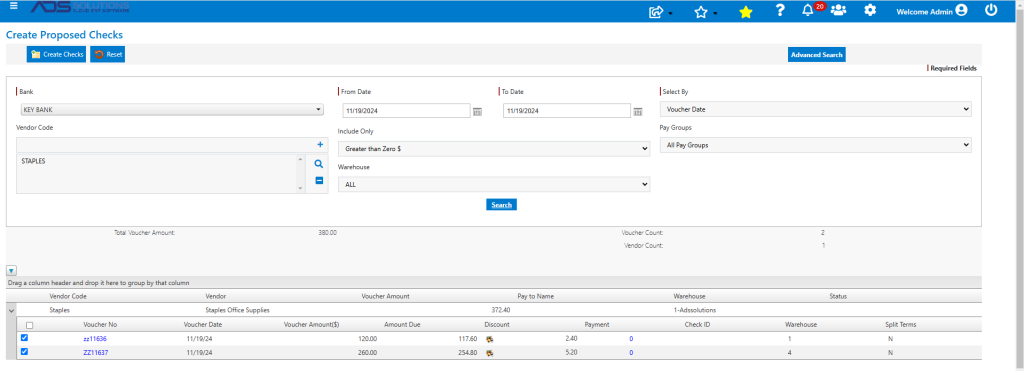
- Go to Payables > Create Checks > Create Checks > Create Proposed Checks > List Proposed Checks.
- Select Bank; in this example, Key Bank.
- Choose Select by option; in this example, select by Voucher Date.
- Enter Vendor Code(s); in this example select Vendor Staples.
- Select ALL Warehouses.
- Then Search populates the grid.
- Select vouchers ZZ11636 and ZZ11637 from 2 different warehouses to be on the same check and click the Create Checks button.
- Go to Payables > Create Checks > Create Proposed Checks > Print Proposed Checks.
- Select check them click Generate Checks button.
- Then print and confirm check 18478541.
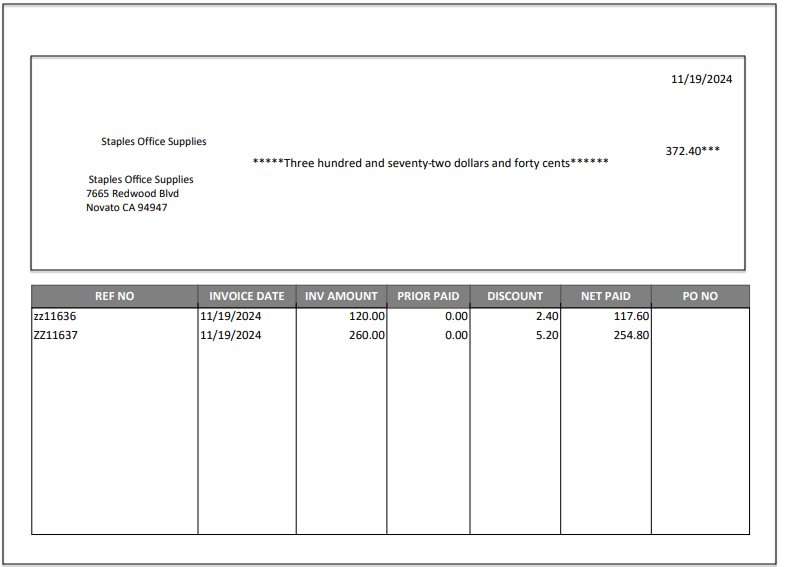
Review Check
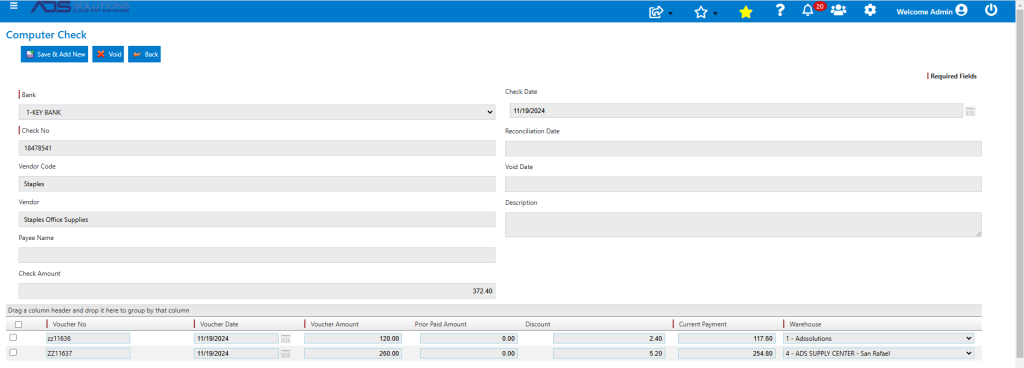
- Go the General Ledger > Manage Bank Accounts > List Checks to see the Check.
- Payments and discounts are split by warehouse.
GL Posting of Check
- Go to General Ledger > Manage General Ledger > Evaluate Transactions.
- Look up Cash Disbursement Journal to see check posting.
- Check is split by warehouse.