
In Accolent ERP, each warehouse is a separate entity for financial statement purposes. So, in order to accommodate transfers from one warehouse to another, Accolent ERP uses a dummy Internal Bank Transfer account. A transfer of cash from one Bank Account to another specifies both the source Warehouse and Bank Account as well as the destination data. To ensure that each Warehouse has a balanced financial statement, the GL posting for each side of the transfer uses the dummy Internal Bank Transfer account as its offset. In the consolidation the dummy Internal Bank Transfer account will eliminate itself. In the simpler case of a transfer within the same Warehouse the posting will reflect an in and out transaction for the Internal Bank Transfer account.
Set up Internal Bank Transfer GL Account
- Go to Inventory/Products > Warehouses > List Warehouses, select default Warehouse.
- Then select Actions > General Ledger Defaults and specify the GL Account for Internal Bank Transfers.

Create Bank Transfer
- Go to General Ledger > Manage Bank Accounts > Transfer Funds.
- Specify the source and destination data for the Bank Transfer.
- Each Bank Account will have its own unique GL Account to facilitate tie-out.
- Enter Bank, Bank GL Account, Warehouse and Department for each side of the Bank Transfer.
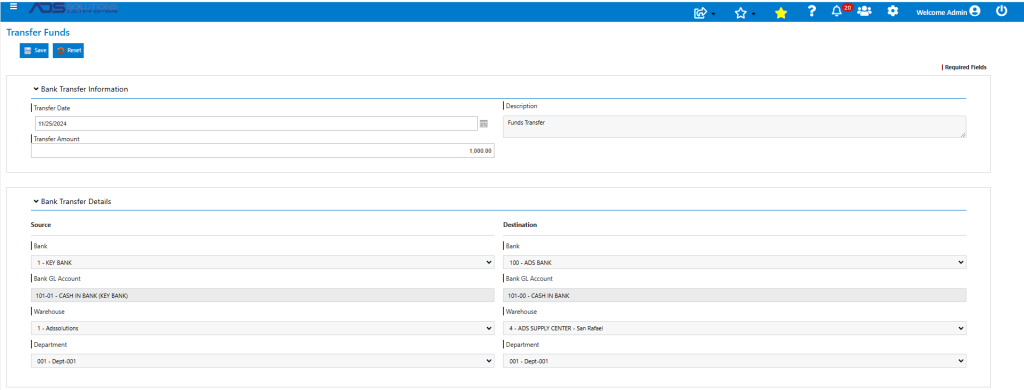
- When complete, Save the transfer, which will be accomplished by creating two Bank deposit entries: D3758 and D3759.

GL Posting
- The GL posting of the transaction will use the Internal Bank Transfer GL Account as the offset for each side of the posting.
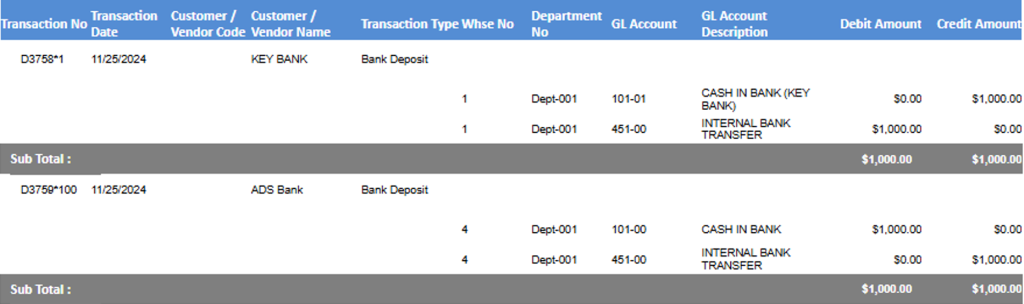
- The net effect will be that Warehouse 1 shows a debit balance in the Internal Bank Transfer account, while Warehouse 4 will show a credit balance.
- These will offset in the consolidation.