
To send emails from Accolent ERP, the email settings in Accolent ERP will need to be properly configured. You will also need to ensure all your firewall settings on your LAN or email server are correct. Please note that there are additional settings for some email providers like Google Gmail and Yahoo that require you to generate an app password that allows Accolent ERP to send through these applications.
Sending Emails from Accolent ERP
- Please read this wiki to understand the different email options available from Accolent ERP: https://help.accolent.net/sending-emails-from-accolent-erp/.
- Once you have decided how you want to send emails, then this wiki will help you enter the right settings in Accolent ERP.
Configuring Email Settings
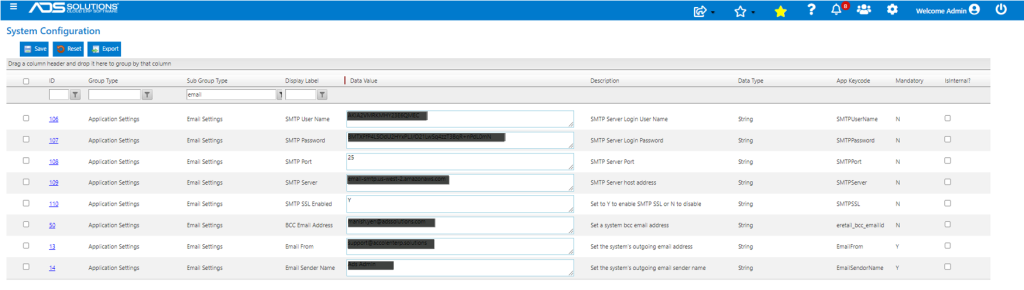
- Email configuration settings are entered from Settings > System > System Configuration.
- Sort the grid by Group Type and Sub-Group Type to see all the email settings.
- For Accolent ERP to properly send email, the following email settings need to be configured:
- SMTP Username (username for SMTP Server access)
- SMTP Password (password for SMTP Server)
- SMTP Port (e.g., 993)
- SMTP Server (e.g., mail@adssolutions.com)
- SMTP SSL (Secure Authorization Layer) Enabled? (Y)
- Email From (e.g., orders@adssolutions.com)
- Email Sender Name (e.g., Customer Support)
-
- There is also an optional Bcc Email Address that can be provided, if desired.
- Once configured the system will send outgoing emails using these settings.
Using Gmail
- Gmail has some additional settings that need to be made to generate a Gmail App password.
- Login to your GMAIL account.
- Click on your profile picture at the top right, Manage your Google Account | Security.
- ENABLE 2-Step Verification. It will then prompt you to enter your phone number so when you log in to this GMAIL account the first time, a text will be sent to your number to verify it is you. Follow through until this is set up.
- Once that’s done, an option will appear below 2-Step verification saying ‘App passwords’. Enter your login password again, if prompted.
- On this next screen, under Select app, Choose other (custom name) and enter something like ‘ADS’ and then click Generate.
- You will then see an app password. This is the password you will put into the System Configuration screen so copy it somewhere to your Notepad. Even though you can see spaces onscreen, the password has no spaces.
- Click DONE.
- Then test with the Gmail SMTP: https://www.gmass.co/smtp-test
- Use these credentials:
- SMTP Server: smtp.gmail.com.
- Port: 587.
- Security: Auto.
- Username: your GMAIL email address.
- Password: The app password generated above, not your Gmail login password.
- From Email address: your GMAIL email address.
- To email address (Put a different email address here so we can receive a test email to verify).
- Test it. You should receive green and blue text to indicate success in that black box. Also, you should receive a test email in the To email address mailbox.
- Then configure Accolent ERP:
- Settings > System > System Configuration.
- Sort by Sub Group Type and look for Email Settings. Enter the following:
- SMTP User Name (your GMAIL email address).
- SMTP Password (App password).
- SMTP Port (587)
- SMTP Server (smtp.gmail.com).
- SMTP SSL Enabled (Y).
- Email From (your GMAIL email address).
- Email Sender Name (what you want to appear in the email).
- BCC Email Address (any other email address you want to receive BCC).
- Save.
- Test that you can receive an email. Go to Invoices, select an Invoice, click the Print icon.
- On the Printing & Sending Options screen, turn off Print, turn on Email and remove any Emails that you don’t want to receive this test. Add a test email address and click + button. Process.
- You should receive the Invoice email now.
Outgoing Email Log
- If desired, you can also set up a bcc email address that will receive copies of all emails out of the Accolent ERP system
- The bcc mailbox will then serve as a log of all outgoing emails sent from Accolent ERP