
Accolent ERP creates a voucher for a Vendor’s Invoice using by default, the terms negotiated and agreed with the Vendor. The default Vendor terms may be overridden for that voucher, if desired, without changing the terms on the Vendor. If the terms selected provide for an early payment discount, the discount is not entered on the voucher but will be automatically calculated at the time the check is made to pay the voucher. At the time a check is made, if the voucher has a discount applicable, this will be netted against the voucher amount when creating the check. If, however, the discount has expired the period of the discount may be “stretched” to extend the discount date and permit taking of the voucher discount.
Select a Voucher
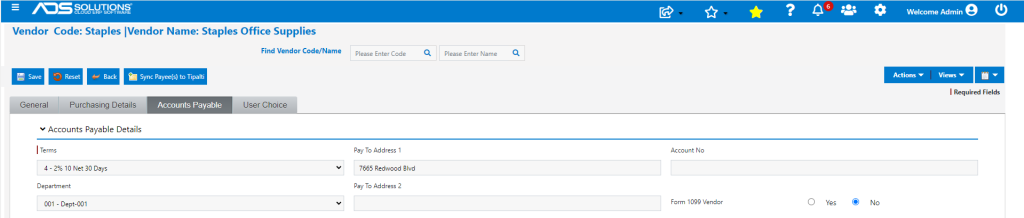
- Vendor Staples has terms code 4 – 2% 10 Net 30 Days.
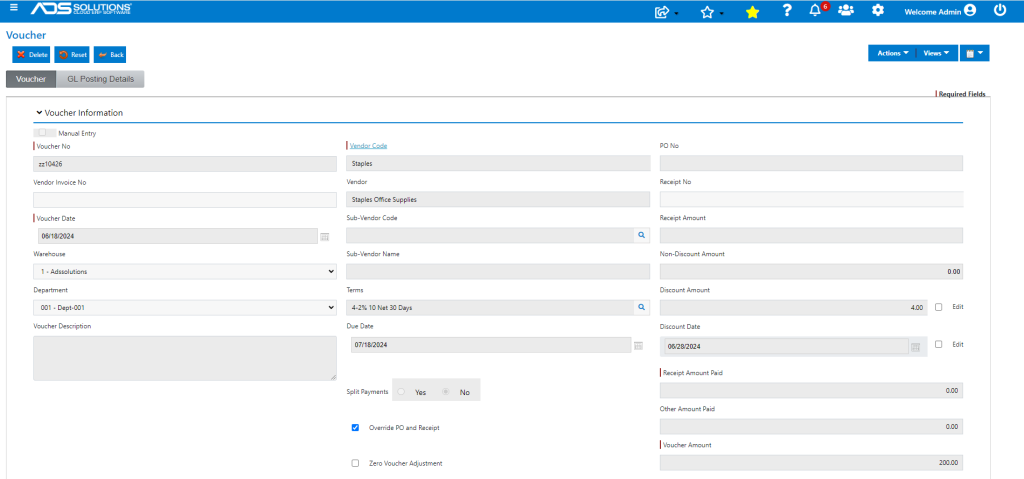
- Open voucher ZZ10426 that was initially created for $220 and subsequently adjusted to $200.
- When a voucher is first created the Vendor terms default into the voucher, but different terms may be selected at that time if needed.
- Note: that if different terms were selected, those terms would apply only to that voucher and would not update the terms code on the vendor.
- In this case, the Vendor’s terms apply.
Pay the Voucher
- Go to Payables Create Checks > Create Proposed Checks > List Proposed Checks.
- Select voucher ZZ10426 that has an amount due of $200 to pay.
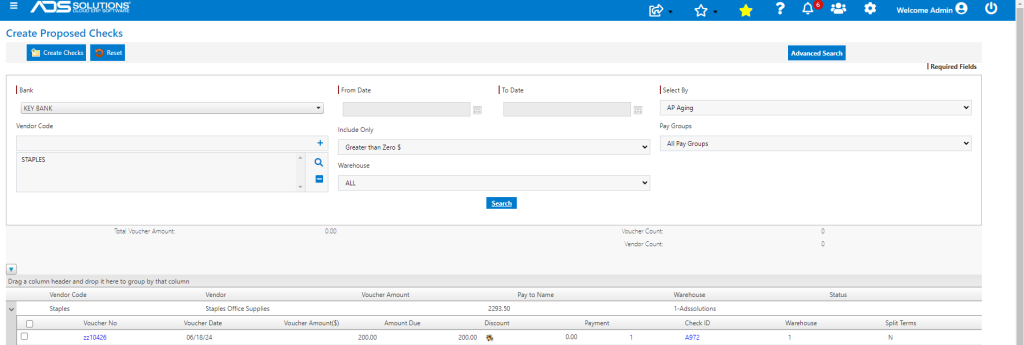
- Click on the Discount icon – shows the discount and terms that apply.
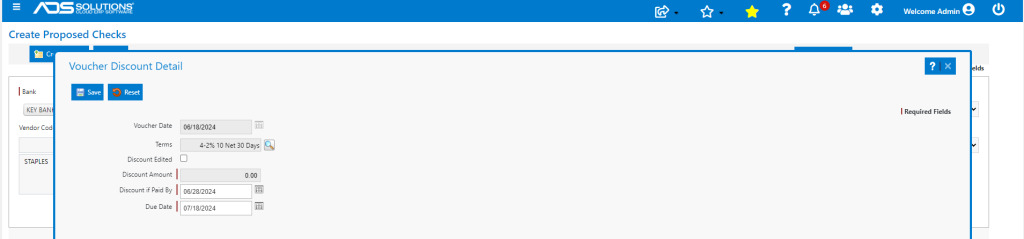
- The discount has expired, but the discount date can be “stretched.”
- For example, change the discount date from 6/28/24 to 7/5/24 to get a $4.00 discount.
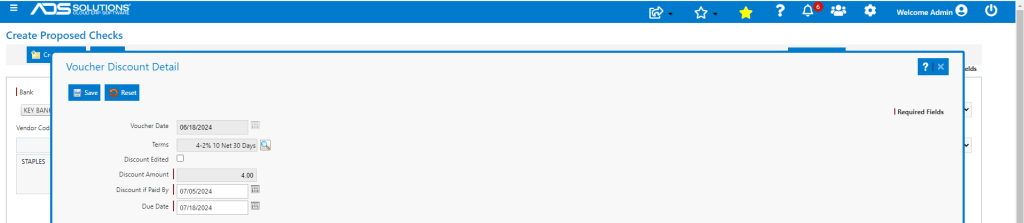
- Select Voucher ZZ10426 and create the check for the $196.00 net of a $4.00 discount.
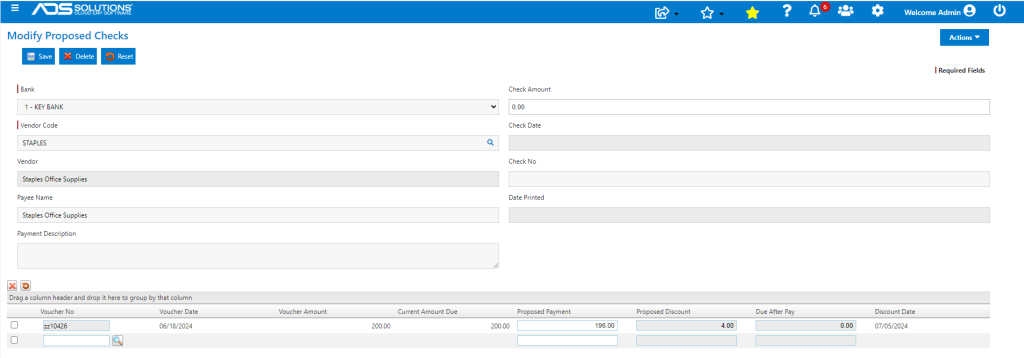
Print and Confirm the Check
- To take the calculated discount, reset and go to Print Proposed Checks.
- Print the check – which shows the stretched discount taken.
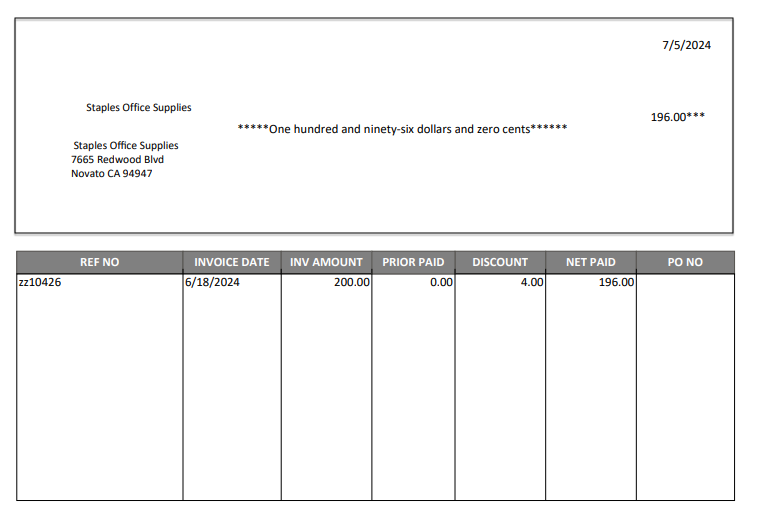
- Confirm the check then go to List Vouchers – ZZ10426 is now paid in full.
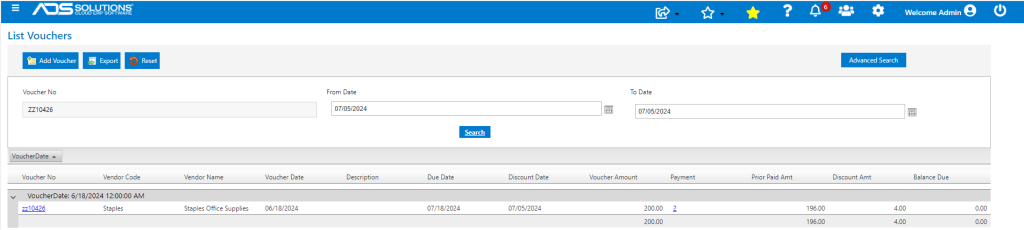
GL Posting
- This is the GL Posting of the check showing the Voucher Discount taken.
