Accolent ERP posts transactions to specific GL Accounts by warehouse, by department and by transaction date. To view the posting of specific transactions, go to General Ledger > Chart of Accounts > GL Transaction Details to see all the transactions posted to the selected GL Account in the date range selected.
GL Transaction Details
- Go to GL > Chart of Accounts > GL Transaction Details.
- Select date range, warehouse and specific GL Accounts.
- For example, select 16/1-6/20/2024, all warehouses, and select the GL Account: 120-00 Accounts Receivable.
- If needed, change the dropdown selection from Single Page to Continuous.
- Select the Detail Report View and then Submit.

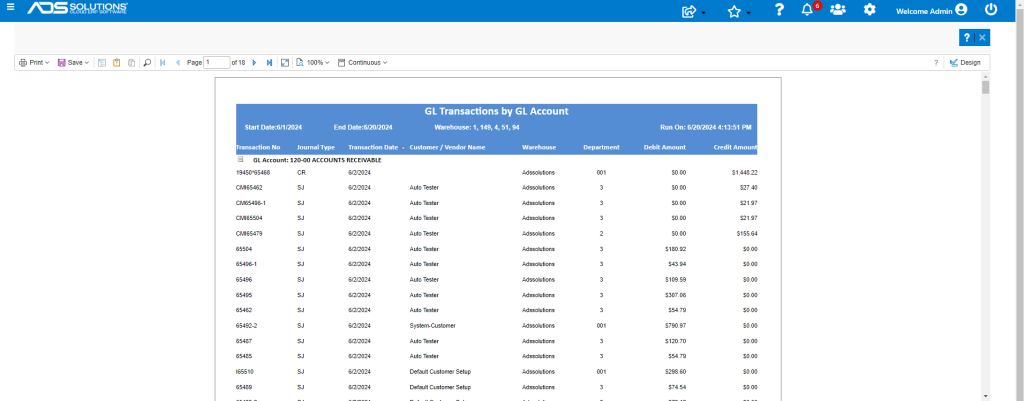
- This is the 18 page report generated which shows all transactions that were posted to 120-00 Accounts Receivable for the date range 6/1-6/20/24.
Search for Specific Transactions
- Search for specific transactions using the search icon.

Download and Save to File
- The report can also be downloaded to Excel or other formats using the Save icon.
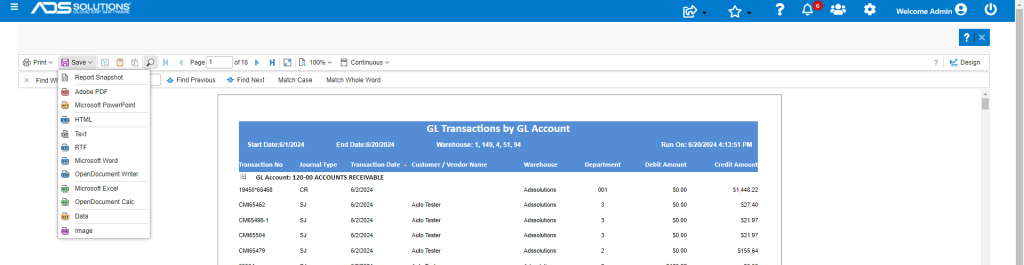
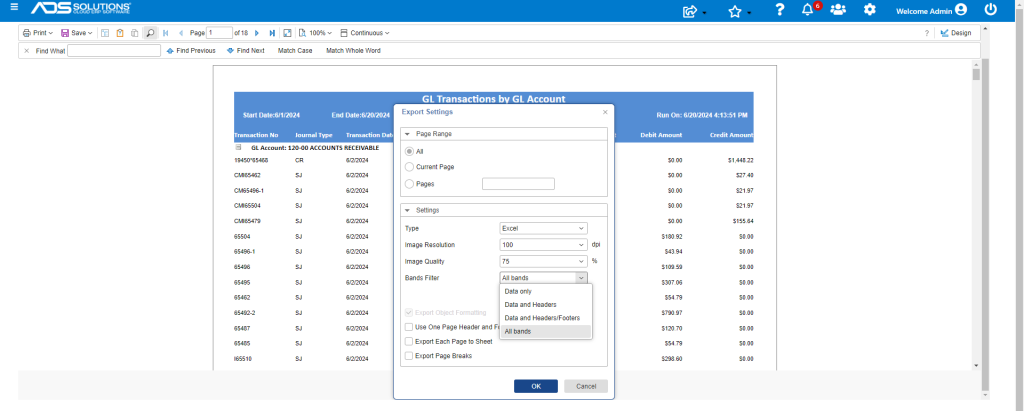
- Note that there are several options available for an Excel export.
- To eliminate all the report formatting so the data can be easily manipulated in Excel, use the Data only option.
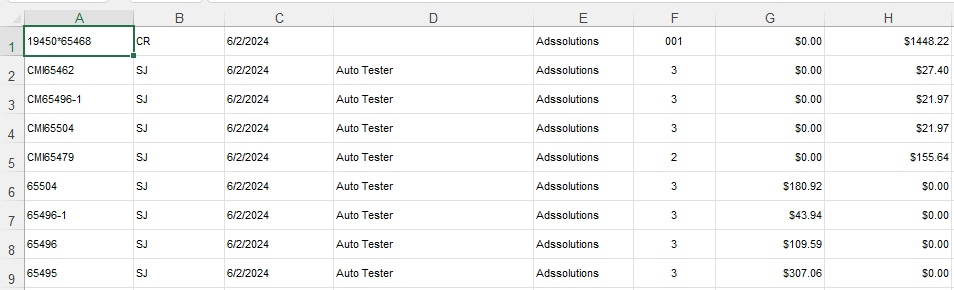
- This is the Excel download.