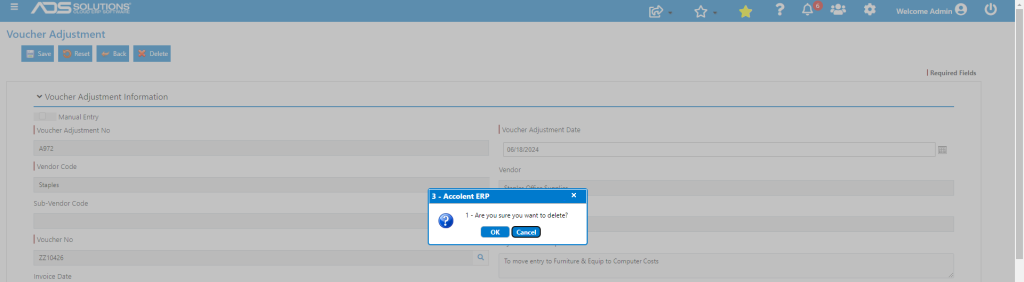
Accolent ERP uses Voucher Adjustments to edit Vouchers. Vouchers when entered, are automatically posted to the General Ledger and so cannot be easily edited. To correct an error on a Voucher, users can make an adjusting entry using Voucher Adjustments. The original Voucher entry is not changed or removed; instead, the Voucher Adjustment modifies the original Voucher entry. So taken together the original Voucher and the Voucher Adjustment yield the correct entry.
Original Voucher
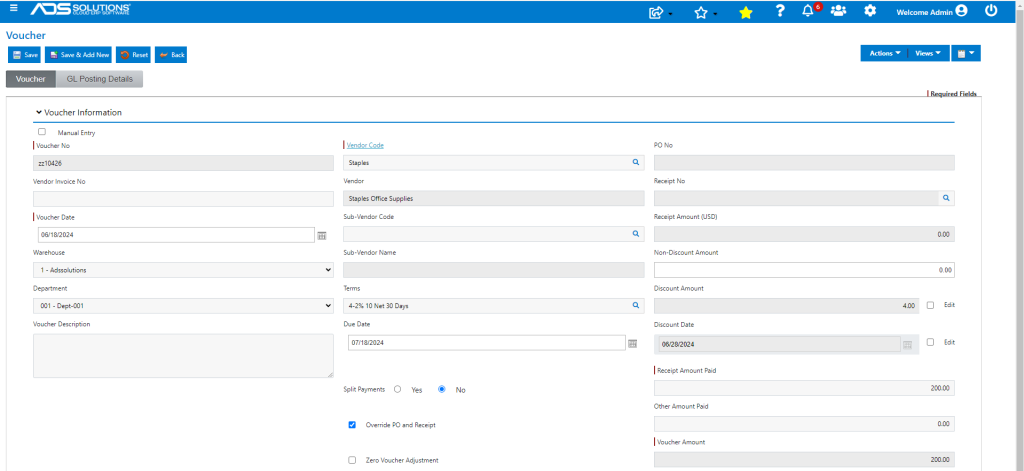
- Create Voucher ZZ10426.
- On the General tab select Vendor Staples and an amount of $200.00.
- On the GL Posting tab allocate as follows:
- $160 (i.e., 80%) to Office Expense, and
- $40 (i.e., 20%) to Furniture & Equipment.
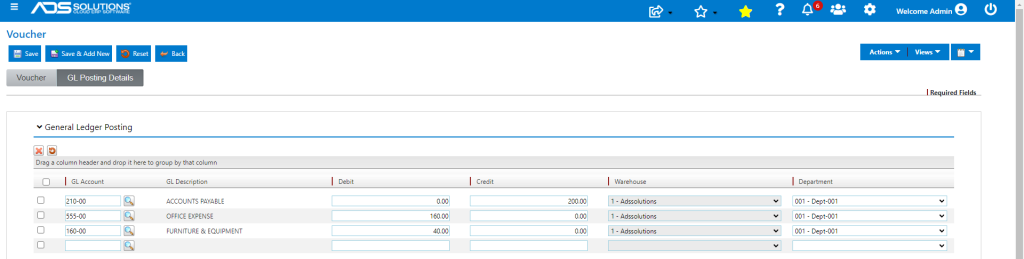
- Once the Voucher is saved, it posts to the GL through the AP Journal.

- To edit the Voucher use Voucher Adjustments.
Creating a Voucher Adjustment
- Select Payables > Adjust Vouchers > Create Adjustment.
- Enter or lookup Vendor and enter or lookup the Voucher to be adjusted.
- A Voucher Adjustment can be used to:
- Modify the amount of the original voucher, including zeroing out the original Voucher, or
- Change the GL Allocation between existing GL Accounts on the Voucher or
- Add new GL Accounts.
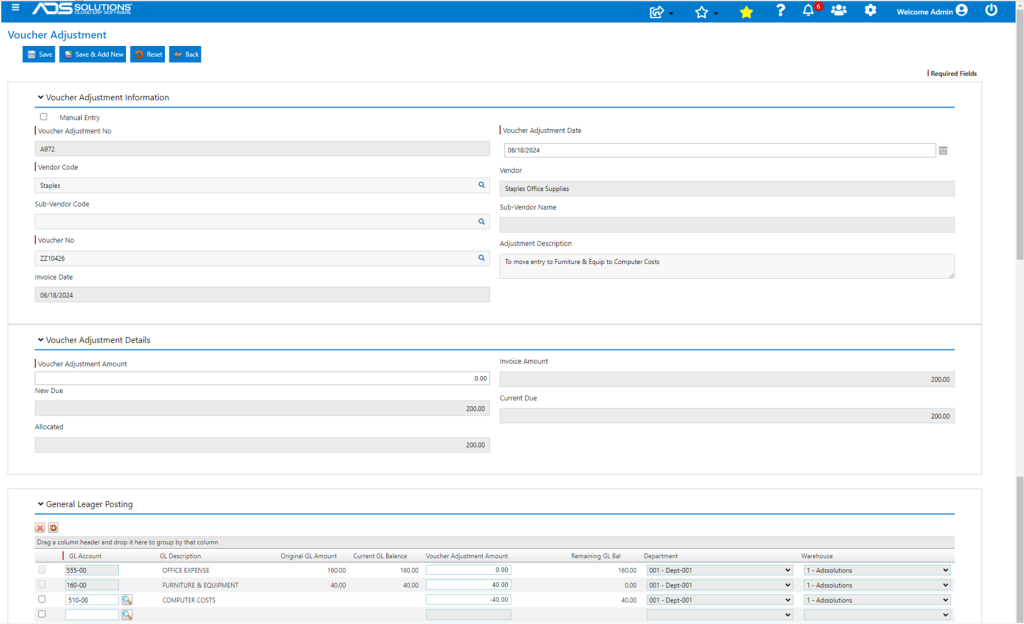
- For example, if voucher zz10426 was incorrectly entered, create voucher adjustment A972 to move the allocation of $40 from Furniture & Equipment to Computer Costs – this will be a net zero adjustment, then save.
- The Original GL Amt ($) column shows the initial allocation and the Remaining GL Bal ($) column shows the new amount giving effect to the Voucher Adjustment.
- Note the sign convention that a positive Voucher Adjustment reduces the amount of the Voucher.
- This is the GL Posting of the Voucher Adjustment.
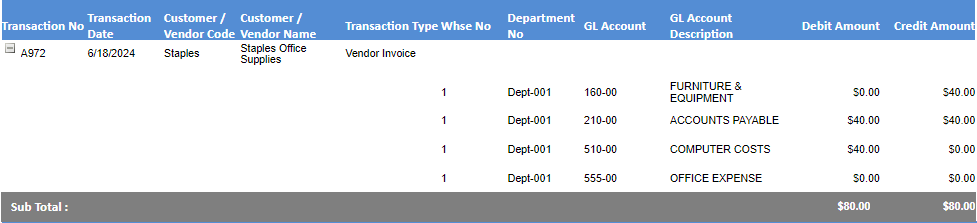
- The net effect of the Voucher and the Voucher Adjustment is now:
| GL Account No | GL Account Description | Debit Amount | Credit Amount |
| 210-00 | Accounts Payable | 0.00 | 200.00 |
| 510-00 | Computer Costs | 40.00 | 0.00 |
| 555-00 | Office Expense | 160.00 | 0.00 |
- This is now the Voucher listing showing the Voucher Adjustment as a “Payment.”

- This is the Voucher Adjustment “Payment.”

Deleting a Voucher Adjustment
- To delete a voucher adjustment, select it from the list of voucher adjustments and click the Delete button.