
Accolent ERP provides user preferences for certain settings. These Application Default settings for the most part provide consistency for former Advantage users. These settings vary from screen defaults to GL Number formats. Most are not widely used in Accolent ERP. Please note that changing these settings will affect the system immediately so caution should be used during entry. If the meaning of a setting is unclear, please contact ADS Solutions support before changing the default setting.
Application Defaults
- Go to Settings > Application Defaults.
- These Application Default settings for the most part provide consistency for former Advantage users.
- These settings are not widely used in Accolent ERP.
- The settings are arranged in application order: each tab will show the preference settings available.
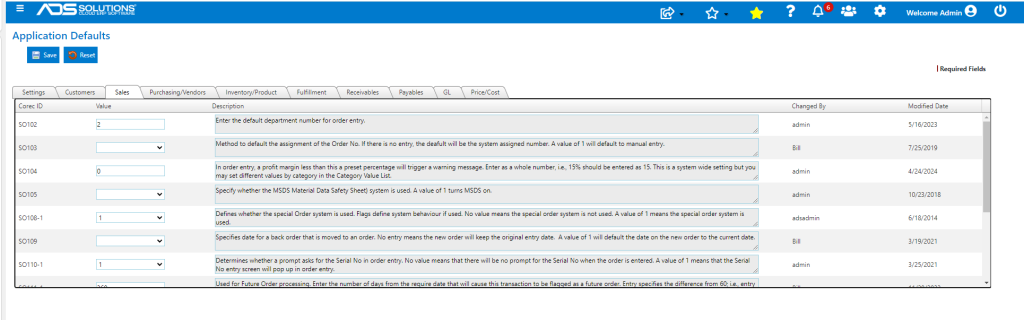
Available fields
| Field Name | Description |
| Setting ID | Use this value as a reference when discussing with ADS Solutions support |
| Value | Enter the desired setting here. Many settings are “Null” (i.e., no entry) or “1”; some require specific numeric values to be entered. The drop down will show the list of acceptable values if applicable |
| Description | Explanation of how the setting is used by the application |
| Changed By | The user logon last maintaining this setting |
| Modified Date | The date this setting was last changed |
Changing Application Default Settings
- You can use these settings to make some changes to Accolent ERP.
- For example, Sales > SO104 specifies the minimum acceptable gross margin percent for a Sales Order line item.
- On line SO104 enter the desired value. Note that the description explains how to make the entry, e.g., 15% should be entered as 15.
- Click Save.
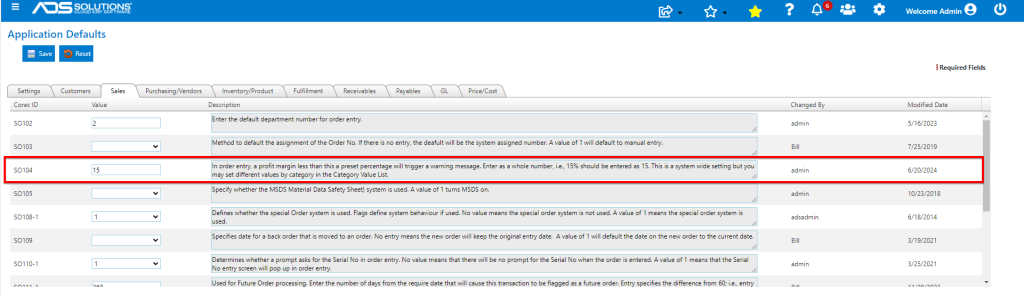
- In most cases, the user should log out of the system and then log back on to be sure the new setting is in use