
Accolent ERP offers several ways in which a vendor refund may be recorded. If the refund is in the form of a Credit Memo, then create a negative voucher for the amount of the refund and select the negative voucher together with other positive vouchers to reduce the amount paid to the vendor in the next check run. If the vendor refund is in the form of a check, two options are available: (1) use Other Deposits to deposit and post the check to the GL, or (2) create a Voucher and pay with a manual check.
Credit Memo
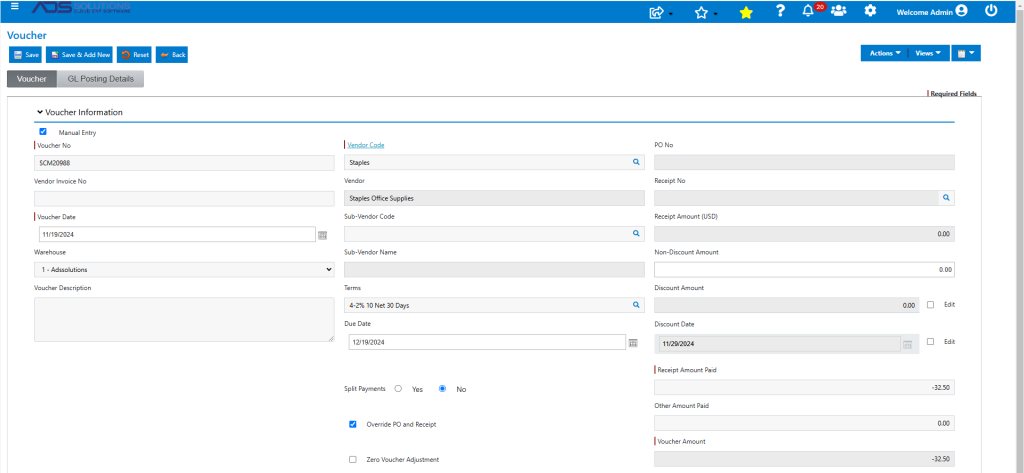
- Receive a credit of $32.50 from Vendor Staples for defective goods supplied.
- Go to Payables > List Vouchers > Add Voucher.
- Create a voucher SCM20988 for -$32.50 the amount of the Credit Memo.
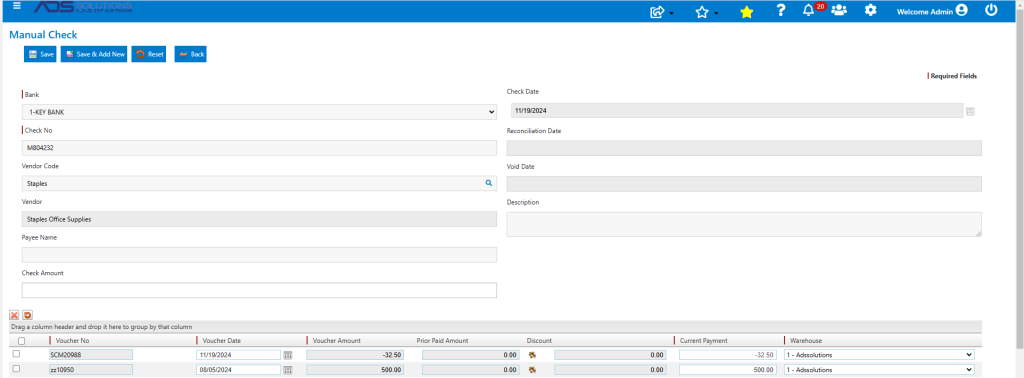
- Now create a check to pay vendor.
- The amount of the check will reflect the reduction due to the Credit Memo.
- GL Posting of Voucher for Credit Memo.

Check Received – Other Deposit
- You can deposit the check directly as an Other Deposit and select the Expense Account GL directly.
- This will both deposit the check and post it to the GL; however, you will not see the refund on the Vendor’s account.
- For example, receive a check of $50.00 from Vendor Staples for incorrect pricing with a discount not correctly applied.
- Go to General Ledger > Manage Bank Account > Bank Deposits > Create Bank Deposit.
- This will allow entry of the check and selection of the GL Accounts to which it should be posted.
- Debit will automatically be to the GL Account set up for the Bank, credit account would be, for example, to 555-00 Office Expense.
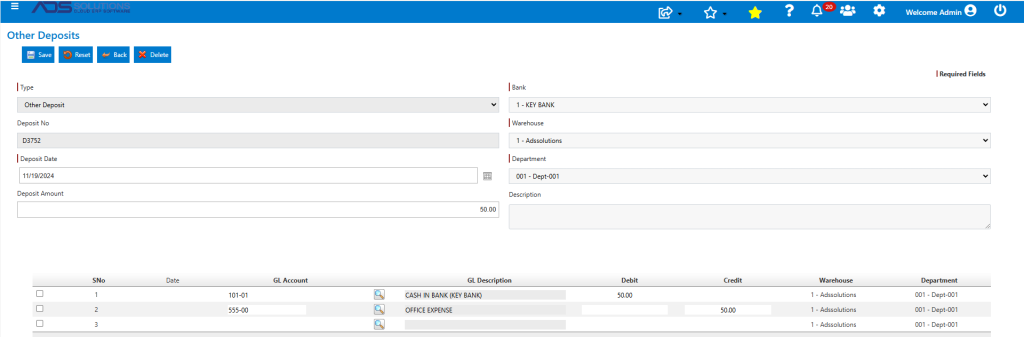
- This creates Deposit D3751 and posts to GL Accounts specified.
- GL Posting of Deposit.

- With this approach, though booked correctly to the GL, the refund will not show up on the Vouchers or Checks screen for this vendor.
Check Received – Voucher
- If you need to see the refund on the vendor account, then first make a negative voucher then pay the negative voucher with a negative manual check.
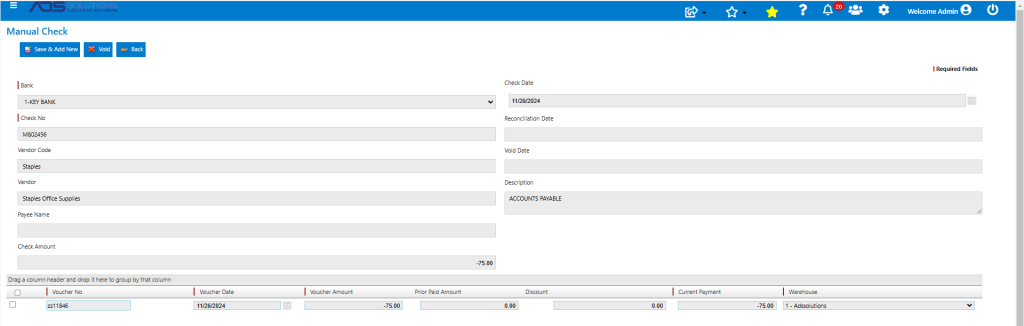
- For example, receive from Vendor Staples. check 802456 for $75.00 for goods delivered damaged.
- Create negative voucher ZZ11846 for -$75.00.
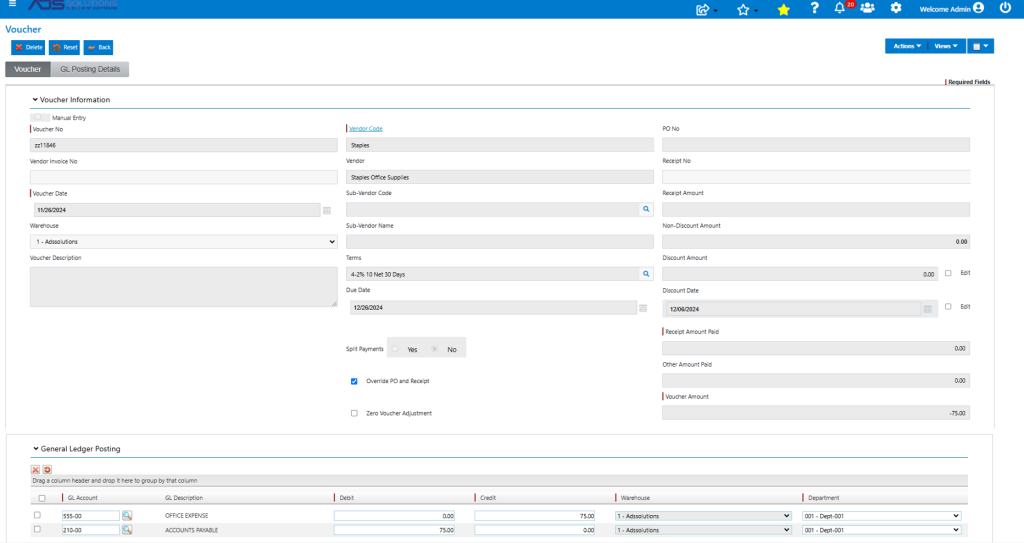
- Now create negative manual check M802456 to pay negative voucher.
- Note that the check 802456 from Staples will be physically deposited but not recorded in Accolent ERP. Instead, the posting of the check will be handled as a negative Manual Check M802456. The Manual Check will appear in the bank account and can be reconciled against the physical deposit of the Staples’ check.
- GL Posting of Voucher ZZ11846.

- This is the GL Posting of the Manual Check M802456.

- In this case both ZZ11846 and M802456*1 will show up on Vendor Staples.
