
Accolent ERP supports the typical Accounts Payable workflow in which one or more vouchers will be paid on a single check; however, if it is required that a voucher be paid on multiple checks, this can be accommodated. To partially pay a voucher, create the check which will default to paying the voucher in full, then edit the amount paid. This can also be accomplished by creating a manual check for the partial payment. The remaining balance on the voucher can then be paid in one or more subsequent checks.
Create Voucher
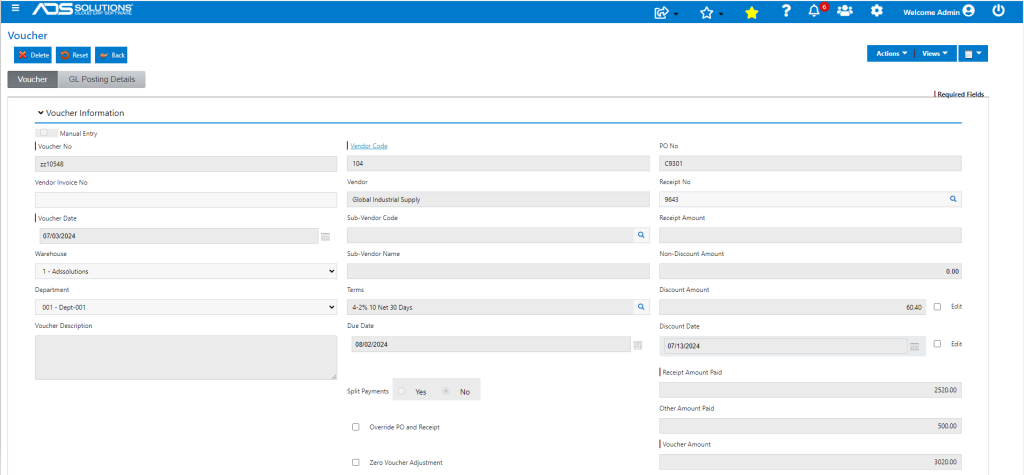
- Go to Payables > Vouchers > List Vouchers and Add Vouchers.
- Create voucher ZZ10548 for Vendor 104.
Create Check
- Go to Payables > Create Checks > Create Proposed Checks > List Proposed Checks.
- Select Voucher ZZ10548 for payment and create check.
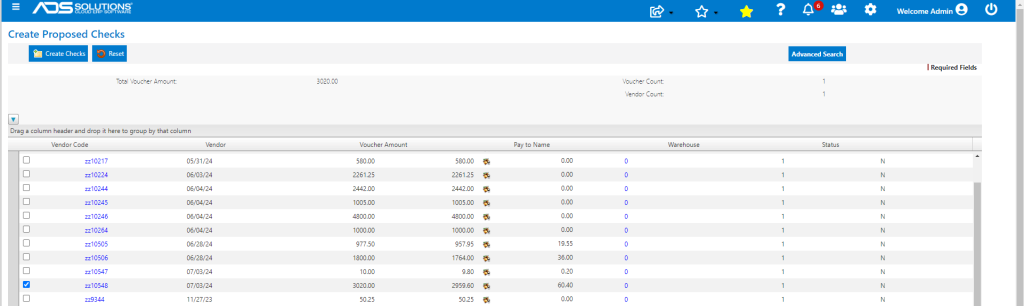
- Check will automatically be created for $2,959.60 which is the voucher amount of $3,020.00 less the applicable early payment discount of $60.40.
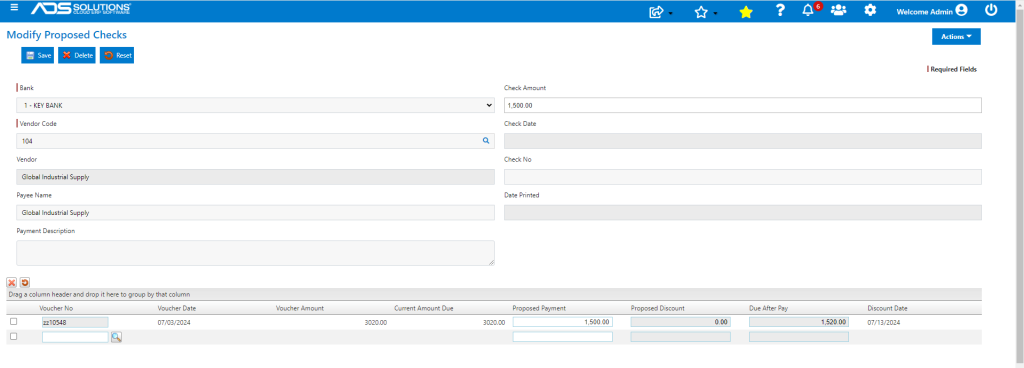
- Go to Payables > Create Checks > Create Proposed Checks > Modify Proposed Checks to reduce the amount paid to $1,500.00.
- Note that the Discount is now zero since this Voucher is only partially paid.
- Go to Payables > Create Checks > Create Proposed Checks > Print Proposed Checks to print check 18478199.
- Preview, print, check Printed OK? and Confirm.
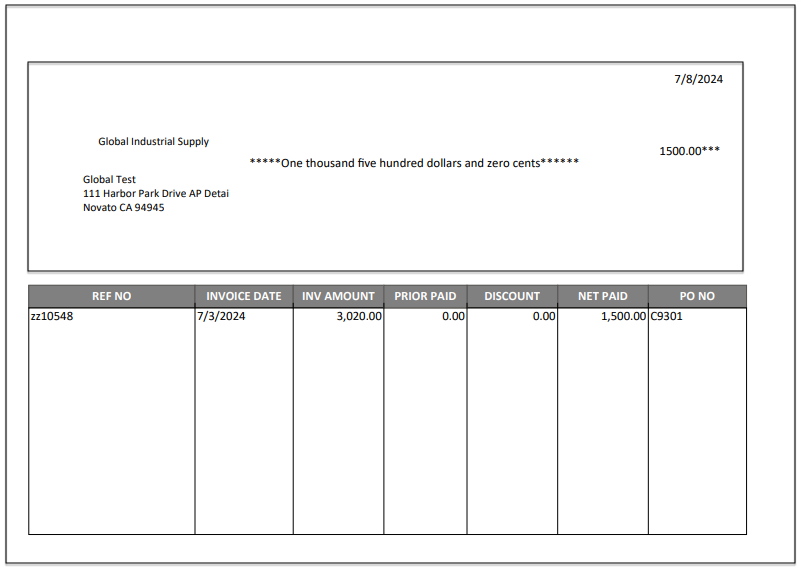
- The voucher ZZ10548 is partially paid.
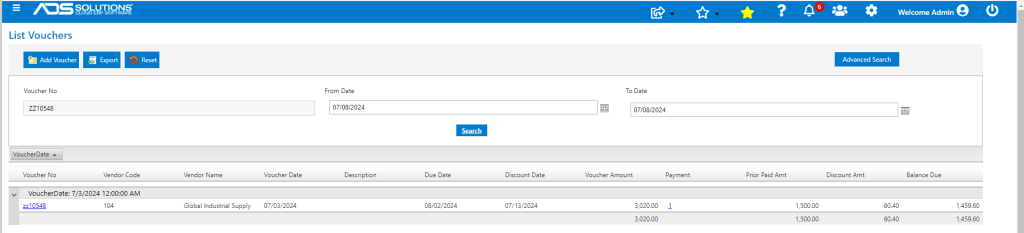
Create Check for Balance
- To pay the remainder of the voucher and take the payment discount, if applicable, go to Payables > Create Checks.
- Select ZZ10548 and click Create Checks.
- The balance of $1,520.00 net of the payment discount of $60.40 can now be paid.

- Print check and confirm.
- Voucher is paid in full.
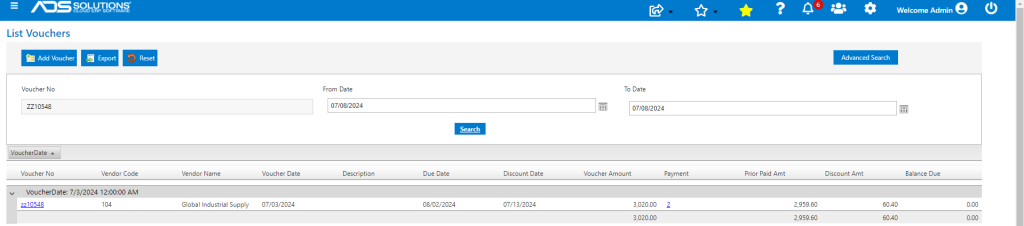
- These are the two payments on the voucher
