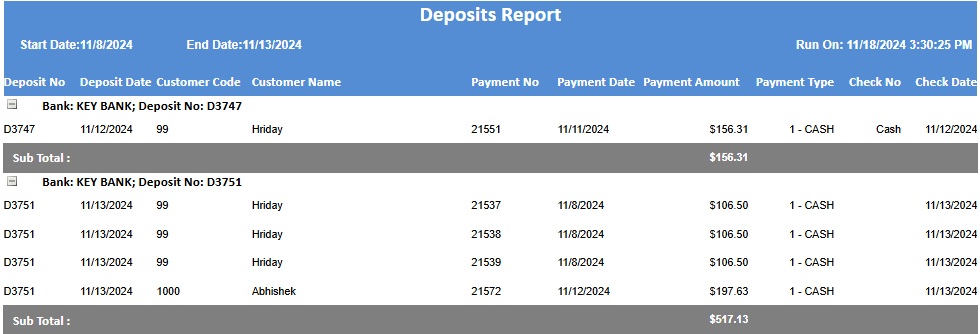
Accolent ERP provides the ability to select one or more payment receipts with the status of “Ready for Deposit”, that can then be combined to create a Bank Deposit. The Bank Deposit can then be physically deposited to the selected Bank and will show up on the list of deposits for that Bank in Accolent ERP.
Select Payment Receipts
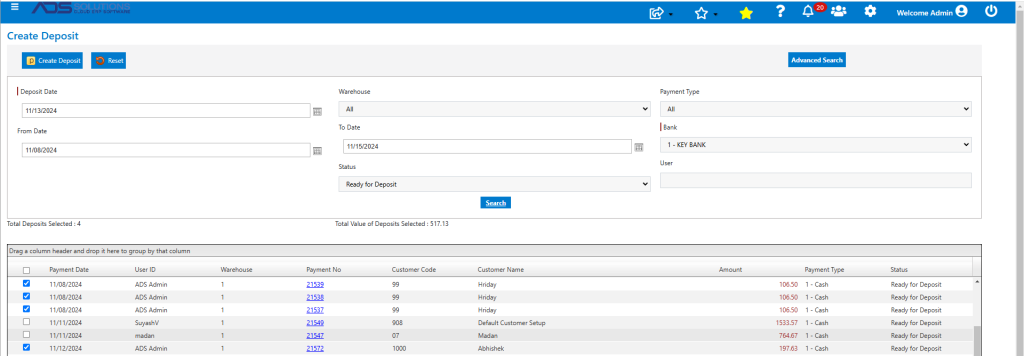
- Go to Receivables > Payment Receipts > Deposit Payment Receipts.
- Set filters and Search and screen will display payments with a status of Ready for Deposit.
- Select Bank to deposit payments to.
- Select payment receipts; the screen will present a running total of the Number of Payments Selected and the Total Value of the Deposit.
- In this example, 4 payments totaling $517.13.
Create Deposit
- When done, click Create Deposit to create a Bank Deposit for the selected bank.

Return to List Payment Receipts
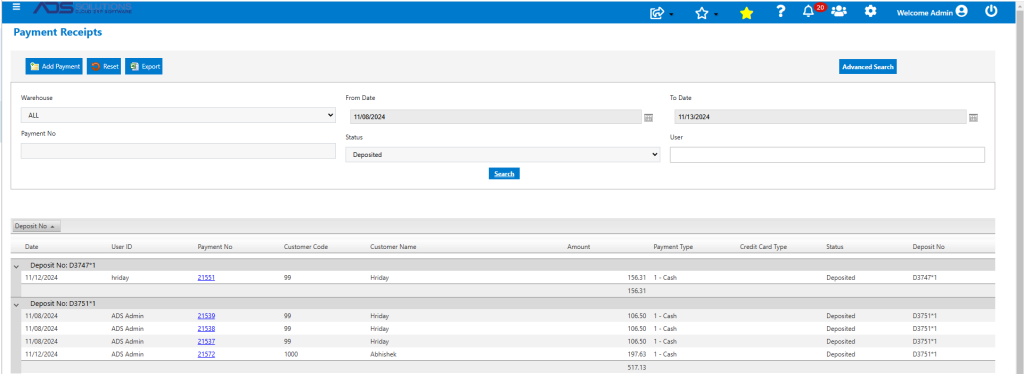
- The Payment Receipts screen will show the Bank Deposit created in the grid.
- Group the grid by Bank Deposit to see all the payments sub-totaled by Deposit.
- For example, the above payments were deposited as D3751*1.
Bank Deposit Report
- Go to Reports > Reports Center, run the Deposits report 8506 to see details of all deposits made.