
Accolent ERP allows for backdating manual checks, or computer checks. Create the manual check and specify which voucher or vouchers are to be paid by this check. The Check Date (which prints on the check) may be backdated, this is true for computer checks too. Note that the Check Date cannot be earlier than the dates of any of the vouchers paid on the check.
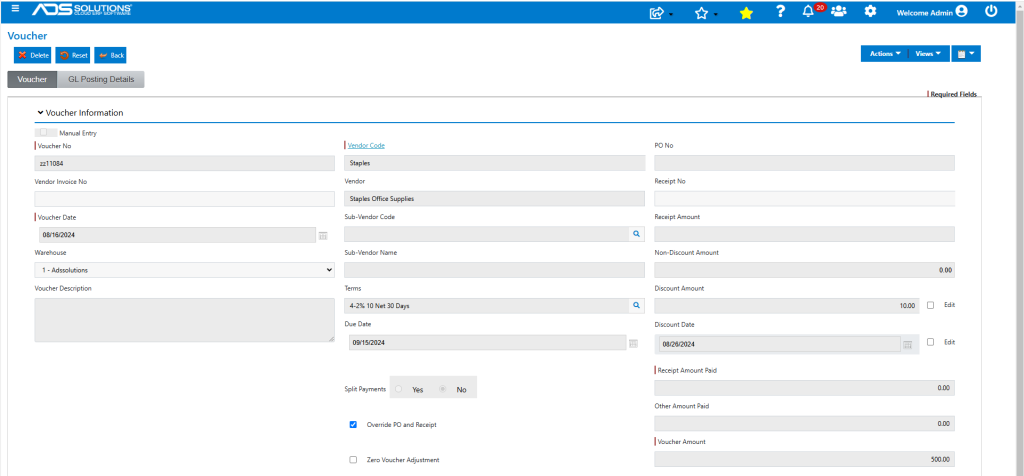
Existing Voucher
- Look up an existing Voucher ZZ11084, which was due on 9/15/2024.
- The voucher is considerably overdue.
Create Manual Check
- Now create Manual Check M803211 to pay Voucher ZZ11084.
- Backdate Check Date to 10/15/2024.
- Note that discount will be calculated based on the (backdated) Check Date and Terms.
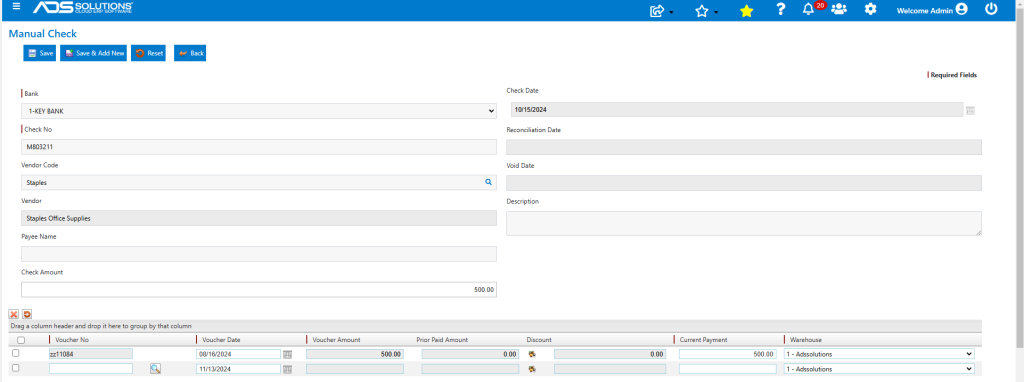
- Save to create the check.
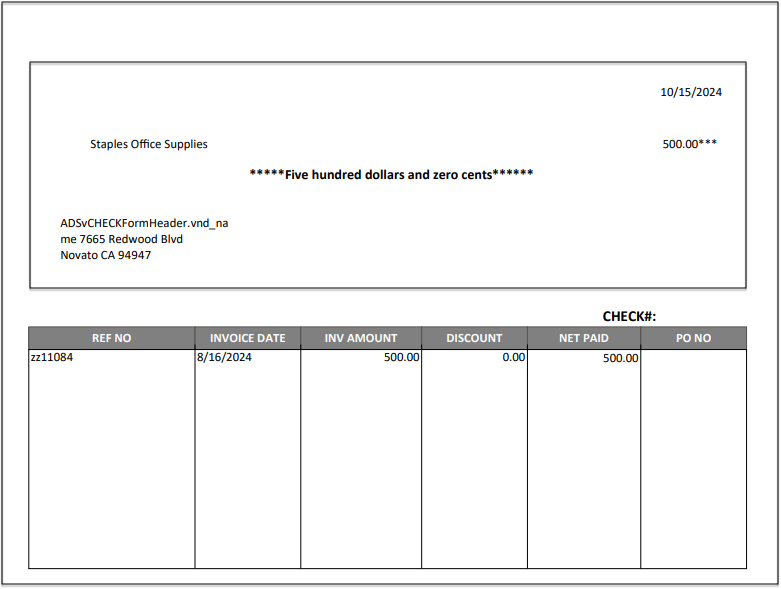
- Created check M803211 with backdated date 10/15/2024.

General Ledger Effect
- To backdate any transaction, the GL Fiscal Period the transaction is being backdated to should not be closed.
- Go to General Ledger > Manage General Ledger > Evaluate Transactions.
- Look up backdated date (10/15/2024) range and select Cash Disbursements Journal.
- This is the backdated GL Posting of the manual check.

- The system will automatically update the backdated month and all subsequent months’ balances to reflect the backdated transaction.