Accolent ERP calculates discounts on Vouchers based on the Terms entered on the Vendor. Different Terms may be selected that will apply only to that Voucher and will not update the Vendor. In addition, Discount Amount and Discount Date may be directly edited on the Voucher irrespective of Terms. Once the Voucher is saved, the Discount Amount cannot be edited; however, the Discount Date may be “stretched” to extend the validity of the discount at the time of creating a check to pay the Voucher.
Create new Voucher
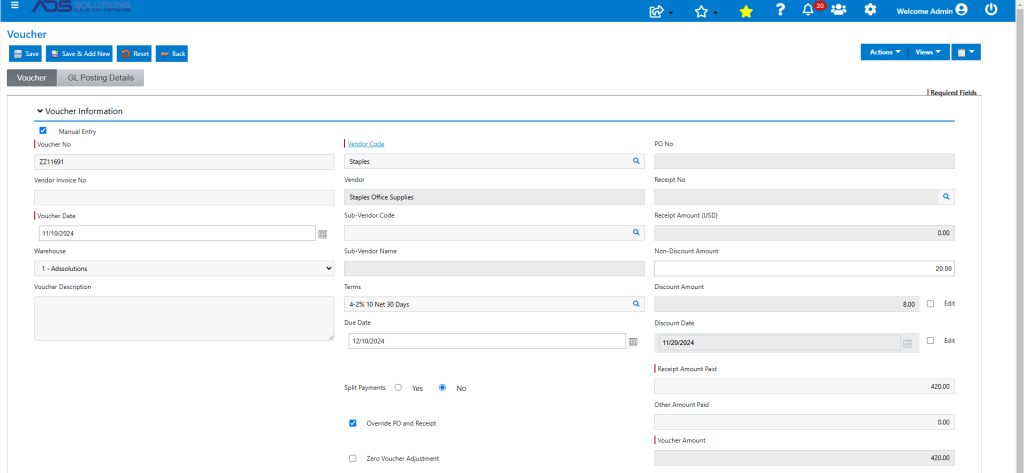
- Create a new Voucher ZZ11690 for Vendor Staples.
- The Voucher Amount is $420.00.
- The Voucher Date is 11/10/2024.
- Enter the Non-Discount Amount (i.e., amount not subject to discount) of $20.
- The Terms code is 4-2% 10 Net 30 Days.
- The Discount Amount is calculated as $8.00.
- The Discount Date is calculated as 11/20/2024.
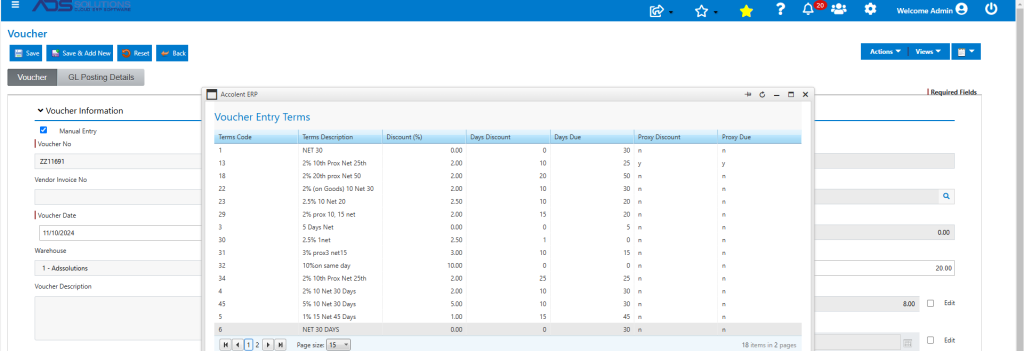
- Different Terms may be selected for this Voucher, if desired, that will recalculate the Discount Amount and Discount Date.
- Any different Terms selected will apply only for this Voucher will not change the default Terms on the Vendor.
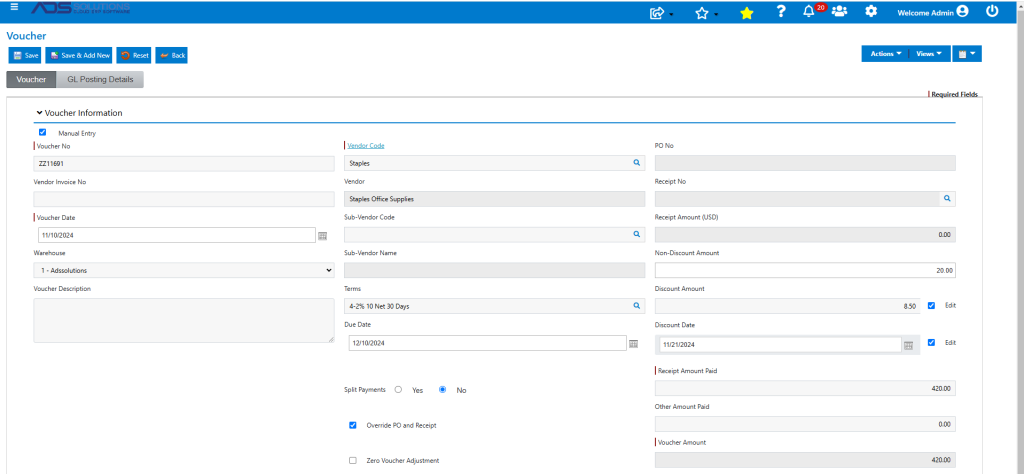
- In addition, it is also possible to select the Edit checkboxes that allow users to override the calculations, based on Terms, of Discount Amount and Discount Date.
- For example, edit Discount Amount from $8.00 to $8.50 and Discount Date to 11/21/2024.
Save the Voucher
- Once saved, the Voucher’s Discount Amount may no longer be edited.
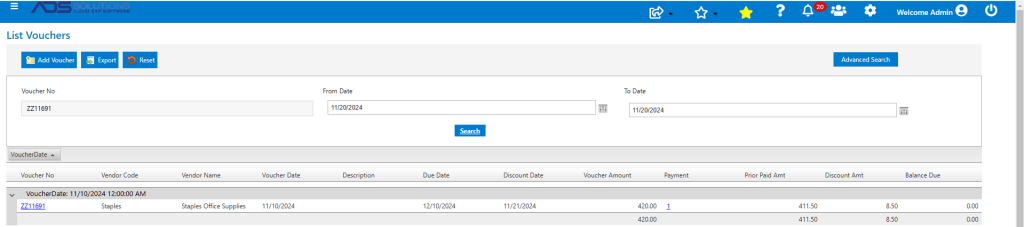
- On the List Vouchers screen the Voucher is shown with the edited Discount Amount and Discount Date.
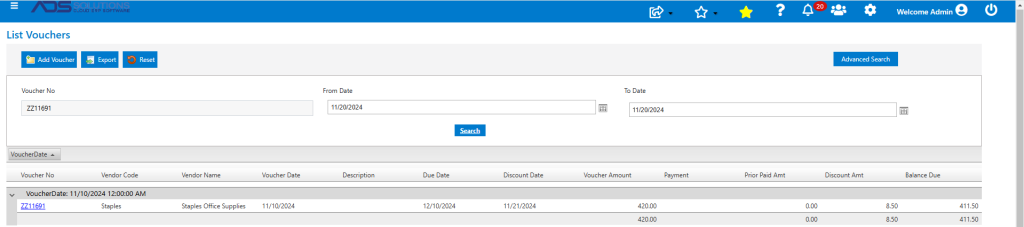
Create a Check to Pay the Voucher
- Go to Payables > Create Checks > Create Proposed Checks > List Proposed Checks.
- Lists voucher as $420.00, with discount of $8.50.
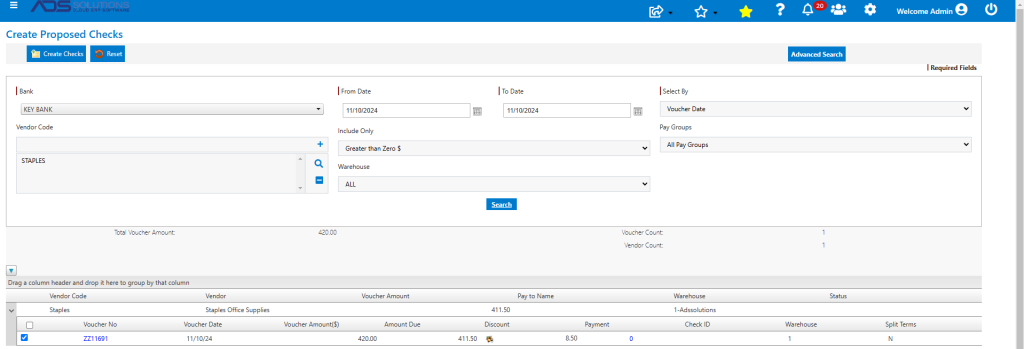
- Select Voucher ZZ11691 to pay.
- When creating the check, the Discount Amount cannot be changed (since it was previously edited), but the Discount Date may be changed, if needed.
- To “stretch” the Discount Date, click on the Discount icon and edit the pop-up.
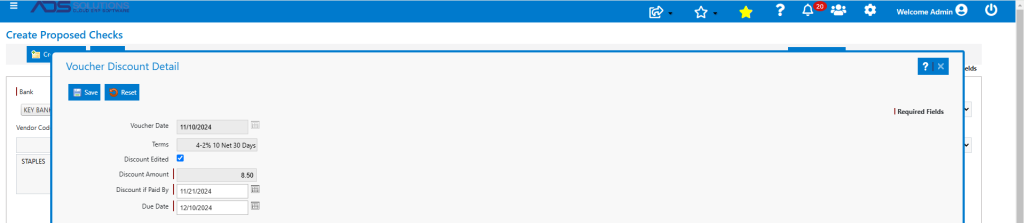
- The effect of “stretching’ the Discount Date is to enable a previously expired discount to be reinstated and claimed.
- When done Save the Discount pop-up.
- Then select the Voucher and click Create Checks.
- From Payables > Create Checks > Create Proposed Checks > Print Proposed Checks, select check and click on Generate Checks.
- Then print and confirm the check.
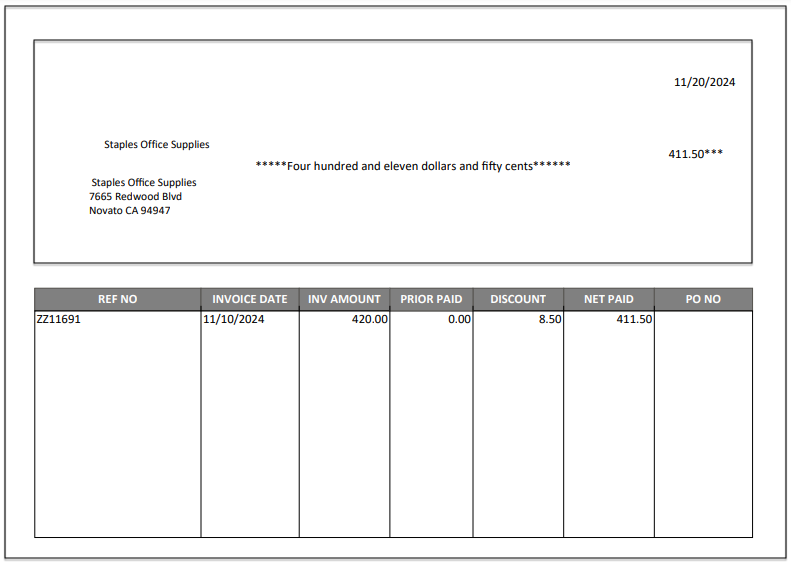
Voucher is Paid
- The Voucher for $420.00 with a discount of $8.50 is paid with a net payment of $411.50.