
The General Ledger Chart of Accounts is the core of the Accolent ERP accounting system. Understanding how the GL Chart of Accounts works and how to set it up should be one of the first steps taken in setting up Accolent ERP.
GL Chart of Accounts
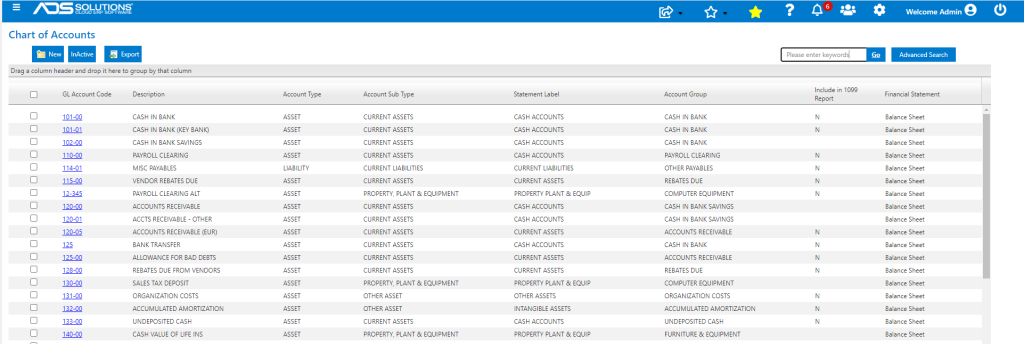
- To see the GL Chart of Accounts go to GL > Chart of Accounts > List Accounts.
- Accolent ERP is delivered with a default starting GL Chart of Accounts.
- The GL Chart of Accounts follows a standard accounting sequence in its use of account numbers and account types.
- It first lists GL Accounts in the balance sheet order of Assets, Liabilities, then Capital accounts.
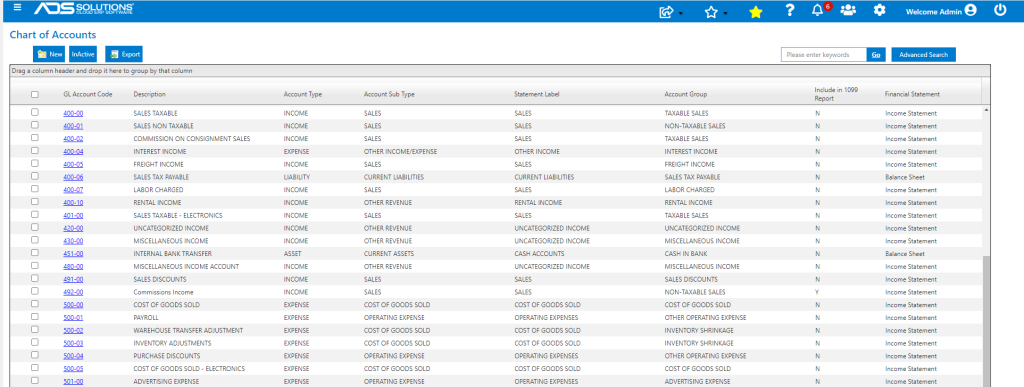
- Then GL Accounts in the Income Statement order of Sales (Income), Cost of Goods Sold, Operating Expenses, and Other Income/Expense.
GL Account Codes
- Each GL Account is identified by an account number, the GL Account Code.
- GL Account Codes can be any length (but six characters is the default) and can use numbers and dashes (e.g., 100-00, 1560-2, 186000).
- The default configuration is six characters, but you can use three, four, or five only if desired.
- GL Accounts should be numbered sequentially corresponding to the order indicated above (e.g., Assets could be numbered in the 100000s, Liabilities in 200000s, Capital in the 300000s, Income in the 400000s and Expenses in the 500000s).
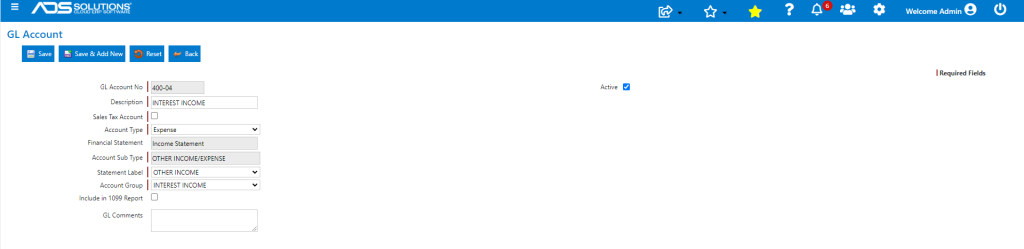
- The GL Account Code is displayed as a blue hyperlink; click on the hyperlink to get to the setup page to define the Description, Account Type, Financial Statement, Statement Label, and Account Group.
Creating/Modifying GL Accounts
- First decide on the GL Accounts you want to use.
- Read the Balance Sheet, Income Statement, and Warehouse Defaults wikis before deciding on the GL Chart of Accounts pattern.
- To create the GL Chart of Account you can either modify the delivered default GL Accounts and add new GL Accounts, or we can delete the default GL Chart of Accounts completely and you can import/construct your own.
- Note that GL Accounts may not be deleted if there are transactions already posted to them.
- The GL Chart of Accounts will minimally require GL Accounts to be defined for each of the Warehouse GL Defaults so that transactions created by invoicing, purchasing, receivables, payables, cash disbursements and general ledger adjustments have somewhere to post to.
- Define Account Groups based on financial statements.
Making a GL Account Inactive
- If a GL Account has transactions posted to it, it may not be deleted; instead, you may want to make the GL Account Inactive.
- Note that GL Accounts may be made inactive as long as they do not have existing balances.
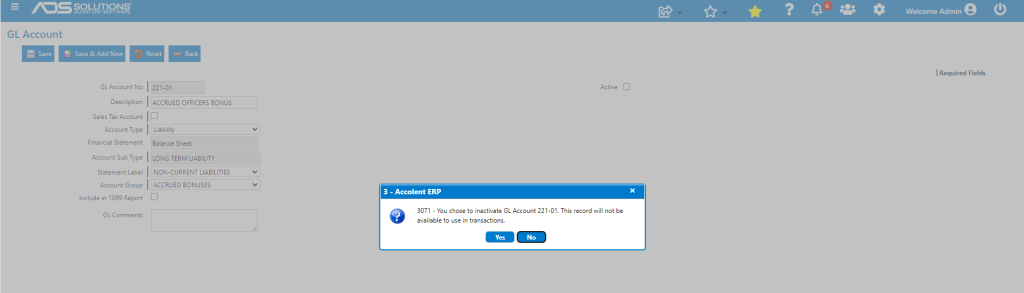
- Go to the GL Chart of Accounts and select the GL Account; uncheck the Active button.
- You will be asked to confirm making the GL Account Inactive.
- To see Inactive GL Accounts, use the Advanced Search for Inactive.
