Accolent ERP allows the user to create a negative Accounts Payable (“AP”) balance in a vendor’s account, if necessary. This can be done by creating a manual check to either (1) overpay an existing voucher or (2) to create and pay a zero voucher. Either of these approaches will create the desired negative AP balance. A negative AP balance may be necessary to reflect an overpayment, such as, for example, if a payment made outside Accolent ERP by ACH or wire is made twice in error. To prevent errors, this kind of adjusting transaction will only work with a manual check.
Overpay an Existing Voucher
- Assume a duplicate payment of $231.76 had been made on vendor 104 in error.
- To record this, an AP balance of -$231.76 needs to be entered for vendor 104.
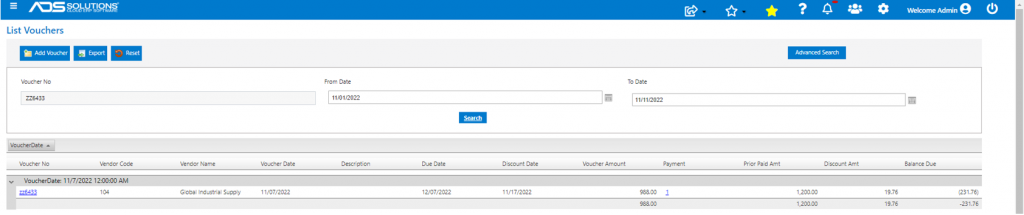
- Look up existing voucher ZZ6433 for vendor 104 of $988.
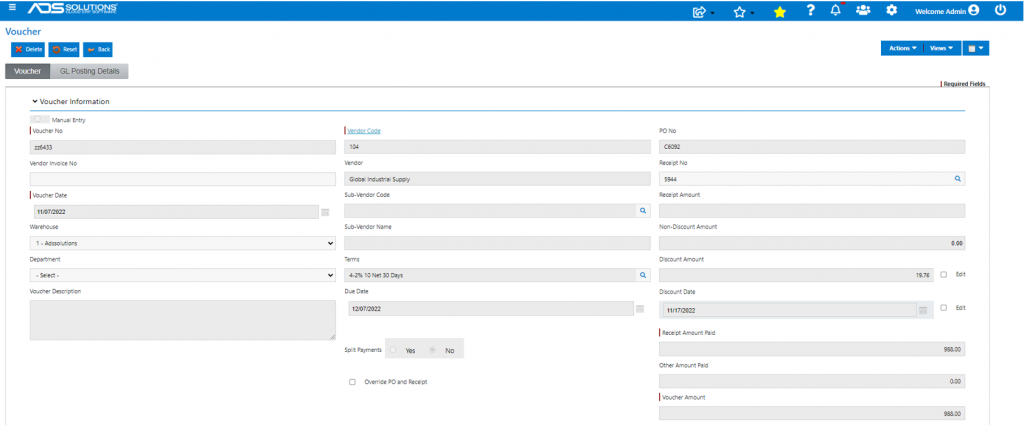
- Note that the voucher, if paid within terms, will generate a $19.76 payment discount.
- To create the desired negative AP balance, create a check for the sum of $231.76 plus the voucher amount of $988 net of the discount of $19.76 or $1,200.
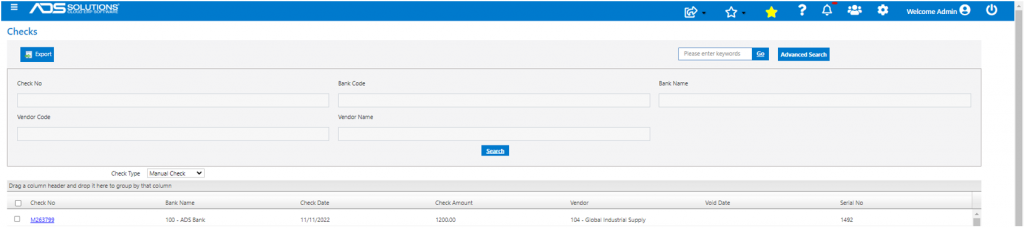
- Create Manual Check M263799 for $1,200.
- The Manual Check for $1,200 will overpay the Voucher for $988 leaving the desired negative AP balance.
- Note that the check amount and the sum of the current payments for each line must match.
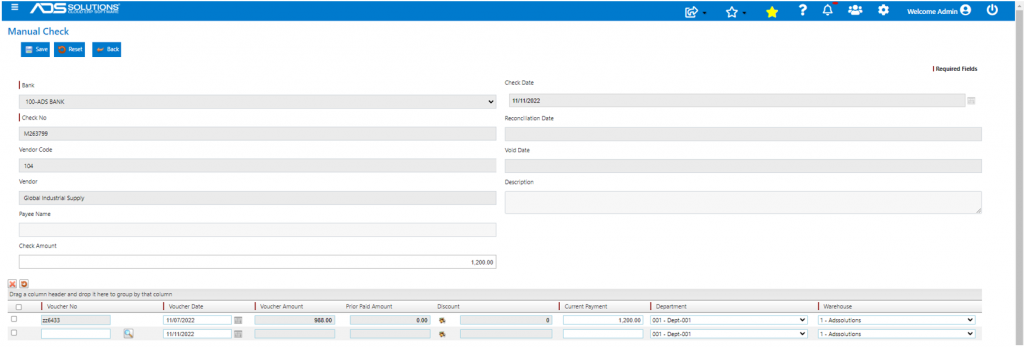
- The system gives a soft warning that the payment amount exceeds the voucher amount.

- Click Yes to create the manual check for $1,200.
- Look up voucher ZZ6433 – shows the payment and the negative AP balance on the voucher.
- The negative AP balance can then be used to offset other invoices from this vendor.
Create a Zero Voucher
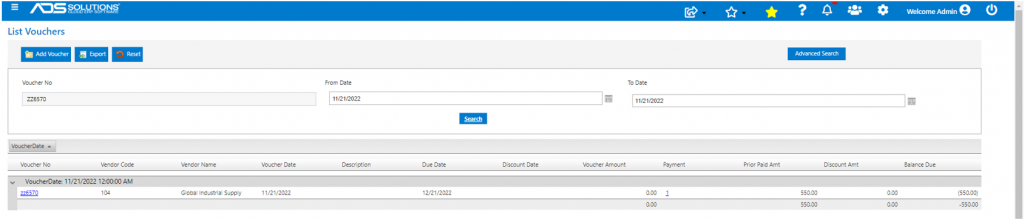
- Another way to achieve a negative AP balance of (say) -$550, is through a zero voucher – this might be easier to track since it won’t involve overpaying another unrelated voucher.
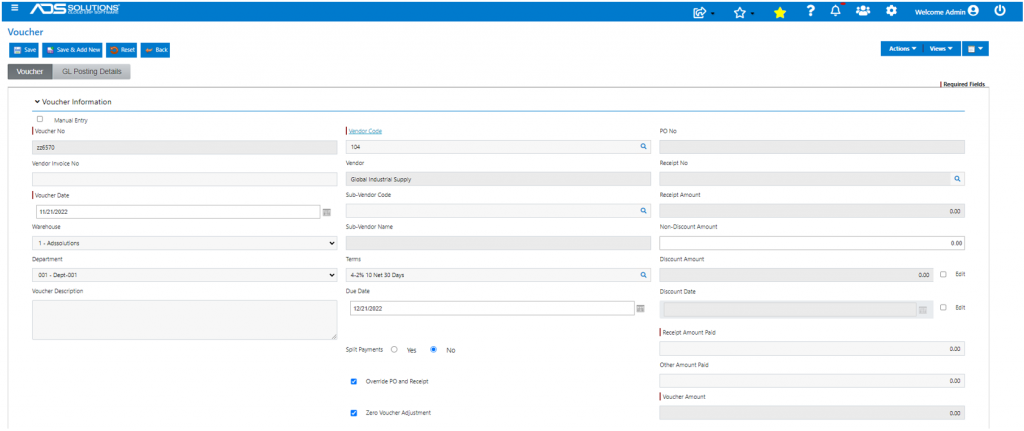
- Create voucher ZZ6570 for vendor 104.
- Select the Override PO and Receipt checkbox.
- Select the Zero Voucher Adjustment checkbox – this distinguishes this voucher from another paid voucher.
- Create the zero amount voucher.
- Then create manual check M263800 to record a duplicate payment of $550.
- Because of the Zero Voucher Adjustment flag selected, voucher ZZ6570 will be able to be selected.
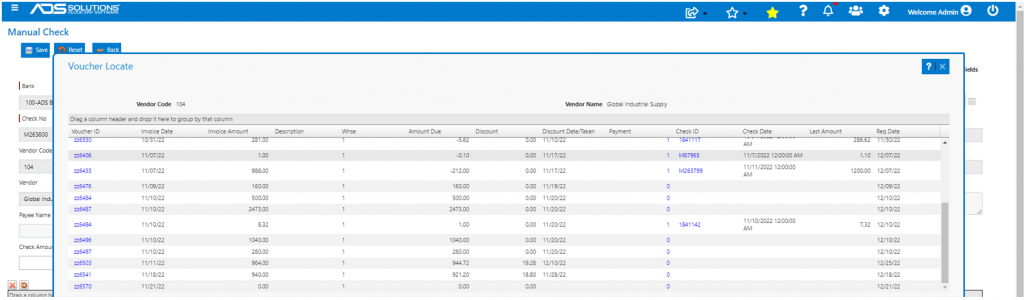
- Create manual check.
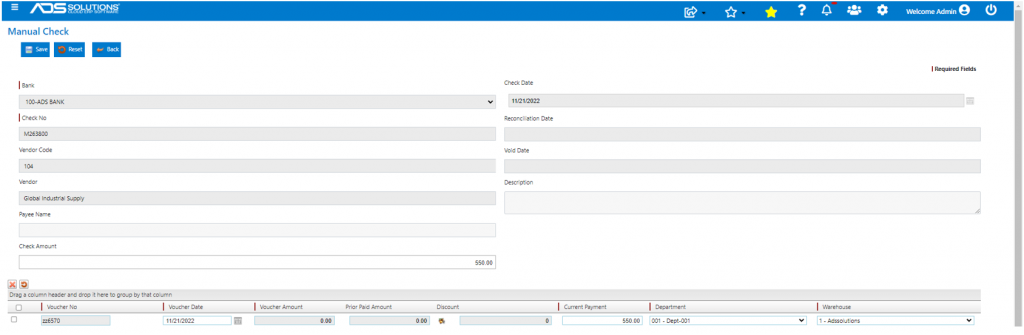
- System again gives a soft warning that payment exceeds voucher – select Yes to continue.
- Create the check.
- This is the negative AP balance created on the voucher ZZ6570 for vendor 104.